Hits on Date
The display of hits on the date the following information:
- At the top of the screen is the data from the developer, such as: record, name, location, date, day of the week, scale, class, time and schedule.
- The Calculation of Adjustments screen consists of two grids. The first one contains the information related to the marking (Date, time, clock, function, origin, use, etc.). In the second grid the calculation result is shown. The values of the two grids can be changed by the user.
- In the query can be consulted the original calculation of the hours, in detail. Before the query is necessary to give a click on the button find out to get the result.
Information about Assessment and Direction are enabled from the respective assignment.
Through the click with the right mouse button on the calculation grid developer can access several options: history, schedules, hours, Bank hits hits of balances, consultation of markings, General information of the verification and the calculator. When you select one of these items, will open its window with the data of the selected developer and already with a suggested date (for fabrics that have Data fields). This date shall be that on which the arrangements are being made. All of these options, except the >Calculator>, have shortcut keys, which are shown in the menu, as the picture below:
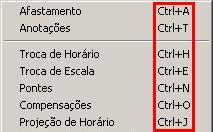
You can also access this menu via the Other Screens, whose shortcut key is Alt + Z.
Calculation Tab
Grade Grid This can include grid, change, or delete appointments.
A marking shall consist of the Date, Hour , Clock, Function, Source and Use.
To delete a mark, simply place the cursor on it and press the Ctrl + From.
Using the module of Control point and Cafeteria-1,510 Ordinance, the column >Rationale> is called >code> Justification, and the column >observation> of >Justification>. The filling of these columns become mandatory for insertion/modification of typed clocking events and also for deletion of markings.
With this module you cannot change electronic markings.
When there is already typed clocking events on certain date, the system will be the only rationale when making any change in the clocking events of this date.
Situation Tests Grid
In this grid you can include, change or delete the cleared situations. You can access the fields Amount, Situation and Reason. The field description is automatically displayed.
To exclude a situation, simply position the cursor on it and press the keys Ctrl + From.
The markings, and recently are listed in the grid by insertion order.
If the company uses Apportionment by Cost Center, the apportionments will consist of according to the period of the Cost Center registered in Company> C. Cost.
To enable the Verified field in the hit screen, you must select the field Control of Verified Days in Calculations> Calculation> Definitions> General. After you enable the routine, you may set the day as verified by the user, to confirm any arrangement that will stay with the exception, for example.
The field Checked will also be shown on the screen of Individual Arrangements, in respect of Verification of the contributor, but only for consultation.
In the calculation of integration there is a consistency to send a message to the log, when the developer have some day with exception that was not verified. This contributor will not be calculated.
There is a consistency in screen of hits on the date, when the day is marked as checked. If the user attempts to change, the system will show a message saying that the day had been treated, and that if changed will miss the mark. You will then be asked if you want to continue. If you continue to take the check mark out.
Days checked are considered as days set. The system will write to the R066APU table in the CodUsu and To use the user code that set the day checked. If the day is successful, but the field is not marked Verified, then the user code will be saved only in the field CodUsu. This will influence the "1" type calculation. When recalculating the calculation, using the Reallocate Tags = "N" e Undo Score = "N", the days checked will not be recalculated.
After the change in clocking events or situations, you can use the buttons:
Undo You can return to the previous calculation by means of this button.
Important
The button Undo can not return to the original calculation after using the button Record.
Investigate
Renders the calculation of this date on the basis of the markings, but the result is not recorded. Will be undone all the changes made in the situations.
Record
Processes and writes the new calculation. To realize a change in markings, emits a message asking if the user wants to process the day or just record the clocking events without changing situations.
The button Undo can not return to the previous calculation after using the button Record.
Apu / Grav
This button is intended to ascertain and record the hits by clicking a single button. He has the same behavior as clicking the button select and after the Burn.
Through the screen General Settings there is the possibility to enable / disable the button Apu / Grav screen on the date.
List The button List only enabled when a template is entered in the field Report to Screenshots, of the General Calculation Definitions, and if the active user is allowed to run the template. Can be any model of control report and Cafeteria. By clicking on the button will be shown the model entry screen to be listed from the screen of hits.
List. Portaria (Only with module Control of Point and Dining room - Portaria 1.510)
This button will only be enabled when a template is entered in the Report, General Assignments Definitions, Tags tab, and if the active user has permission to run the template. Can be informed any model of Tax category. By clicking on the button will be shown the model entry screen to be listed from the screen of hits.
Other Screens
Allows you to access the same menu that is shown when you click with the right mouse button on the calculation of a contributor.
Testing Calculation
Fires the test feature in determining the system, which works as follows: from the developer/current date, the system covering all employees and dates that were selected in the screen of hits. For each date it performs the calculation and compares the result with the previous result. If the data has changed the test execution is stopped and a message is displayed warning you of the change in calculation on this date. This feature was initially created to assist in the development tests, but may be used in tests in the calculation rules changes.
Before using this feature, make sure that the rule of calculation does not have any SQL command that can change the database (UPDATE, DELETE, etc.).
Move Markup To move overnight clocking events s, click this button.
So that the button is enabled, the user has all permissions on the screen of hits, as when moving the user clocking events will be excluding/including markings. Must have:
- Permission to insert/modify/delete records in the parent screen, which can be >Hit screen Collaborators> or >Justify> Adjustments.
- Permission to insert/modify/delete records in the R066APU table.
- The active calculation must have a period of adjustment.
Total Assessment Guide
This guide is only enabled when in the MO Appointment Apportionment in the company register it is indicated that the apportionment by location or cost center routine is used.
Consultation Guide
On this tab you can consult the detailed calculation of the hours. How many extra hours were carried out before work, after, at the entrance, the meal. If the absence is at the entrance of the first intermediate part of the day, etc. The values of this screen are in memory, so it is necessary to check the day before doing this query.
 Veja também:
 English
 Español


