Virtual Credentials
Virtual credentials are an alternative to using ID cards and they can be issued:
- In SAMSenior, to issue a credential with a QR Code.
- In SAMCard, to issue a QR Code or Bluetooth credential.
How do I issue a virtual credential in SAMSenior?
The issuance involves:
 Configure SAMSenior
In SAMSenior:
- In Hardware > Drivers, register a driver for the QR Code reading, where the Manufacturer must integrate directly with the SAMSenior SDK.
- In Hardware > Device, register a device connected to the Driver registered in step 1.
- In Access structures > Roles, configure the role so that in the Screen Permissions panel, the Virtual credential option is checked in the View column.
Generating the virtual credential
Note
This method of generating credentials only works with the smartphone being online.
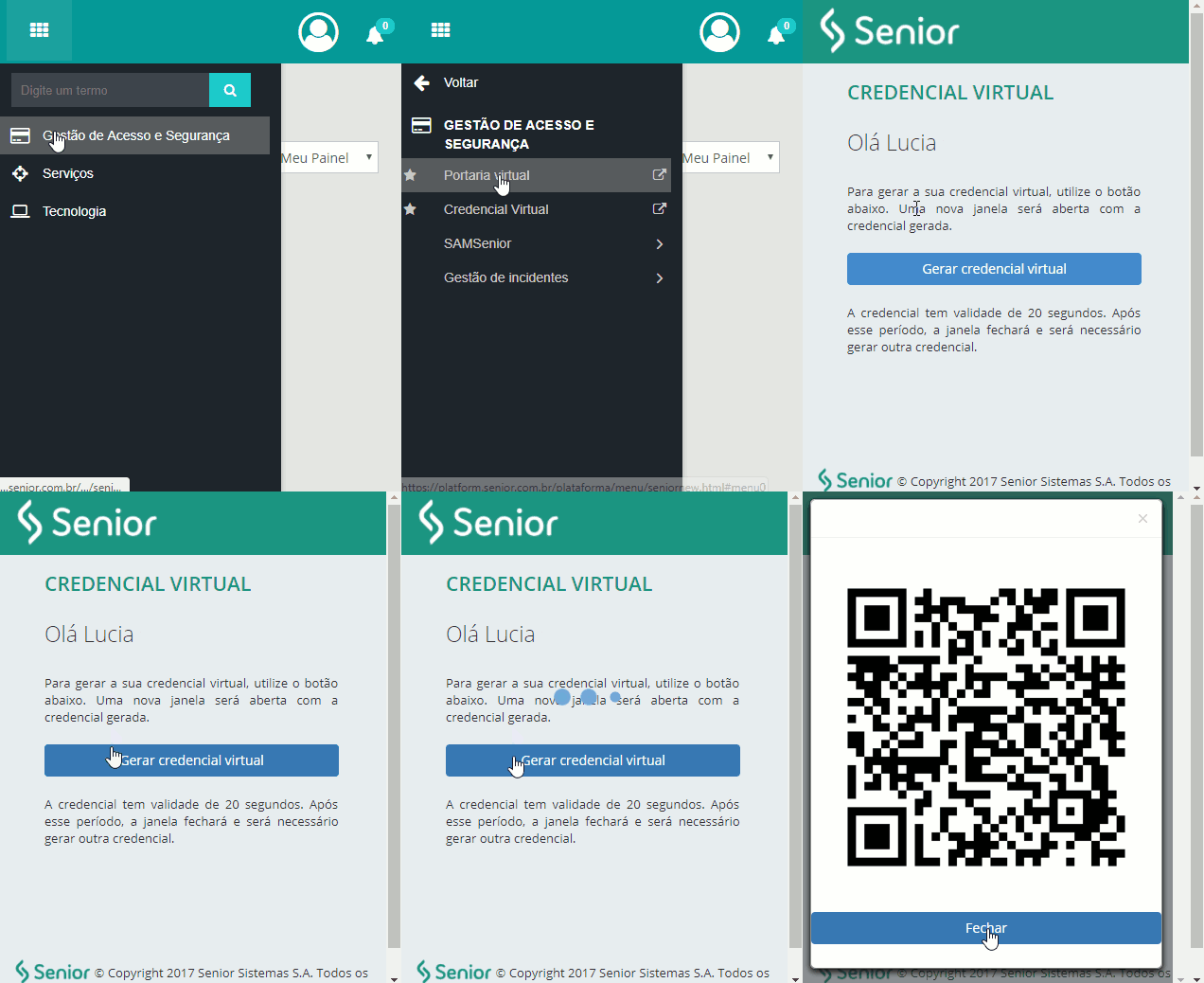
- In your smartphone, access senior X Platform and in the menu go to Access Control and Security Management > Virtual Credential.
- Click the Generate virtual credential button.
- The QR Code is generated.
- Within 20 seconds, let the device read the QR Code to grant the access.
How do I issue a virtual credential in SAMCard?
The issuance of virtual credentials through the app involves two steps:
Configure SAMSenior
SAMCard provides two ways to use virtual credentials: Bluetooth and QR Code. Each one requires different configurations:
Configure SAMSenior to use Bluetooth
- In Hardware > Drivers, register a driver with the "Head" Manufacturer.
- In Hardware > Devices:
- register a device connected to the Head Driver.
- afterwards, click on it in the Hierarchy panel and go to Add sublevel > Reader.
- The reader registration is displayed:
- the Technology field must be set as "Bluetooth".
- the Identifier field must be filled in with the information provided by Head.
- In Access structures > Roles, configure the role so that in the Screen Permissions panel, the Virtual credential option is checked in the View column.
Configure SAMSenior to use QR Code
In SAMSenior:
- In Hardware > Drivers, register a driver for the QR Code reading, where the Manufacturer must integrate directly with the SAMSenior SDK.
- In Hardware > Device, register a device connected to the Driver registered in step 1.
- In Access structures > Roles, configure the role so that in the Screen Permissions panel, the Virtual credential option is checked in the View column.
Generate the credential via app
In the application, the access can be made either with the QR Code or via Bluetooth, depending on the devices used.
To use it, download SAMCard:


Access the application and follow the steps corresponding to the type of credential you need:
Note
If the user has no access schedule in the day, accessing locations with the application will not be possible.
Generate the credential via Bluetooth
- Select the Bluetooth option.
- All devices found are displayed, but each device will only be displayed as active if it is in a location that the current user can access.
- Click the padlock icon corresponding to the location that you want to access.
- Wait for the access to be granted and enter the location.

Generate the credential with QR Code
- Select the QR Code option.
- Click the access code generation area.
- Within 20 seconds, let the device read the QR Code to grant the access.

Watch the SAMCard utilization tutorial video:
How do I consult the virtual credential accesses?
- Go to SAMSenior > Consultations > Access events.
- Accesses via virtual credentials are displayed in the Credential column as "Bluetooth" or "QR Code".
Notes
- The event time is based on the smartphone time (but the access is only granted if the smartphone is in the same timeslot as the access device).
- When using SAMCard, if the smartphone is online, information are obtained from SAMSenior. If it is offline, they are obtained from the application itself considering the last time the smartphone was online.





