Help for new employees - Colabbe
If you received an invitation to join your new company through Colabbe, this help page is for you!
Here you can get answers to your questions and information on what you need to know to complete the pre-employment invitation and complete your on boarding in the company.
Frequently Asked Questions
Invitation Link / Security Code
 My invitation link is asking for a security code. What should I do?
Colabbe system always requires a security code by accessing the pre-hiring invitation link. You need to enter the code to validate the link before fulfilling.
When you access the invitation link, you must choose between one of two ways to receive the security code: by email or by text message on your cell phone.
Then you need to enter the received code and validate it. Only after validating the code will you have access to fill out the invitation.
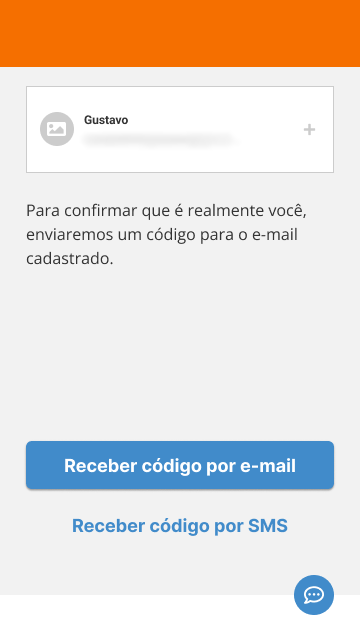
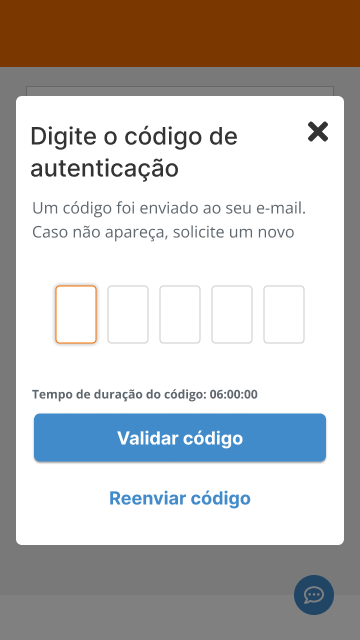
Once completed, you can finish the invitation and send it to the company.
Why do I need to enter a security code to access the invitation link?
The security code is an important step in information security.
By requiring the unique security code, we guarantee the identity and legitimacy of the data. Thus, we make the process safer for candidates and new employees who are joining the company.
I haven't received the security code for the invitation link. What should I do?
You can choose to receive the security code for your invitation link by email or by text message on your cell phone. Depending on the option chosen, the code will be sent to the email or the number you provided to the company's HR.
The security code may take a few minutes to be received. If you don't receive the code, you can click on resend code to generate a new one and try again:
If you still don't receive the code, there are a few things you can check:
If you have chosen to receive it by email:
- Check if the message has ended up in the junk mail box (Spam) of your email server.
- Check for instabilities or rules that are preventing the message from reaching your email server.
If you have chosen to receive it by text message:
- Make sure you are in a coverage area with sufficient network signal to receive text messages.
The security code I received has expired. What should I do?
Security codes are only valid for a certain period of time.
If your code is expired when you try to use it, you can click on resend code to generate a new one and try inserting it again:
My session expired while I was filling out the invitation. What should I do?
A session is how long the invitation link will be active after you generate and enter the security code.
After you enter the code and start filling out the invitation, the session will have a maximum duration of 6 hours. If the session expires before you send the completed invitation, you will need to generate a new security code.
The session duration reinforces the security of your data, as it prevents your invitation link from being active for longer than necessary.
Filling out the invitation
How should I complete the required information in the pre-employment invitation?
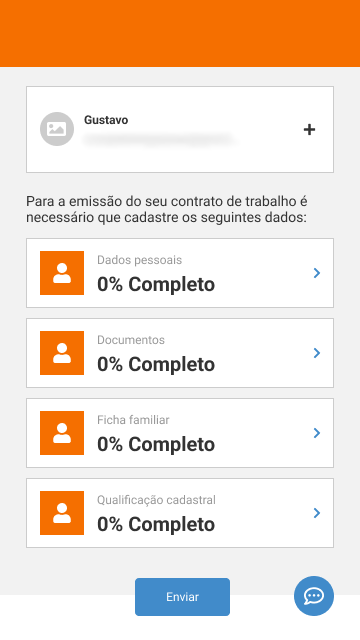
After validating the invitation link security code, you will see the screen for filling out the invitation. It is divided into sections to group the information you need to fill in:
This information is necessary so the company can prepare your employment contract and continue your onboarding process.
Typically, the pre-employment invitation has the tabs below. The tabs presented and the information requested may vary, as your company may choose to hide or customize some fields.
- Personal data: this is your basic information — such as your name, date of birth, address, telephones, e-mails, etc.
- Documents: your personal documents numbers. If the company requires you to attach images to these documents, these images must be in GIF, PNG, JPG, and PDF formats and no larger than 20MB. It is also possible to view PDF files quickly and assertively through a preview generated when the file is loaded or when the page is loaded in the preview, allowing to validate the information in it.
- Family record: the information about your dependents, including personal data and documents of these people.
- Registration qualification: allows you to enter data from councils and other organizations of regulated professions that apply to your position or role.
Enter each of the sections and fill out all the requested information. If you do not know what to enter in any of the requested fields, you can check the guidance on filling in the field by clicking on the information icon — —, or you can click on the chat icon and send a message directly to HR and get your questions answered.
After you fill out the entire invitation and send it back, the company's HR will have to validate the information.
Important
- To proceed with pre-hiring, all invitation tabs must have 100% of the information filled in.
- Remember to save information as you fill out the invitation. It avoids losing progress while completing it.
- Want to contact the company while filling out the invitation? Use the chat icon — — at the bottom of the screen to speak directly with HR.
Do I need to complete all the information on the pre-employment invitation?
Yes. To proceed with pre-hiring, all invitation tabs must be have 100% of the information filled in.
Electronic document signing
HR sent me documents to be electronically signed. How do I sign them?
When HR sends hiring documents for you to electronically sign them, you need to:
- Go to the email you provided to HR during the hiring process. There will be a link to the electronic signature service website.
The email message will look something like this: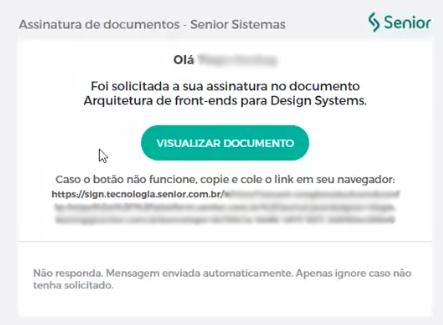
- On the subscription service website, click on Sign the document. Afterwards, access your email again, where you should have received a security code.
The email message will look something like this: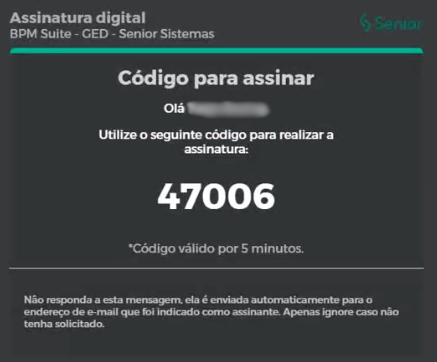
- Back on the subscription service website, enter the security code you received and click on Sign the document again.
And done! The document is already electronically signed, and HR will receive them.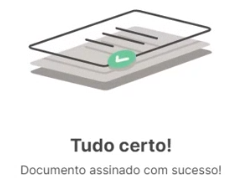
Sending the completed invitation to the company
I have provided all the details and sent my completed invitation. What happens now?
After you complete the entire invitation and send it back, the company's HR will have to validate the information.
If there is a problem with your information, HR may contact you. Remember that all invitation sections need to be 100% completed to finish it.
 English
 Español