Data export
Determine how the clocking event, employee and activation data will be exported, at senior X Platform > Human Capital Management | HCM > Clocking Event 2.0 > Data Export.
What you can do:
 Export device activation requests
Export device activation request data for consultations and integrations:
- Select the following export type: "Activations";
- Enter the start and end date (less than or equal to 31 days), with the end date greater than the start and/or current date;
- Determine the status of this request: pending, authorized and/or rejected;
- Click on Export . The clocking events are then generated into a .CSV file with the content of the activation requests. The file will display the data in columns, in the following order: activation ID, device status, device code, PIS, date of activation request, date of last activation change and user who made the change.
Export employee data
Export employee data for consultations and integrations.
To generate the file, select the "Employees" type, determine the employee's situation and click on Export . Then, the information is generated in a .CSV file with the employees' data. The file will show the data in columns, in the following order: employee ID, PIS, name, email and status (active or inactive).
Export the clocking events done
Export clocking events already collected and manually load them into the system, even after the automatic process has been carried out (if you use the Senior system):
- Select the following export type: "Clocking Events";
- Enter the start and end date (less than or equal to 31 days), with the end date greater than the start and/or current date;
- If you want to export the latitude and longitude information, activate the Export geolocation option. In the file, the latitude/longitude export mask has the xxxx.xxxxxx format; Example:
Latitude format in the export file, according to information collected in the clocking event:
- Centered on zero: 0000.000000
- Positive: 0049.073500
- Negative: -049.073500
- Determine the following file export format: "Collector" (.TXT) or "CSV". In the file, the data will be shown in columns, in the following order: clocking event second, clocking event date in GMT, clocking event time in GMT, clocking event time zone and PIS. If geolocation is used, the next columns will be latitude and longitude;
- Click on Export .
Note
- When checking the Export unverified clocking events option, the verification of events sent through the Clocking Event 2.0 | HCM application is enabled and the information about unverified events is extracted and generated in the file;
- Exporting the clocking events is intended to generate geolocation along with the clocking events for consultation, however, this data is not compatible for imports on Time Control and Time Management.
Generate AFD file (data source file)
The AFD file is where all information from employees' clocking events is stored and does not have any kind of handling. On Clocking Event 2.0 | HCM, information about the employer, employee and clocking events (date, time and time zone) is generated.
Generate the AFD file (data source file):
- In the Type field, select the Clocking Events option;
- In the Branch field, define the branch for which you want to generate the file;
Important
If a branch is not defined, a single file will be generated for all establishments. If you want to generate individually, set the desired establishment in the Branch field.
- Enter the dates of the clocking events in the Start date and End date fields;
- In the Format field, define "AFD file";
- Check the "Sign document" option, so that the document is digitally signed by Senior;
- Click on Export to generate the file.
Note
The AFD file is only issued with a qualified electronic signature when only verified clocking events are exported, that is, events registered through the mobile application interface or Senior X Platform. For unverified events, the file is generated in the layout defined by Brazilian Decree 671, however, it does not receive the qualifying signature because it does not have its clocking events interface verified.
Document Signing Flow
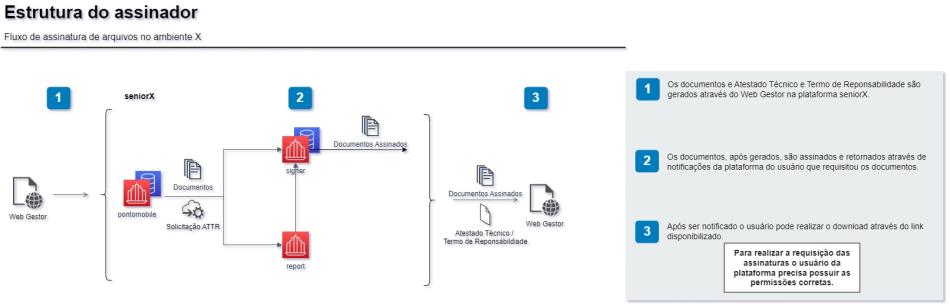
Generate Technical Certificate and Term of Responsibility (ATTR)
The purpose of this document is to attest that Senior's time control products are in compliance with MTP Decree No. 671/2021.
Note
All of Senior's time control products (Captura, Time Control, Time Management and Clocking Event) issue the certificate.
To generate the certificate:
- In the Type field, define "Technical Certificate and Term of Responsibility (ATTR)";
- In the Branch field, define the branch for which you want to generate the file;
Important
The Certificate can also be generated by branch; if no branch is selected, it will be generated for the establishment considered as the headquarters.
- Click on the Export button to generate the Certificate.
- When the platform is preparing the certificate, the following message will be sent: Generating certificate. The Certificate is being generated, at the end of the generation you will be informed through the Senior platform notifications.
- To check the Certificate, click on Notifications with the sign of a bell in the menu, and access the Signature Update (Atestado.pdf) notification;
- Download the file.
Document Signing Flow
Note
In order to generate the signature of the AFD and ATTR documents, the appropriate permissions must be added to the users who will request the signature of the documents.
The required permissions are:
| Resource | Action |
|---|---|
| res://senior.com.br/hcm/signer/signature_request | Allow |
| res://senior.com.br/hcm/signer/confirm_upload | Allow |
 English
 Español