HTTPS & Truststore in the Application
All services/servers that use HTTPS communication have a certificate associated with their domain. The CONNECT Truststore works as alist of allowed servers and contains the certificate of all domains that will receive HTTPS requests from the integrator.
In the absence of one of the required certificates in the Truststore, integrations may not work correctly, as calls are interrupted.
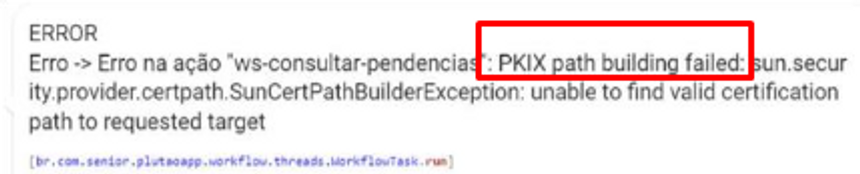
Procedure for obtaining domain certificates
Get Certificate Using Firefox
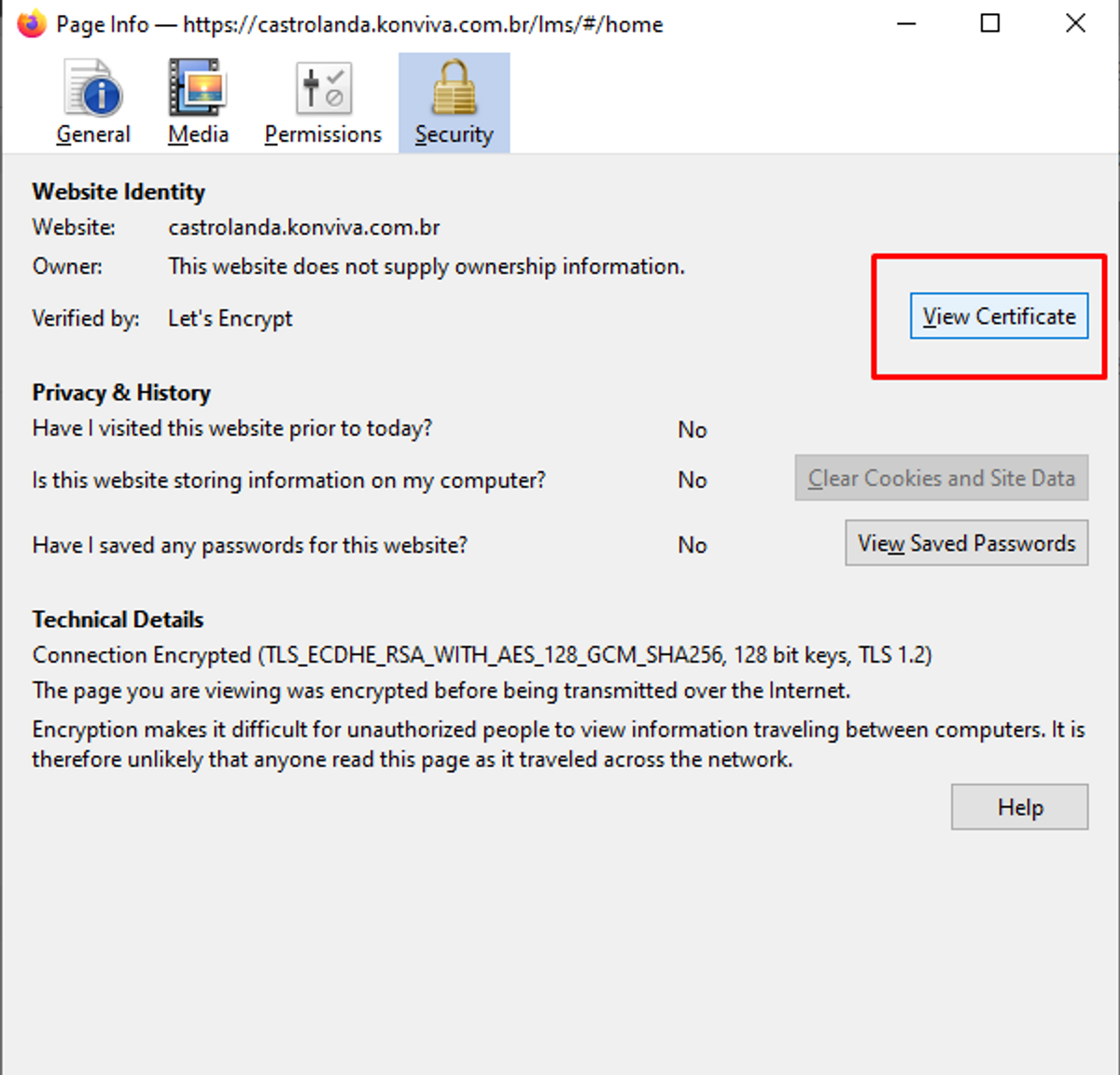
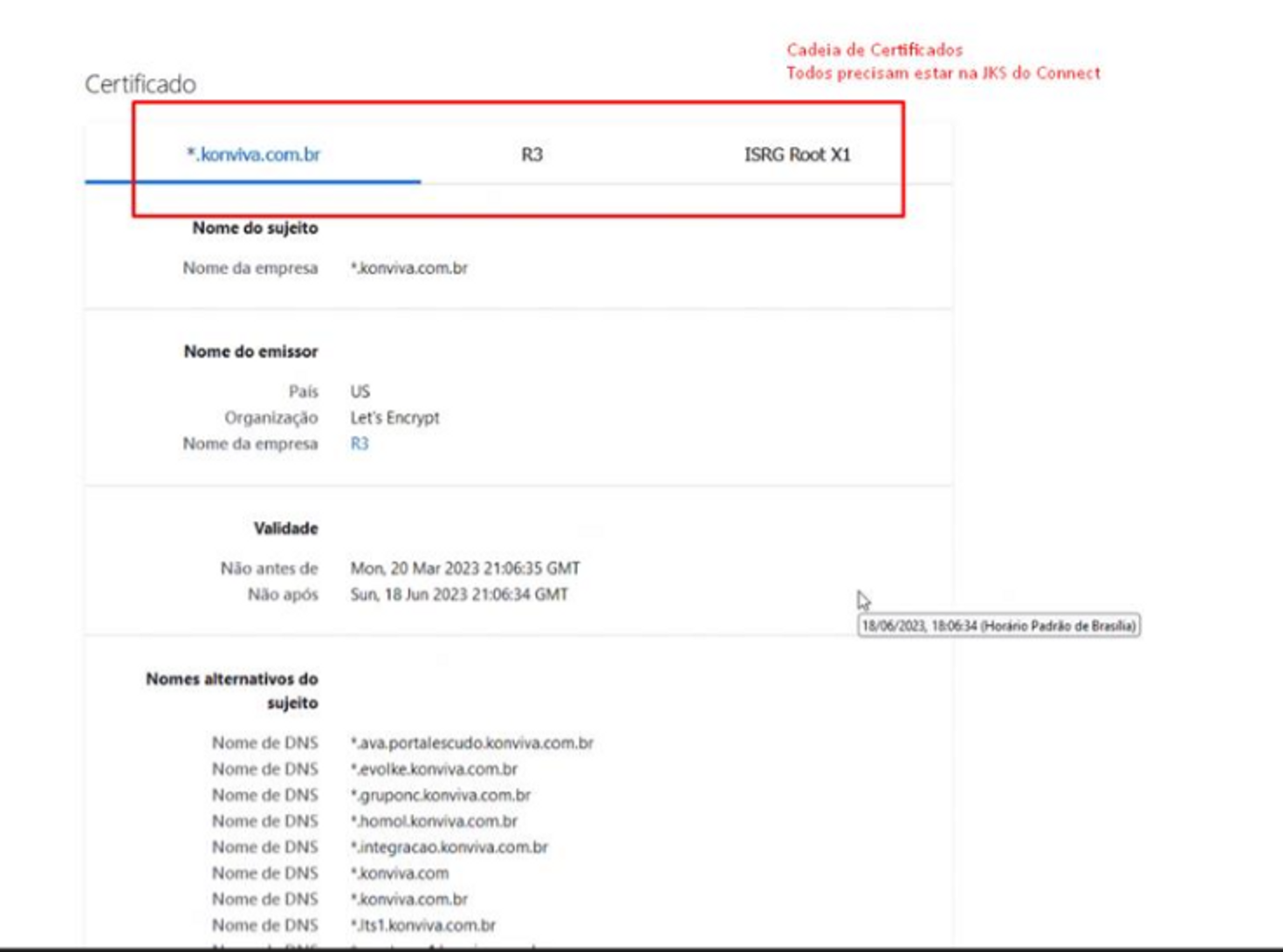
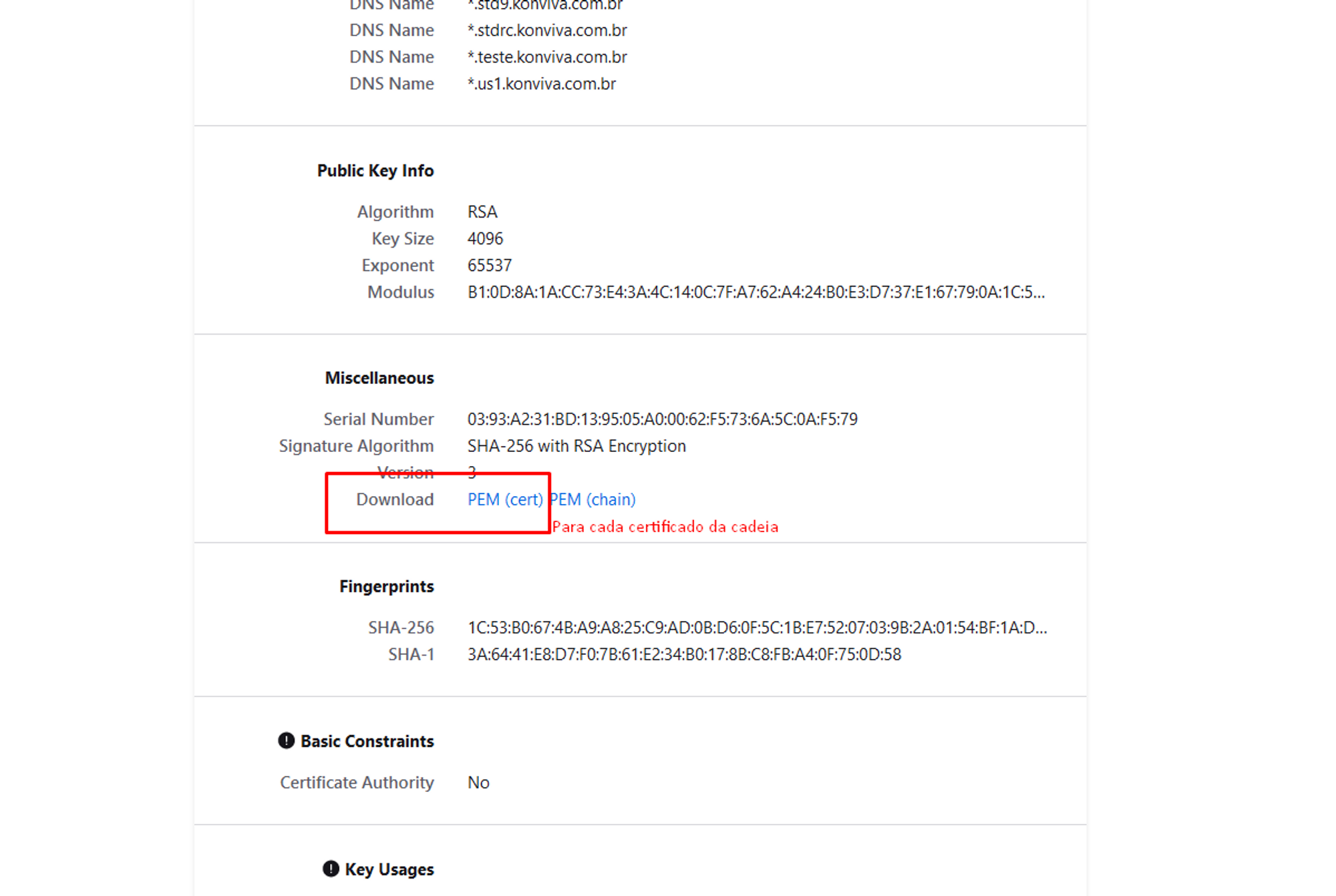
Get certified with OpenSSL
Download the domain certificate of the server that will receive CONNECT calls
<HOST> = Call domain.
<PORT> = Port used in the call to the service in question.
<FILENAME> = identifier for the resulting .PEM file.
Example:
openssl s_client -showcerts -connect web90.seniorcloud.com.br:30201 -crlf 2>> log </dev/null | openssl x509 -text > web90.pem
Importing certificates into the TruststoreCONNECT
Linux - Using Keytool (JAVA)
Move the file.PEM to the directory where the Connect Truststore is located: (/path/to/seniorconnect-truststore.jks - example: …/sconnect/config/)
Include the domain certificate in the application's truststore.
keytool -import -v -trustcacerts -alias <ALS> -file <FILENAME>.pem -keystore seniorconnect-truststore.jks -storepass 'changeit' -noprompt
<FILENAME> = identifier for the domain certificate .PEM file.
<ALS> = Certificate identifier within the Truststore (choose).
Example:
keytool -import -v -trustcacerts -alias web90 -file web90.pem -keystore seniorconnect-truststore.jks -storepass 'changeit' -noprompt
Truststore interaction commands
keytool -list -v -keystore seniorconnect-truststore.jks
keytool -import -v -trustcacerts -alias <ALS> -file <FILENAME>. -keystore seniorconnect-truststore.jks
keytool -delete -v -trustcacerts -alias '<ALS>' -keystore seniorconnect-truststore.jks
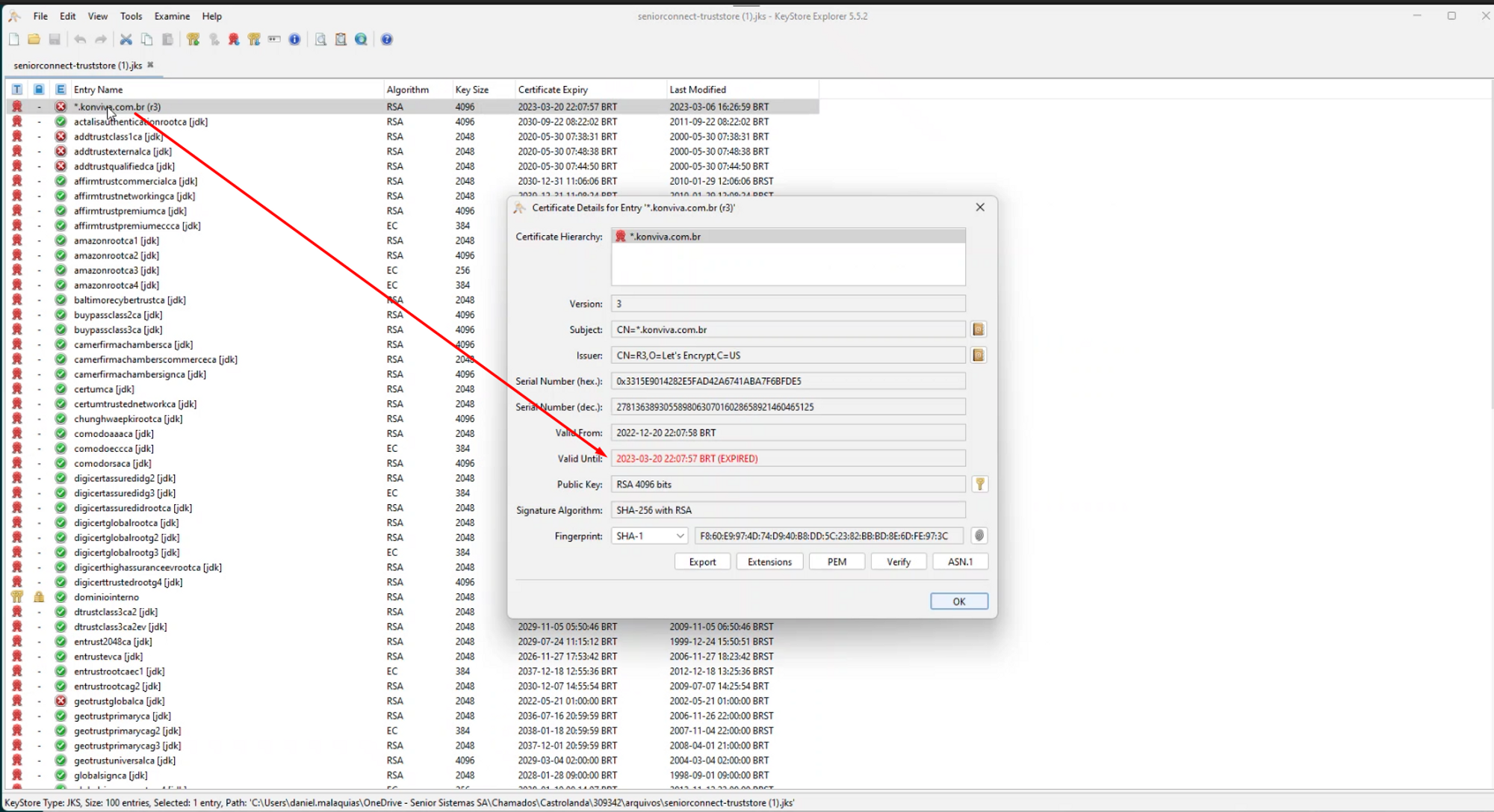
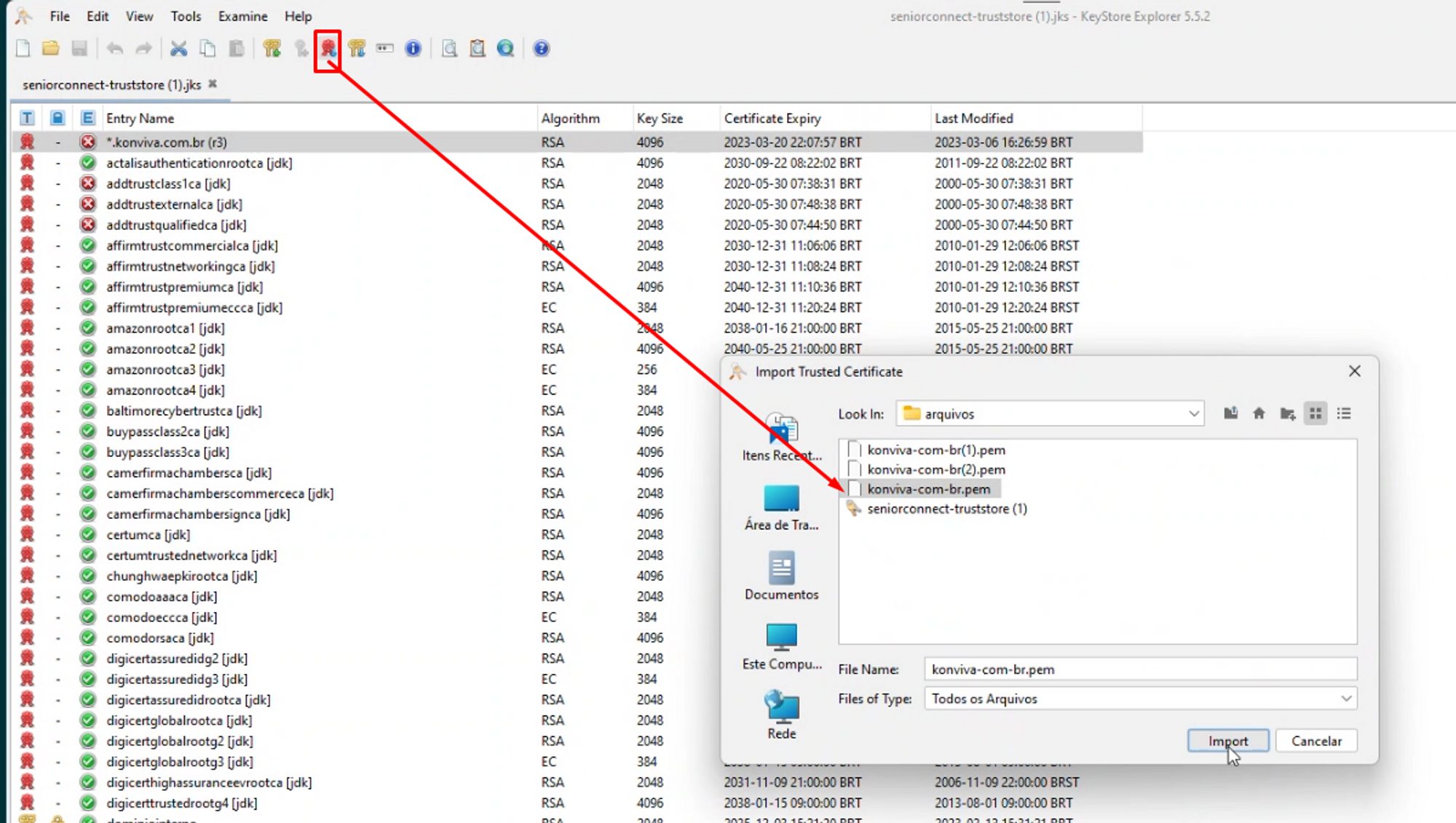
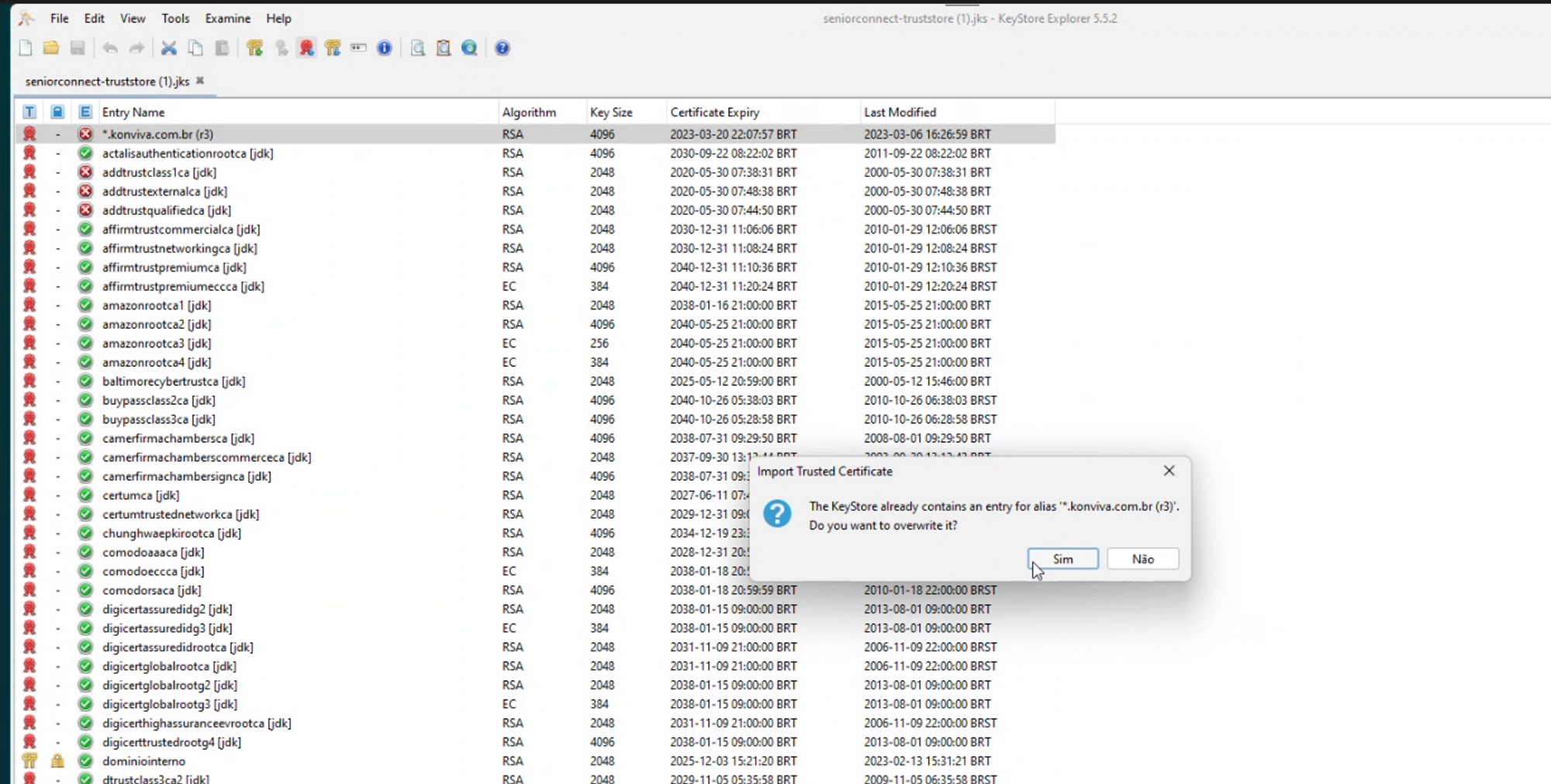
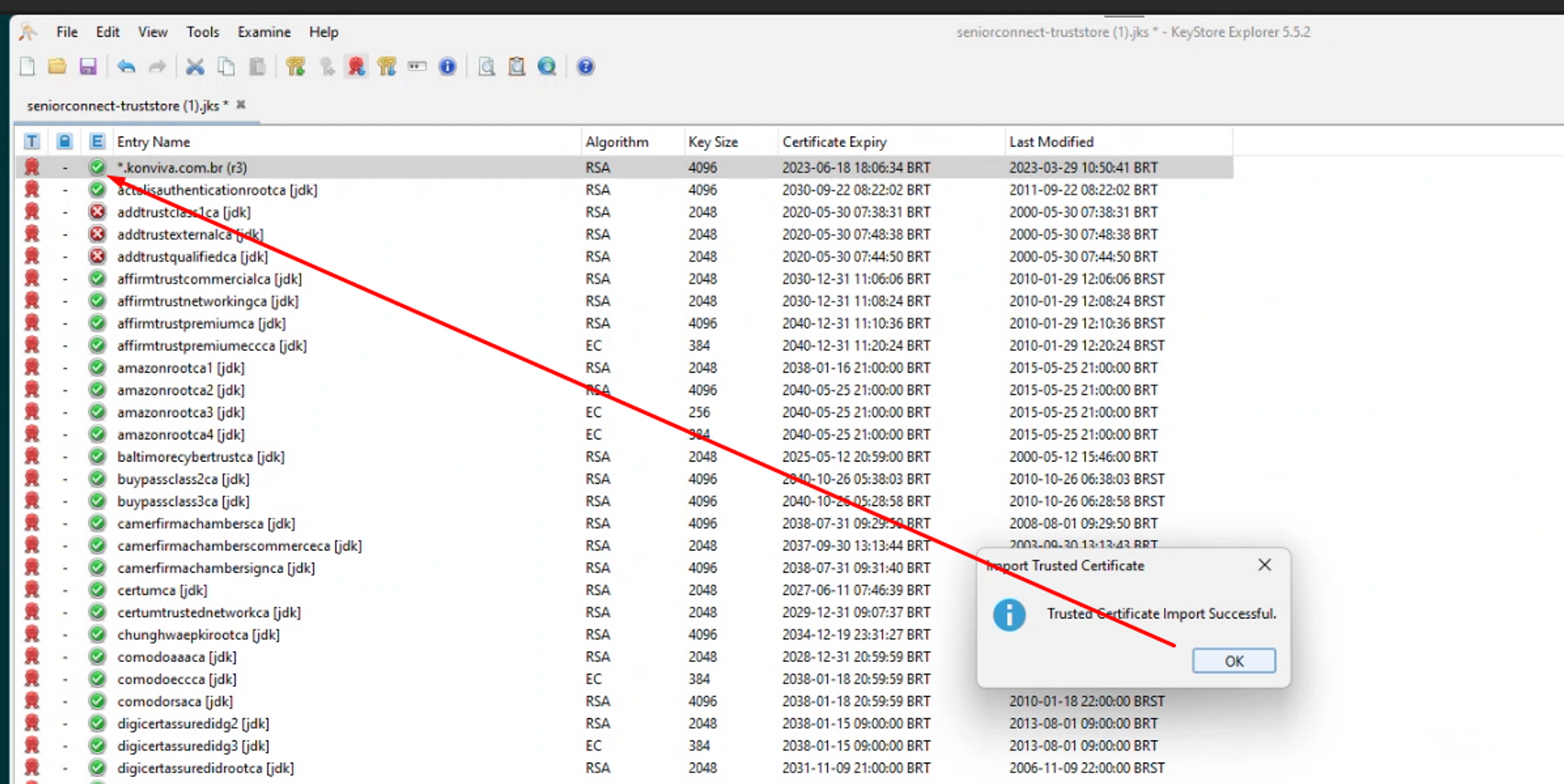
Windows - Using Key Store Explorer
Default password:changeit

SSL Certificate Update
Prerequisite
In the Connect On Premise installation folder, for example, inSeniorConnect\config, open the fileapplication.properties with Notepad.
This file will contain the location information of the truststore file, as well as the passwords.
Example:
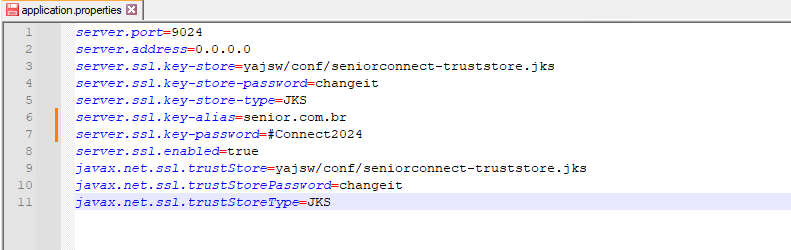
The line with the informationserver.ssl.key-store indicates the location of the truststore file. Make a backup copy of this file and open it with the programKeystore Explorer.
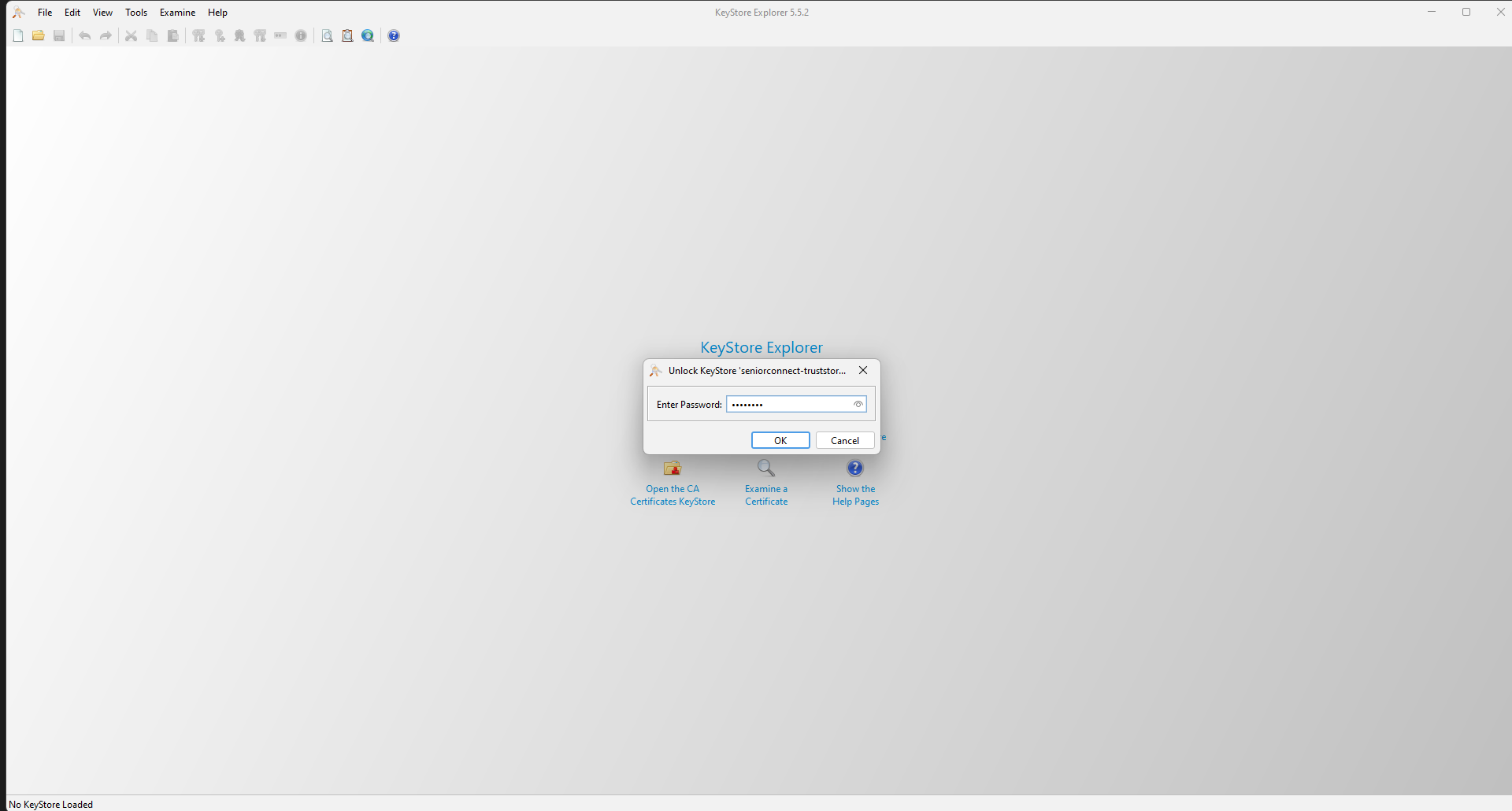
When trying to open the file, the programKeystore Explorer will ask for a password. The password is available in the file mentioned above, on the lineserver.ssl.key-store-password.
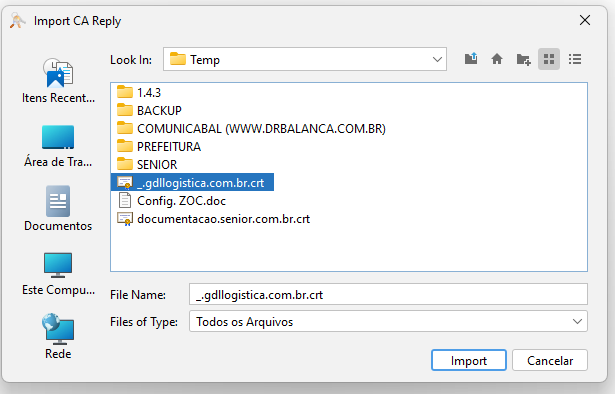
With the Certificate exported in format.CERT, simply click on the Expired Certificate button inKeystore explorer and selectImport CA Reply,From File.
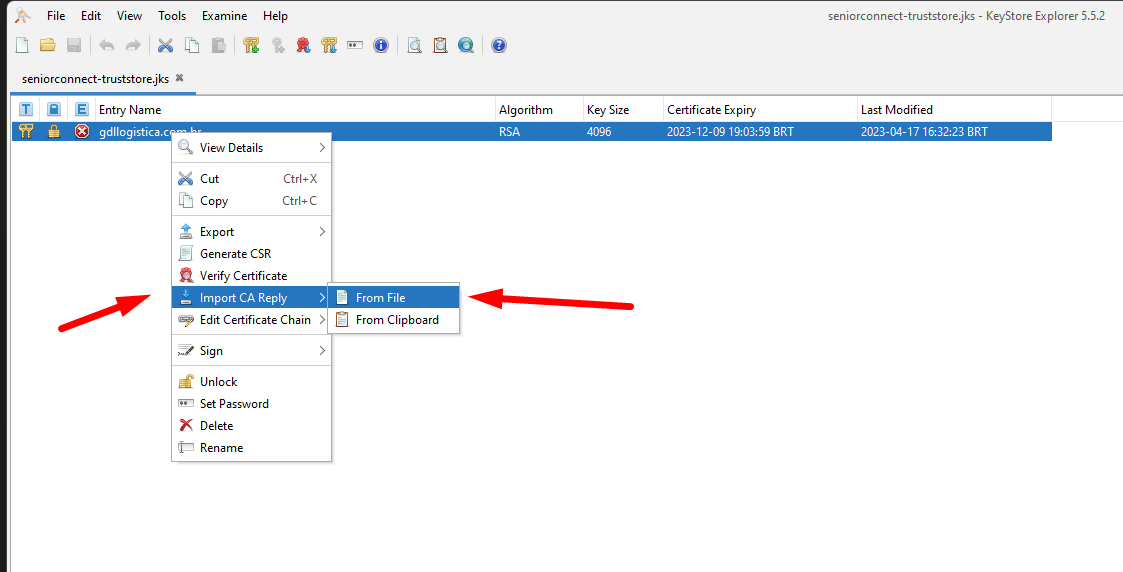
If the Certificate requests a password, it is available in the fileapplication.properties, in lineserver.ssl.key-password. Enter the password and confirm. Then the screen to select the all files option will open, select the file*.CERT and click onImport.
When you open the truststore file, you will see that the certificate is expired or close to expiring, as illustrated in the example image below.
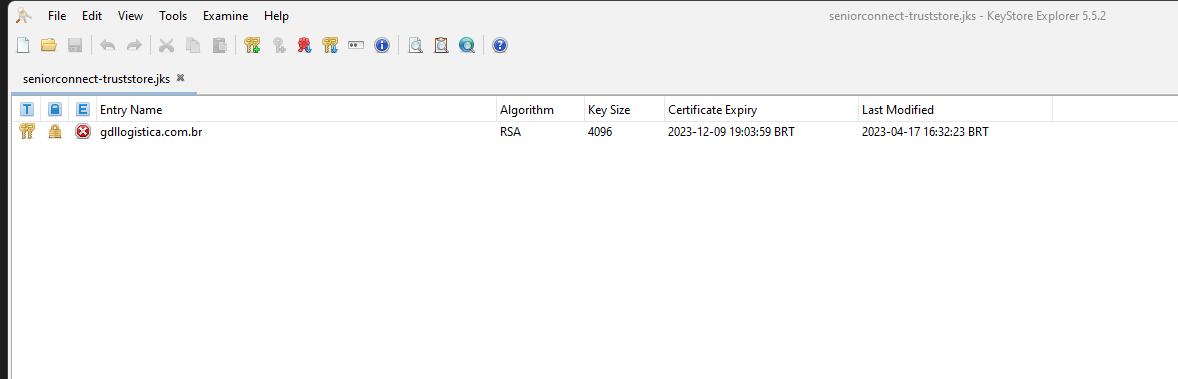
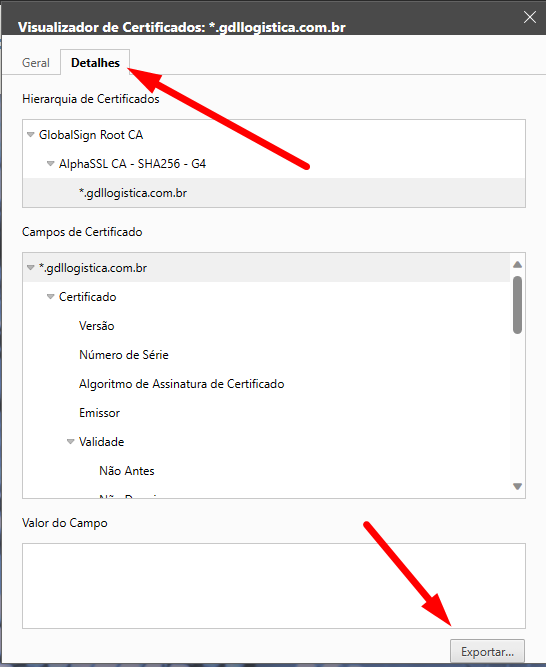
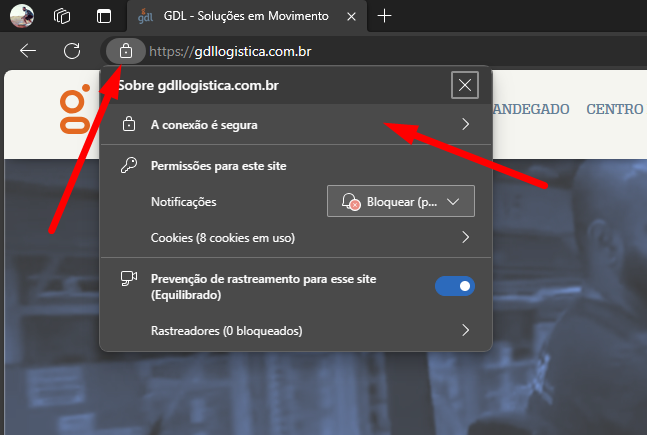
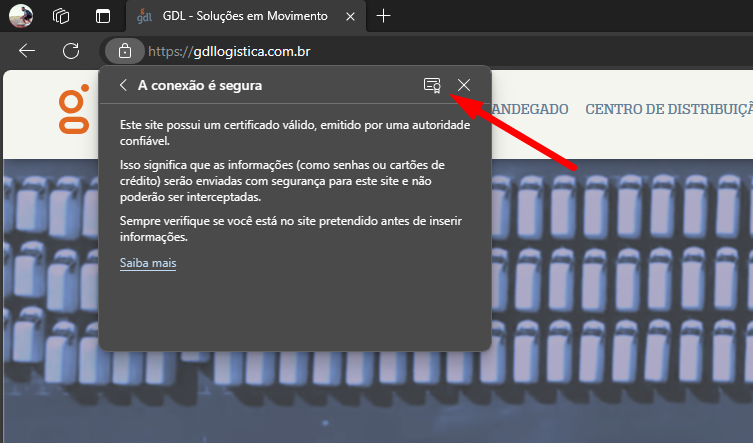
To update the certificate, it is sufficient to have the certificate in format.CERT or download directly from their website. Access the website, click on the padlock and then export the certificate, as illustrated in the example sequence of images below.
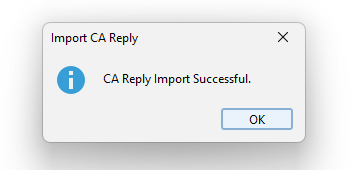
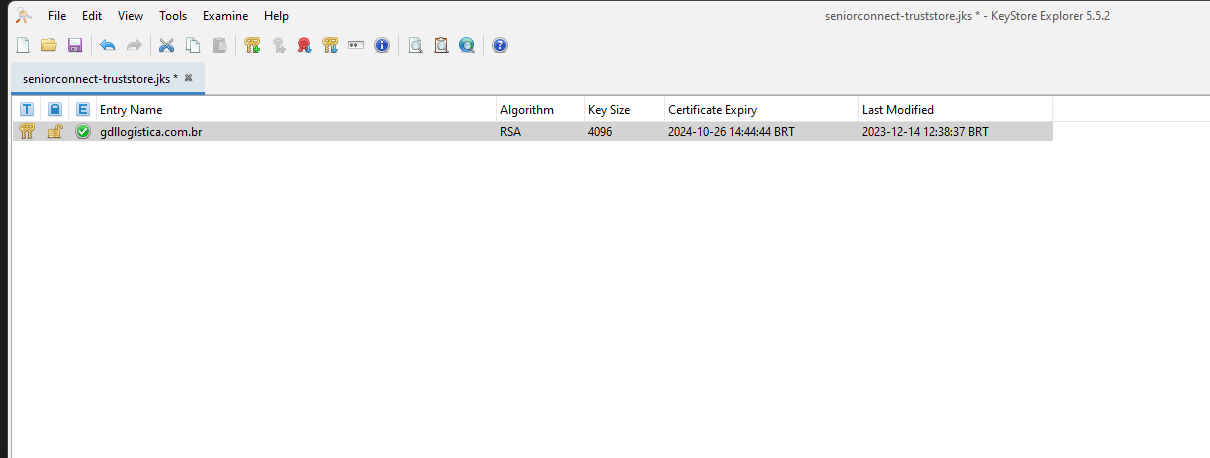
Done, SSL Certificate updated, just restart CONNECT.
Configuring Truststore in the application
The application needs to be configured to access the Truststore path and password with the following parameters (application.properties):
javax.net.ssl.trustStore=path/to/seniorconnect-truststore.jks
javax.net.ssl.trustStorePassword=changeit
javax.net.ssl.trustStoreType=JKS
These options are configured in theJAVA_OPTS ofDocke imagesr or wrapper.java.additional.x in ./yajsw/conf/wrapper.conf on installations usingService Wrapper from Windows (yajsw).
The valuepath/to/ is the relative path to the Truststore file. In Wrapper installations the default path is yajsw/conf/seniorconnect-truststore.jks while in Docker images the path is /config/seniorconnect-truststore.jks. Remembering that when configuring wrapper.conf, you must add a-D in front of the parameter, such as

After that, simply restart the integrator service so that the new Truststore is loaded. On a Windows installation this can be done from the login screen.Services of the operating system, and in Linux installations the container or stack must be restarted, depending on the environment configuration.
Making the application available over HTTPS
For the application to be made available in HTTPS, it is necessary to include a domain certificate in the Truststore that includes the Server hosting the application. This domain certificate (Key Pair) is usually available in PKCS#8 or PKCS#12.
After being included in the Truststore, the Key Pair will have a password associated with its access and aindeed (nickname) within the Truststore. With this information we can fill in the following Application settings (*application.properties*).
server.ssl.key-store=path/to/seniorconnect-truststore.jks
server.ssl.key-store-password=changeit
server.ssl.key-store-type=JKS
server.ssl.key-alias=ALIAS_KEYPAIR
server.ssl.key-password=PASSWORD_KEYPAIR
server.ssl.enabled=true
Note that the valuesALIAS_KEYPAIR andPASSWORD_KEYPAIR must be filled in according to the import carried out.
TRAEFIK Maintenance
In some Linux environments, TRAEFIK is used to route calls to the integrator's services and also to assign application domain certification. In the case of renewing environment certificates, follow these instructions:
- Access/senior/manager/traefik/certs;
- Replace certificate files present on this path with the new versions;
- Access/senior/manager/traefik/;
- Execute the commands:docker service rm manager_traefik and docker stack deploy -c docker-stack.yml manager to restart the TRAEFIK service.
TRAEFIK settings (and their notes) are in the files/senior/manager/traefik/traefik.toml and /senior/manager/traefik/docker-stack.yml.
When TRAEFIK is involved, the procedure to restart the integrator application is as follows:
- Access/senior/services/sconnect/backend/;
- Perform the commands:docker service rm sconnect_plutao-app-backend and
docker stack deploy -c docker-stack.yml sconnect to restart the SCONNECT-Backend service.