Creating approval flows
The approval process flow for Third Party Management can be created on the BPM process screen.
note:
This page is limited to informing the particularities of the Third Party Management approval flows. For information about creating processes in general, see theBPM documentation.
Prerequisites
Tasks can be assigned to groups or users, roles, among others. However, we recommend using a user group so that the email is sent to the group when creating the new request. This group must be associated with users who will be reviewers of these tasks when requests are submitted for approval. To do this, perform the following steps:
- Access the Technology > Administration > Group Management menu;
- Create a user group on this screen;
- Associate users who should be part of it with this group;
- Optionally, associate an email address with the group so that emails can be sent directly to it;
- Click on the buttonTo save or, if you already want to make this configuration available for future processes, click the buttonPublish and save.
Important:
Only senior X Platform administrator users can register these groups and the process detailed in the Flow Preparation section, below.
Flow preparation
First, open the BPM > Processes screen and click the buttonNew request. Then clickNew process and select the modelThird Party Management (Ronda XT). Give the process a name and clickTo save.
Base your flow on the following template:
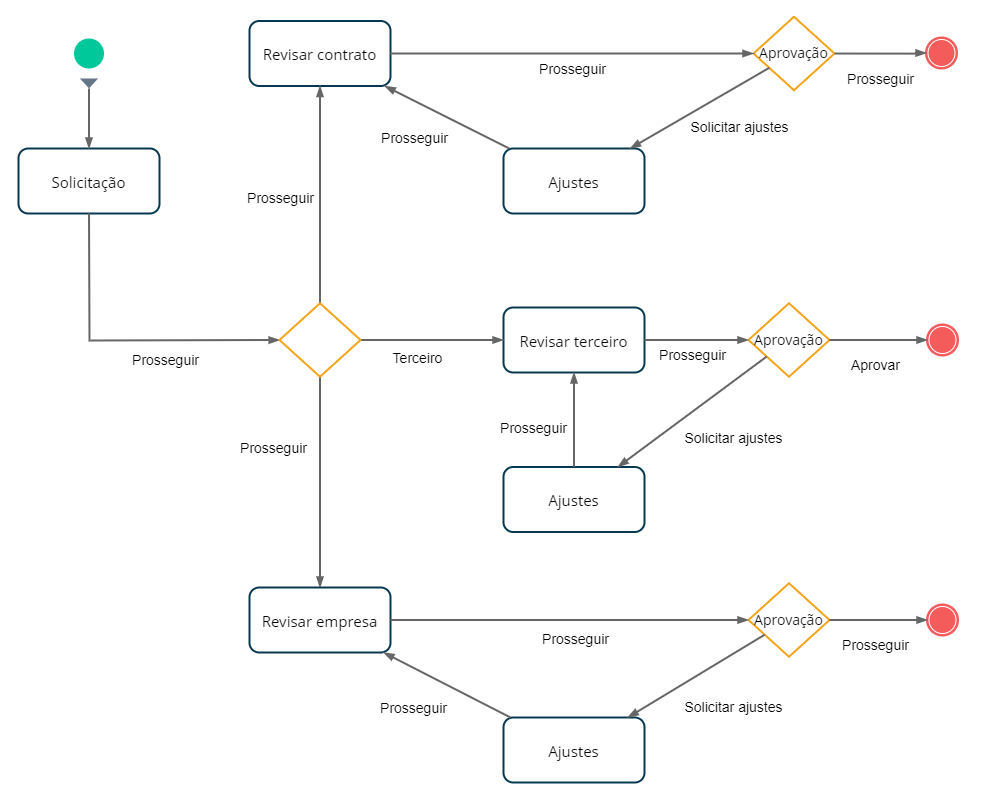
Then, assign the following tasks to a Reviewers user group:
- Review Contract;
- Review Company;
- Review Third.
To do this, click on the activity in question and, in the panel shown on the right, click on Attribution mechanism and then onTo set up.In the fieldType, select the "Group" option and in the field below, write the name of the group to be assigned. You must write the name correctly, otherwise it will not be found.
You can configure it so that the contract administrator also receives a notification when the contract holder is approved. This can be set at the end of the flow, identified by this icon:

To carry out this configuration, perform the following instructions:
- When selecting the "End" component, click on the optionCustomize notifications from the panel on the right;
- Select the optionUse custom settings;
- Set aSubject. Suggestion: "Third party approval completed (${bpm_process_instance_id})", where this variable will show the request code;
- In the fieldcc, fill in the email address that will receive the notification;
- Write the body text of the email. Just like in the subject, you can use form variables to show specific data. They can be consulted on the Process Variables screen, accessible in the panel to the left of the BPM flow screen. You can also consult them atintegration variables page of this manual.
Text suggestion for the email:
Hello!
Request approved for ${person_name}, company ${company_corporate_name}, contract No. ${contract_number}.
When a process is deleted on this screen, it is also disassociated from the Contracts and Third Party Companies that had it selected in the fieldApproval flow of Third Party Management. When sending one of these Contracts/Third Party Companies for approval again, another process needs to be defined for the registration in question.
You can hide the Files tab of the BPM request so that contract data reviewers do not have access to documents that may be restricted to certain users. To do this, open Process Settings and then the Process Information tab on the left. On the right side, in the Attachment Tab section, the field will be shownTab Visibility, which can be set to always be visible or hidden.
Status of approval steps
When a request is sent for a task that has the name "Adjustments", the Third Party Management record sent for approval is updated to the "Awaiting Adjustments" approval step.
When the BPM request is approved, the Third Party Management record submitted for approval is updated to the "Approved" approval stage.
When the BPM request is canceled or deleted, the Third Party Management record sent for approval is updated to the "Registration in Progress" approval stage.
If there is a need for cancellation or deletion (when sending a registration for approval with an incorrect approval flow, for example), this can be done by senior X Platform administrators. On the BPM > Task Center > Management screen, the administrator must select the request in question and then clickCancel or click on the icon (red X) in the upper right corner. To locate the request more easily, you can search for it by its code or use the filters on the screen.





