
Dual factor authentication
Double-factor authentication aims to increase user account security. On the senior X Platform, this authentication is done through a temporary code that is obtained through the applicationGoogleAuthenticator.
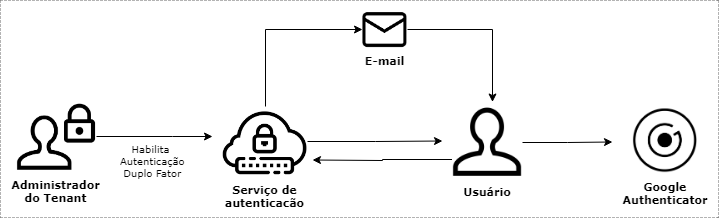
Phases
- The tenant administrator enables two-factor authentication for all users or for a specific user;
- The user logs in with username and password;
- If it is the user's first access, or the first access since the feature was activated, senior X Platform informs the user that double factor has been enabled and sends an email with instructions;
- User downloads and configures GoogleAuthenticator according to the instructions received;
- The user logs in to the senior X Platform with username and password;
- The system requests the access code;
- The user enters the code that is currently being presented in Google Authenticator and is able to access the senior X Platform.
What can you do:
 Enable authentication
- Access the screen at Technology > Administration > Double Factor Authentication;
- If this feature must be used by all tenant users, just change the configuration keyEnabled for all users to positionYes;
- If only one, or some specific users, should use this form of authentication, clickConfigure users at the end of the screen. If necessary, use the user search field, change the position of the keyAble to the desired position and clickTo save;
With double-factor authentication enabled, the next time the user logs into the platform, an email will be sent with instructions for the user to configure Google Authenticator.
The link to this page has a maximum duration, which is configurable through the double-factor authentication screen, which by default is 30 minutes. If the user does not complete the configuration within this time, it will be necessary to request a new email via the login page. The reason the link has a duration is that it exposes the user's secret key.
You can also change the amount of time that the QRCode link is available. The counting of this duration starts from the moment the user clicks onRequest configuration email when trying to authenticate for the first time with the resource active. The user receives an instruction via email, which is why the registration on the senior X Platform must have email addresses for informed contacts. If the user does not complete the configuration within the deadline established within this period, he or she must request the configuration email again.
Enter Google Authenticator access code
With double-factor authentication enabled, when logging into the platform you will be asked for an access code, which can be temporarily obtained by Google Authenticator by requesting a configuration email:
- Install the Google Authenticator app on a mobile device;
- Open the application and choose the option+ (Add). Right awayScan a barcode. For this reading it is necessary to have a QR Code reader application. If not, choose the optionEnter a provided key.
- Scan the QR Code or enter the key below the QR Code, depending on the option selected.
- A new account with the name Senior Sistemas (usuario@dominio.com.br) will be presented. Enter the code presented in this account on the page with instructions to confirm the configuration.
Log in and enter the code presented by Google Authenticator.
Configure email
In Technology > Administration > Double-Factor Authentication, edit the content of the subject and text sent to the user to perform double-factor authentication. In the Email Settings section, check the fieldsEmail subject It isEmail text template to make the necessary modifications. It is recommended that the variable that has the link to the pages with the next steps and the key is not removed.
Variables that can be included in the email content:
- ${link} – Link to the page with configuration instructions;
- ${name} – User’s full name;
- ${usuario} – Username used to login.
Disable two-factor authentication
In Technology > Administration > Two-Factor Authentication, disable the function for all users in the tenant or just for a specific user. Then change the configuration keyEnabled for all users to the "No" position, or click the buttonConfigure users at the bottom of the screen, and, if necessary, use the user search field. Finally, change the position of the keyAbleto the desired position and clickTo save.
Renew tokens
If necessary, renew the secret key of one or all users, thus discarding the old key and generating a new one, for a new configuration in Google Authenticator. This option is only valid for users who have previously configured a key on their device.
- Go to Technology > Administration > Double-Factor Authentication;
- click inRenew secret key for all users if you want all users to configure double factor again;
- To renew the key for just one user, clickConfigure users;
- Locate the desired user and clickRenew secret key;
- After clickTo save.
Important
Because it is not possible to use double-factor authentication in conjunction with SAML authentication, it is recommended to enable multi-factor authentication (MFA) in the service responsible for implementing SAML, if the feature is supported.



