Automatic processes for importing and exporting data
Importing and exporting data for the Clocking Event 2.0 | HCM application can be made from automatic processes in the Time and Cafeteria Control and Personnel Management modules, from Human Capital Management | HCM, and/or from the Ronda Senior system. These processes are responsible for sending employee data and, in the case of the Time and Cafeteria Control module, for returning clocking events made in the application and stored in the senior X Platform.
What you have to do:
 Parameterize Settings Center
- Open the Senior Configuration Center, from the seniorconfigcenter.exe executable available in your installation directory;
- Enter the platform URL: Ronda Senior: go to Systems > Human Capital Management > SeniorX Human Capital Management: go to Systems > Human Capital Management > HCM Platform API URL: Enter the bridge URL for communication between the system and the senior X Platform. By default, enter https://platform.senior.com.br/t/senior.com.br/bridge/1.0/rest. If the platform is installed in the client's own domain, the URL must be verified with the environment administrator; URL to obtain the G7 token (Only for ADFS login) : enter URL to obtain the ADFS authentication token (https://platform.senior.com.br:8243/token); G7 authorization token (Only for ADFS login) : key provided by the IT Services area to perform ADFS authentication.
- Go to Middleware > Web 5.0 > Automatic processes and check the check box Enable automatic process scheduler ;
- In Middleware > Load Balancing, configure Senior Middleware load balancing according to your infrastructure needs. Ensure that the applications are active, according to the solution used (Ronda Senior or Human Capital Management | HCM (Personnel Management and Point and Time and Cafeteria Control)).
Create users in SGU to link employees
Create the users to link to the employees that will be sent. If you use the ETL integrator, these users are also integrated with the platform. These employees must be registered with the following information in the system:
- PIS* (Social Integration Plan);
- Name;
- Have a valid user linked;
- Corporate Name of the Branch and CNPJ (National Register of Legal Entities) of the branch where the employee is linked;
- Indication of the Clocking Event Mobility module to define which employees will be sent to the platform:
This same configuration can be done for module users, on the Module Indication - Collective screen ( FRMODASS ).
Ronda Senior
In Ronda Senior, the inclusion of Clocking Event Mobility does not exist. In this case, the group "Mobility - Clocking Event - Employees" is used to verify the employees to be sent through the users that are in the group. It is essential that this group is created in the SGU and that the users of the employees to be integrated are linked to it.
Set manager information submission
Determine the sending of manager information in the automatic employee submission processes.
- Access the company registration screen, Mobility tab:
Ronda Senior : Tables > Companies > Registration ( FR030EMP )
Human Capital Management : Companies > Companies ( FR030EMP ) - In the Mobility Manager field, determine: "1 - Workstation": uses the workstation to define the managers of each employee who will be sent to the solution. If this option is selected, it is then necessary to inform the structure and type of hierarchy that will be used to define the managers in the Mobility Structure Code and Mobility Hierarchy Type fields; "2 - Headship". uses the manager record to define the managers of each employee who will be sent to the solution. It is mandatory that the register of managers be parameterized; "3 - Not applicable": employees are sent without any manager being linked to the employees. This means that employees can be seen within the senior X Platform, Clocking Event 2.0, only by the administrator profile user. See Roles and Permissions for more information. If the manager per position or leadership is not determined, the employee will still be sent. Failure to define the Mobility Manager is not an impediment to sending employees.
Create automatic process for sending collaborators
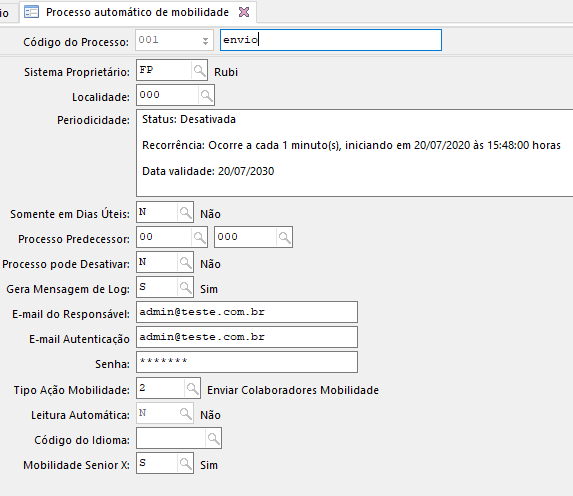
In order for the sending of employees to be effectively carried out, it is necessary to create the automatic process for sending employees:
- Automatic Process of Mobility
Ronda Senior: Resources > Automatic Processes > Mobility ( FR300MOB )
Ronda Senior : Resources > Automatic Processes > Mobility ( FR300MOB ) - Fill in the E-mail Authentication and Password fields with the platform administrator's e-mail and password.
If there is any error in the execution of the automatic process, the log is sent to the responsible person's e-mail. For this procedure to be carried out, it is necessary, in addition to filling in the Authentication E-mail field, to select the checkbox Enable e-mail sending in the Senior Settings Center in Network Connections > E-mail sending; - If you use the Time and Cafeteria Control module, in Mobility Action Type , select option "2 - Send Employees Mobility";
- Determine that the automatic processes will be used for the application, selecting the option "Y - Yes" in the Senior X Mobility field;
- In the case of the Ronda Senior, if necessary, inform the e-mail of a Standard Manager for the registration of employees. In this way, the manager that will be used for all employees being sent through the process will be defined.
Observation
In the system, go to Miscellaneous > Utilities > Resend Mobility Employees 2.0 to restart the process of sending all employees to the senior X Platform. This feature is valid only if you have the Mobility Owner.
The return of the clocking events is only carried out from the Time and Cafeteria Control module, as it is responsible for carrying out the calculation of the time stamp information. For this process, in addition to parameterizing the Settings Center , it is necessary to:
Configure Collector
- Access Collectors > Models (FR058MOD ) and create a new collector model;
- Enter the option "96 - Mobility" in the Model field;
- Inform in Directory Marking Files and Rejected Marking Directory the paths of the folders where the time stamping files will be stored.
These informed directories must have valid and accessible shares on the network, by all users, where the applications managed by the Middleware are being executed. At the end of the path enter *.TXT. The Collector Model field is filled in automatically after model registration. If the environment is entirely in the cloud, check these directories with the team responsible for maintaining the environment; Observation As the collector model is filled in automatically after the model is registered, the registration of the separation of markings must be done to meet this need for the application. Otherwise, the system searches for the first available function. In case of using the drivers routine, register the separations of usage markings "21 - Waiting Marking", "22 - Resting Marking" and "23 - Direction Marking". - Next, access the Collectors > Registration screen ( FR058RLG ) and configure the new collector using this collector model created: in Management Central, enter "0" and keep the Application Name field empty. The type of communication must be "1 - Off-Line";
- Finally, configure the default collector on the Miscellaneous Signals screen ( FR000ASS ), Point tab: in the field Collector for Mobility Markings, select the registered model "96 – Mobility". If you work with a website, you must fill in the information in the field Site for Mobility Bookings .
Create an automatic process for returning clocking events
In order for the return of the clocking events to be effectively carried out, it is necessary to create the automatic process of returning the markings:
- Automatic Process of Mobility
Ronda Senior: Resources > Automatic Processes > Mobility ( FR300MOB )
Human Capital Management : Resources > Automatic Processes > Mobility ( FR300MOB ) - Fill in the fields as informed in the creation of the automatic process for sending employees , as follows:
- In Mobility Action Type, the option must be "1 - Return Mobility Markings";
- In Auto Read inform "Y - Sim". This field defines the automatic reading of tags when they return from the application.
Note
For more information on checking appointments for employees who use the Drivers mode of use, consult the documentation for the Time and Cafeteria Control and Time Control Management systems, which have more details about the additional and necessary configurations in the collectors.
 English
 Español