Virtual credentials
Virtual credentials are an alternative to using a badge and can be issued through Ronda senior X, to issue a credential with a QR Code.
What you can do:
 Issue a virtual credential via Ronda senior
To issue a virtual credential via Ronda senior X, you must first configure the system.
Configure Ronda senior X
- On the senior X Platform, access Access and Security Management > Access Control > Devices > Drivers, register a driver to read the QR Code, andManufacturer must integrate directly with the Ronda senior X SDK;
- In Access Control > Devices > Devices, register a device connected to the Driver that was registered on step 1;
- In General registers > Roles, configure the role so that in the Screen Permissions panel, the Virtual credential option is checked in the View column.
Generating the virtual credential
Note
This way of generating the credential only works with the smartphone connected to an internet network.
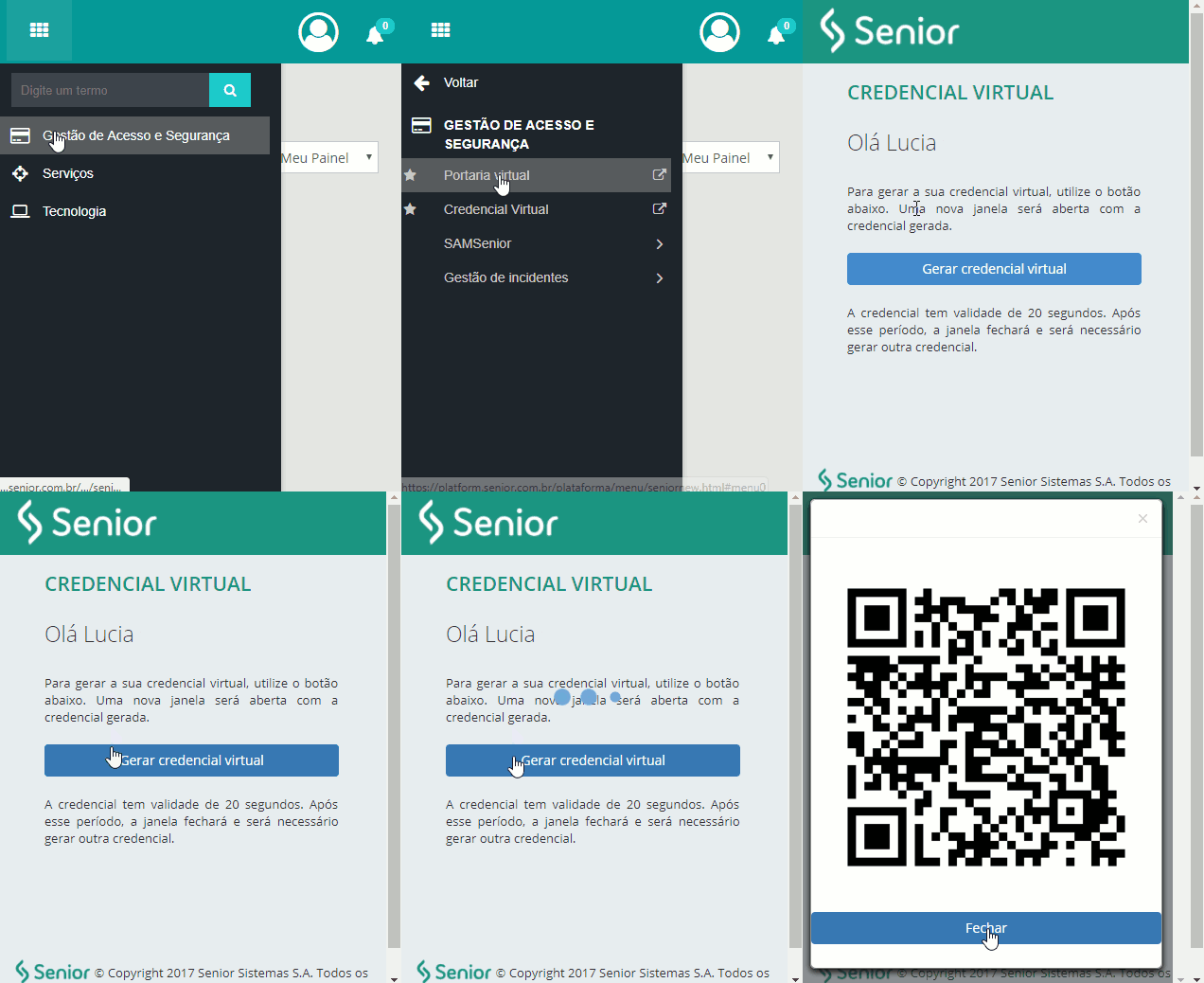
- On your smartphone, go to senior X Platform and then to Access Control and Security Management > Access Control > Temporary credentials > Virtual credentials;
- Click on the Generate virtual credential button;
- The QR Code is generated;
- Position the QR Code for the device to read it and grant the access. The validity of the temporary credential is 20 seconds.
Issue a virtual credential via Ronda Pass
To issue a virtual credential through the Ronda Pass App, consult thespecific documentation for this application.
Consult virtual credential accesses
- On senior X Platform, go to Access Control and Security Management > Consultations > Access events;
- Access via virtual credentials is shown in the Credential column as "QR Code" (both for Ronda senior X and the Ronda Pass App).
Note
The event time is based on the smartphone time, but the access is only granted if the smartphone is in the same timeslot as the access device.





