Third Party Management - Company ProcessesThird
The Third Party Management module focuses on three distinct types of users, each with their respective responsibilities:
- Contract administrator: person from the contracting company responsible for making clear all the requirements for the execution of the contract. She requests, receives and organizes all documents sent by contracted companies, and is generally the contact person for this company for procedural issues;
- Responsible for contract: person from the contracted company responsible for sending all required documents. It is this person who is contacted if any of these documents expire during the execution of the contract;
- Contract data reviewer: person responsible for validating the registered data and documents sent by the third-party company and carrying out approval. Often this person is from a technical area, responsible for some specific documents, such as occupational safety, legal, etc.
These responsibilities are met by different features of the module.
This page focuses on the processes of the Person Responsible by contract, that is, on the third-party company's journey through the procedures of the Third-Party Management module. To learn about the processes for all roles, see thegeneral processes page.
Process Flow
The following flowchart presents the procedures for all types of Third Party Management users. The Contract Responsible's specific processes can be identified in the section of the same name, at the bottom of the flowchart.
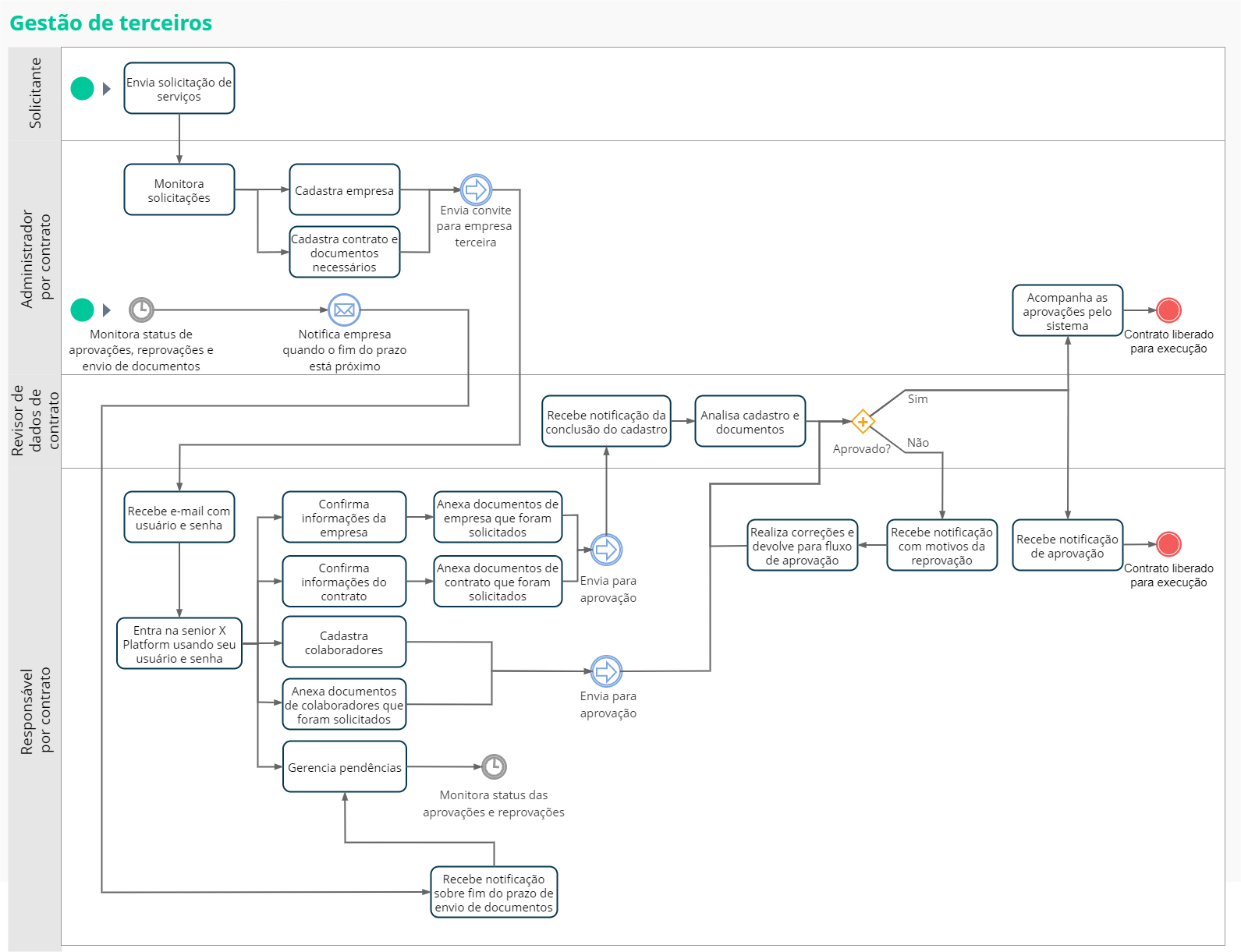
Processes of the person responsible for the contract
The procedures of the person responsible for the contract in the third-party company begin when theyreceive the email with the data for accessing the system (sent by the administrator by contract, at the contracting company). When opening the platform access link in the email received, this person must use the login and password sent to access the system. A new personal password can then be registered.
When this email is sent, the contract responsible role is automatically created for this user to access the system.
With this, the person responsible will be able to carry out their part of the registrations, send documents for approval to other people who are part of the process, make adjustments where necessary and receive notifications about pending issues and documents about to expire.
Comments
Only active contracts are shown for users with this role (responsible for contract) in the system.
The contract officer sees all documents associated with companies with linked contracts under his responsibility. Consequently, he does not view documents registered for third-party companies that are not his responsibility.
 Verify company information and attach your documents
Initially, you must validate the company's data, which were registered by the administrator by contract, and make any necessary changes. After this and attaching the company documents, this information must be sent for validation by the contract data reviewer.
- After accessing the senior X Platform, open the Access and Security Management > Third-party management > Registrations menu;
- On the Company tab, locate the company registration in the list;
- Click on the buttonActions right and thenTo edit;
- Check that the information provided in the registration is correct. If they are not, contact the contract administrator who filled in this data so that they can be adjusted;
- Check the required documents in the Company Documents list. Various information about these documents can also be checked, for example: whether they are mandatory and the format of their validity;
- To add a document, click the buttonActions to the right of one of the list items, and thenInclude. A new panel will be shown on the right of the screen;
- Enter the necessary data in the fields on this panel. IfValidity Type is "Defined in the document", also inform theExpiration date according to the expiration date of the document;
- Click on the buttonTo save. The options to delete the record and attach files to the document will become available;
- To add documents to the registry, clickAttach Files and select the desired file;
- click inTo close to finalize the registration of the document;
- To notify the contract data reviewer that this registration has been carried out and request verification, click the buttonSubmit for Approval.
Check contract information and attach your documents
Another procedure that must be done is to validate the contract data that has arrived, adjust whatever is necessary and attach the documents related to contracts. This information must then be sent to the contract data reviewer to validate.
- After accessing the senior X Platform, open the Access and Security Management > Third-party management > Registrations menu;
- On the Contracts tab, locate the contract record in the list;
- Click on the buttonActions right and thenTo edit;
- Check that the information provided in the registration is correct. If they are not, contact the contract administrator who filled in this data so that they can be adjusted;
- Check the required documents in the Contract Documents list. Various information about these documents can also be checked, for example: whether they are mandatory and the format of their validity;
- To add a document, click the buttonActions to the right of one of the list items, and thenInclude. A new panel will be shown on the right of the screen;
- Enter the necessary data in the fields on this panel. IfValidity Type is "Defined in the document", also inform theExpiration date according to the expiration date of the document;
- Click on the buttonTo save. The options to delete the record and attach files to the document will become available;
- To add documents to the registry, clickAttach Files and select the desired file;
- click inTo close to finalize the registration of the document;
- To notify the contract data reviewer that this registration has been carried out and request verification, click the buttonSubmit for Approval.
Register new employees and their documents
The Collaborators tab shows a list of active collaborators registered by the manager, associating them with a contract. The person responsible for the contract can also add employee records here.
- After accessing the senior X Platform, open the Access and Security Management > Third-party management > Registrations menu;
- On the Collaborators tab, click the buttonTo add from the Active Collaborators list;
- Select theDocument Type which will be used to identify the person;
- Fill in the general registration data and also, optionally, the employee's address;
- Click on the buttonTo save to record this data. When you do this, the Linked Contracts section is shown;
note:
The Linked Contracts screen only displays links that are currently in effect. Future links are not shown.
- click inNew Bond. A new panel will be shown on the right of the screen;
- Locate the registration of the contract in question using the fieldContract and fill in the other details. Then clickTo save;
- Check the required documents in the Employee Documents list, which are based on the contract selected in the previous step. Various information about these documents can also be checked, for example: whether they are mandatory and the format of their validity;
- To add a document, click the buttonActions to the right of one of the list items, and thenInclude. A new panel will be shown on the right of the screen;
- Enter the necessary data in the fields on this panel. IfValidity Type is "Defined in the document", also inform theExpiration date according to the expiration date of the document;
- Click on the buttonTo save. The options to delete the record and attach files to the document will become available;
- To add documents to the registry, clickAttach Files and select the desired file;
- click inTo close to finalize the registration of the document;
- To notify the contract data reviewer that this registration has been carried out and request verification, click the buttonSubmit for Approval.
Add documents to employee records
In the Collaborators tab, the person responsible for the contract can view the registered collaborators and must then add the documents that were requested in these records.
- After accessing the senior X Platform, open the Access and Security Management > Third-party management > Registrations menu;
- On the Collaborators tab, locate the employee's record in the list;
- Click on the buttonActions right and thenTo edit;
- Check that the information filled in when registering is correct. If not, make the necessary changes and then click the buttonTo save;
- Check the contract information in the Linked Contracts list;
- If changes are necessary, click the buttonActions right and thenTo edit. Fill in the information and clickTo save
- ;If this contract has been linked by mistake or should not be linked for some other reason, click the buttonActions right and thenDisassociate.
- If you need to add a new contract, clickNew Bond. A new panel will be shown on the right of the screen. Locate the registration of the contract in question using the fieldContract and fill in the other details. Then clickTo save;
- Check the required documents in the Employee Documents list. Various information about these documents can also be checked, for example: whether they are mandatory and the format of their validity;
- To add a document, click the buttonActions to the right of one of the list items, and thenInclude. A new panel will be shown on the right of the screen;
- Enter the necessary data in the fields on this panel. IfValidity Type is "Defined in the document", also inform theExpiration date according to the expiration date of the document;
- Click on the buttonTo save. The options to delete the record and attach files to the document will become available;
- To add documents to the registry, clickAttach Files and select the desired file;
- click inTo close to finalize the registration of the document;
- To notify the contract data reviewer that this registration has been carried out and request verification, click the buttonSubmit for Approval.
Make adjustments after registration is rejected
After the contract data reviewer evaluates the records that were submitted for approval, the result may be an approval or disapproval. In the latter case, it is the responsibility of the person responsible for the contract to make any adjustments requested by the reviewer.
This pending issue will be notified through senior X Platform and/orby email, depending on definitions by the Administrator by contract.
Furthermore, these requests can be monitored through the BPM Task Center screen. In the steps below, we will use this screen for example purposes.
- After accessing the senior X Platform, open the Senior X Platform > BPM > Task Center menu;
- Locate the pending adjustments that must be addressed;
Tips:
- The pending issues are organized by process, according to what was filled in in the fieldApproval flow by the person who made the registration.
- Find the desired issues more easily using the resources on this screen. On the left side there are quick filters that allow you to show only pending or unread items, for example. And at the top of the screen, on the buttonFilter, there are search options by number and/or requester.
- If a third-party document is associated with several links of the same person, there is no need to adjust all of them. Just enter just one of the links and make the adjustment in the document, and it will be updated in all others.
- Click on the desired issue. A screen will open containing a form whose fields vary according to what was defined for this process in BPM;
- Check the received data and its details in the form fields. Pay attention to adjustment requests and observations sent by the reviewer;
- Make corrections to the corresponding records by accessing the Third Party Management screens again;
- When completing the modifications, check that the fieldSend to of the Task Center is set to "Continue" and the fieldResponsible has the user who reviewed this request;
- Click on the buttonTo send to send the issue back to the reviewer.
The reviewer will then receive a notification indicating that the adjustments have been completed and that this registration must be reviewed again.
Sending notifications by email
In Third Party Management processes, some specific events send emails. The situations that generate certain emails are the following:
- Pending and Expired Documents Email: sent to the person responsible for a contract when this contract has required documents that are still pending or expired (whether for a contract, third party or company);
- Email of Documents About to Expire: sent to the person responsible for a contract when this contract has registered documents (whether for a contract, third party or company), if the document has an end date and it expires in 15 days or less.





