Clocking Event with Photo
Clocking Event with Photo is a feature within Clocking Event 2.0 | HCM that makes it possible to capture a picture of the employee along with the clocking event. Its goal is to bring one more feature to the clocking event management.
For the Clocking Event with Photo to work, there are some settings that must be performed.
Configure profiles for capturing photos
The photos that are captured are synced to the cloud and displayed on the Manager's Web screens, the Map screen and the Photo Conference screen on the clocking event .
To enable this feature, it is necessary to indicate in the global configuration which two profiles ( Multiple , Individual and Driver ) will have this feature active. To do this, perform the following steps:
- On the seniorX platform, access the Settings screen through the menu: People Management > Clocking Event 2.0 > Settings > General Tab;
- Define the profiles that will capture the photo:
- Capture photo driver mode;
- Capture photo multiple mode;
- Capture photo Individual mode;
- Capture photo QR Code mode.
Capture photo Individual mode: activate photo capture only for users using the Individual module of the app.
Capture photo QR Code mode: activates photo capture only to register clocking events by the QR Code mode of the app.
Capture photo in driver mode: activates photo capture only for users using the Driver module of the app.
Capture photo in multiple mode: activates photo capture only for users using the application's Multiple module.
Observation
In individual mode, it is not possible to configure so that only 1 (one) employee captures the photo. This configuration is done globally for the profile, it is not possible to configure only for a group of employees or a specific employee. Once defined that a profile will use the feature, all employees with the profile will have the possibility to make a clocking event by capturing the photo.
How make the clocking event in each profile
After configuring the profiles that will be able to take the photo and first access to the Clocking Event 2.0 | HCM, the employee must grant access permissions to the device's files and camera so that it is possible to capture the photo.
 Individual
- Access the Clocking Event 2.0 | HCM app;
- Click on the Clocking event button;
- Capture your photo;
- Confirm the photo.
Driver
- Access the Clocking Event 2.0 | HCM app;
- Click on one of the buttons available on the screen to start the journey, make the mandatory stop, have a meal, etc.
- Capture your photo;
- Confirm the photo.
Observation
The photo capture will be carried out at the beginning and end of the shift. For other situations such as: meal, mandatory stop and waiting, the photo will not be captured.
Multiple
- Access the Clocking Event 2.0 | HCM app;
- Enter your username and password and click the Register button;
- Capture your photo;
- Confirm the photo.
The photo on the Map screen
On the Map screen, a camera icon is displayed in the icon column when the clocking event is carried out with the functionality activated. This icon has two status represented by colors:
Gray:
Unable to capture picture for one of 3 (three) reasons:
The collection device does not have a camera;
The user has denied permission to the phone's file system;
The user denied access to the device's camera or the user did not capture the photo.
Blue:
When there is an image to be displayed, however, in some cases the synchronization of the photo may not have occurred due to factors such as:
Failure in communication with the cloud at the time of synchronization;
Removal of the image captured on the clocking event before the sync is performed;
When the clocking event was performed with the capture of the photo.
Important
It may happen that, in some cases, the camera icon is blue, but the captured image is not available, and the warning Failed to communicate with the cloud at the time of synchronization is being displayed, due to two factors:
- Failure in communication with the cloud at the time of synchronization;
- Removal of the image captured in the clocking event before the synchronization is performed (may occur with captures taken offline).
Observation
- These status related to the captured photo in the clocking event are also presented in the Photo in Clocking Event Conference screen.
- You can expand photos by clicking on the camera icon. This click action will open a modal where the non-capture messages or the image with the date and time of the appointment will be displayed.
To check the photo :
- Click the blue camera icon ;
- Check the photo;
To check the warnings:
- Click on the gray camera icon ;
- When clicking on the camera, the following warnings will be displayed:
- : Capture not performed. Reason: Clocking Event made without the photo feature.
- : Capture not performed. Reason: Clocking Event made without permission to access the device's camera. Or the other reason: Capture not performed. Reason: Clocking Event made with photo capture, but the image was not synchronized.
Photo conference on Clocking Event
This screen lets you consult the photos of each employee. The search can be carried out by periods, by employee or by reason.
To carry out the search, access the menu: Personnel Management > Clocking Event 2.0 > Photo conference in the Clocking Event.
Search by Period:
- In the Period field, select one of the available options:
- Last 30 days;
- Last 60 days;
- Last 90 days.
- Or, if you prefer, you can search for specific dates, filling in the dates in the Start date and End date fields. This search is limited to 30 (thirty) days.
- Click on the Filter button to carry out the search or click on the Clear button to clear the completed fields.
Employee Search:
- In the Employee field, type the name of the employee;
- Or, if you prefer, click on the magnifying glass and select several employees to collectively carry out the search.
- Click on the Filter button to carry out the search or click on the Clear button to clear the completed fields.
Search by Reason:
- In the Reason field, select the reason:
- All;
- Clocking Event performed without permission to access the device's camera;
- Clocking Event performed without permission to save the photo on the employee's device;
- Clocking Event performed on a device without a camera.
- Click on the Filter button to carry out the search or click on the Clear button to clear the completed fields.
Even if the search was carried out collectively, in the employees area, it will only be possible to view the photos of one employee at a time. Therefore, you must select the employee to be able to view the images.
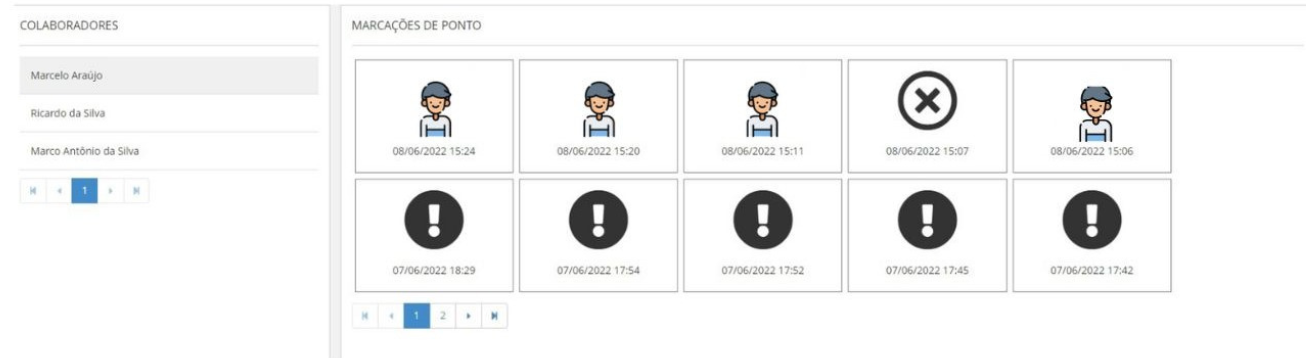
To expand photos or check warnings:
- Select the employee in the Employee area;
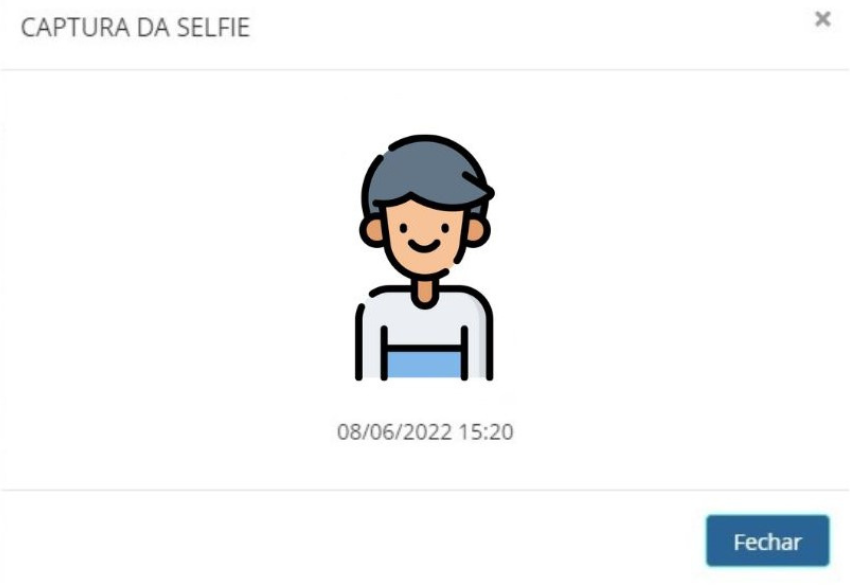
- In the Clocking Event area, click on the photo. It will be displayed as follows:
- When there is no photo, one of the alert icons will appear: or in the list:
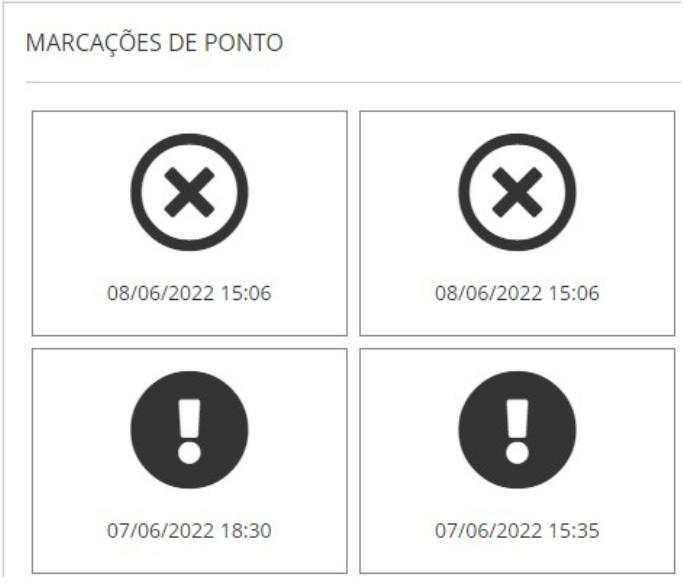
- To check the reasons for not having a photo, click on the icon.
- Once you've finished reviewing the photo or warning, click the Close button.
Platform Permission
Changes are only displayed if settings are changed and if there are photo tags. The feature can only be used if the permissions are correctly informed in the user's role.
Permission:
- (res://senior.com.br/hcm/pontomobile/selfie): Allows inclusion and visualization.
Frequently Asked Questions (FAQ)
Where are the photos stored?
Each photo is stored on the employee's device until they are synced to the cloud. After synchronization, images are deleted from the device and are only available in Web Manager.
How long are images stored for Managers?
The photos are stored in the Web Manager for a period of 90 (ninety) days for evaluation.
How long does it take to sync the photo to the cloud?
Synchronization always happens after the Clocking Event, requiring an internet connection.
If the user does not give access permission to the camera and files, will he still be able to perform the Clocking Event?
Yes, there is no in-app lock that prevents tagging if the user has been denied access to permissions. On the Map and Photo Conference screen, the reason will be listed in the Clocking Event: Capture not performed. Reason: Clocking Event made with photo capture, but the image was not synchronized.
Will all profiles be able to tag with a photo?
The profiles configured by the administrator (Individual, Multiple and Driver) can make Clocking Events with a photo.
When I access the Map screen, the camera icon appears blue, but when I click on it, the photo does not appear - a warning does. What could have happened?
The Clocking Event was made with the capture of the photo, however, there may have been a problem in the communication with the cloud, the internet may have been down at the time of synchronization or the employee may have deleted the photo from his device.
 English
 Español