Career Tracks Dashboard - Career and Succession Management
The career track dashboards provides HR professionals with a management view regarding the employees' preparation level for job positions that make up their career tracks.
This view is shown through comparatives between the employees' competences and the requirements of the job positions that make up the tracks.
| Employees' competence assessments
X Job position requirements |
= Compliance to the job position |
With this comparison, the compliance percentage of employees in relation to their job positions of interest, and job positions of interest of the company, can be obtained.
Requirements to use the dashboard
Before using the career tracks dashboard, make sure the following definitions are done:
- compliance requirements for each existing job position
- career maps of the organization
- permissions for the HR role to view and access the menus
What you can do:
 Obtain a employee's compliance percentage with one or more job positions (employee x job positions)
- Access the dashboard through the menu: Career and Succession > Career track dashboards.
- Enable the visualization by employee:

- Enter the employee's name (or use the search to find it) and click on Filter. The job positions which make up the employee's career track and the compliance percentage for each one will be shown:

- Click on Actions beside the desired job position and select Visualize to obtain details about:
- The employee's compliance in relation to their current job position
- The employee's compliance in relation to their career path (job positions that were occupied, current job position and job positions of interest)
- A short description of the job position that was selected on the dashboard
- A list of competences required for the job position and which ones are met by the employee
Note
After filtering by the employee's name, you can select two job positions from the list and click on Compare to compare their requirements.
Obtain the compliance percentage of a job position contained in the track of one or more workers (job position x employees)
- Access the dashboard through the menu: Career and Succession > Career track dashboards.
- Enable the visualization by job position:

- Enter the job position name (or use the search to find it) and click on Filter. Employees who have this job position in their career track will be shown:

- Click on Actions and on View to obtain details about the compliance level of the employee and the requirements of the selected job position.
Note
After filtering by the job position, you can select two employees from the list and click on Compare to compare the compliance level between them.
Compare the requirements between two job positions (job position x job position)
Go to Career and Succession > Career track dashboard:
- Enable the visualization by employee.
- Click on Compare.
- In the fields displayed, select the two desired job positions.
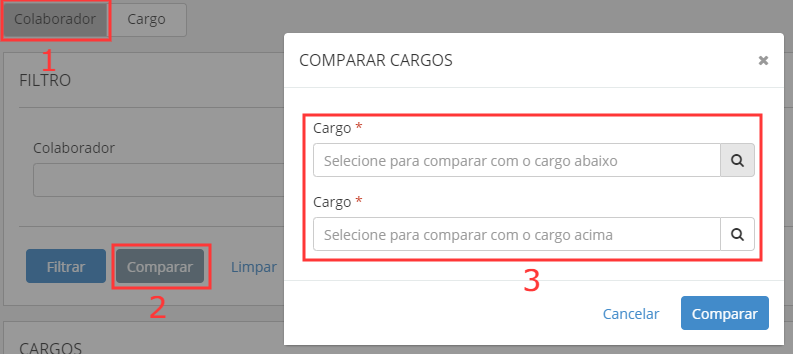
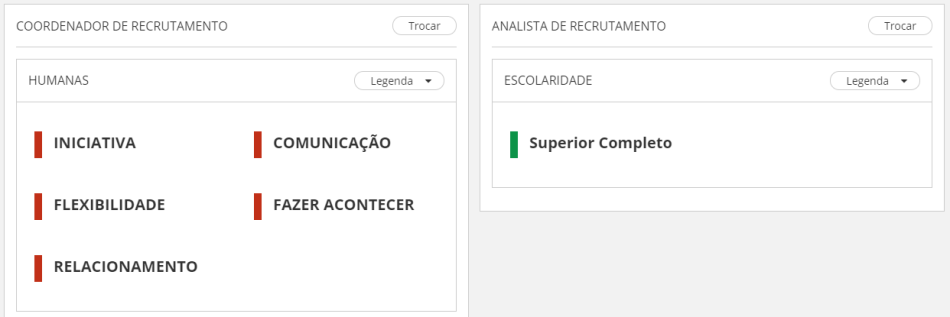
Click on Compare again. Information about each job position will be displayed side by side:
Note
If there is any employee defined in the filter when the comparison is made, the system will also show the compliance level of this employee in relation to the job positions that were selected.
This visualization allows you to see, in a quick manner, the requirements for each job position. The information displayed refer to the training, competences and languages, and are obtained from the requirement groups.
How to register or consult the requirement groups:
The requirement group can be registered in two ways:
- on senior X Platform: Performance management > Registers > Requirement group
- on the on-premises version: Job Positions and Salaries module, in the Requirement Group window (FR530GRQ)
Compare the compliance level of two employees with a job position (employee x employee)
Go to Career and Succession > Career track dashboard:
- Enable the visualization by job position.
- Click on Compare.
- In the displayed fields, select the two desired employees.
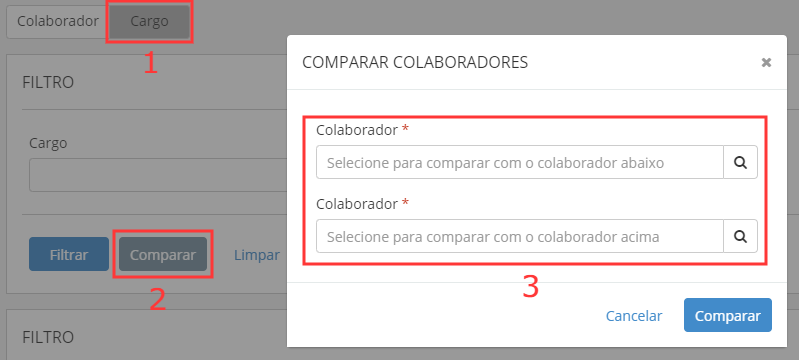
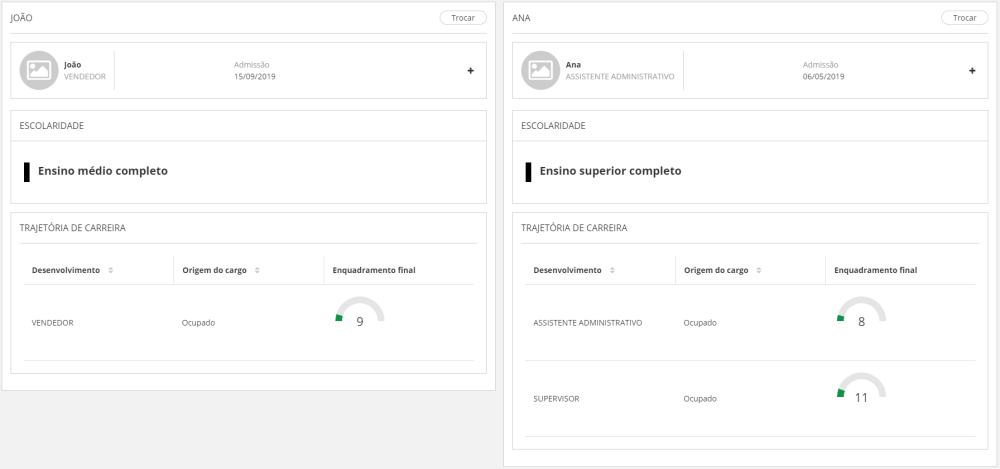
Click on Compare again. Information about each employee will be displayed side by side:
Note
If there is any job position defined in the filter when the comparison is made, the system will also show the compliance level of the employees in relation to the job position.
This visualization allows you to see, in a quick manner, the career track and the assessed requirements for each employee.
Important
Aiming at a more specific comparison, make sure that there are registered tracks. Otherwise, the system will consider all positions in the company for comparison with the employee in question. For more information, check the documentation on Career, in the item Requirements to consult compliance to job position requirements.
How is the compliance percentage calculated?
The compliance percentage can be calculated with or without the attribution of weights for the requirements.
This allows defining some competence groups to have a higher or lower influence on the compliance level of a employee in relation to a job position.
Calculation without weights
The percentage is obtained from the relation between the requirements needed for the job position and how many of them are met by the employee.

Examples:
| Employee's compliance percentage | |||
|---|---|---|---|
| Job position | Number of requirements needed for the job position | Number of requirements met by the employee | Employee's percentage of compliance with the job position |
| Test technician I | 2 | 1 | ( 1 / 2 ) * 100 = 50% |
| Test technician II | 5 | 5 | ( 5 / 5 ) * 100 = 100% |
| Test analyst I | 5 | 4 | ( 4 / 5 ) * 100 = 80% |
Calculation with weights
You can use the job position requirement registration to define a weight for each requirement group.
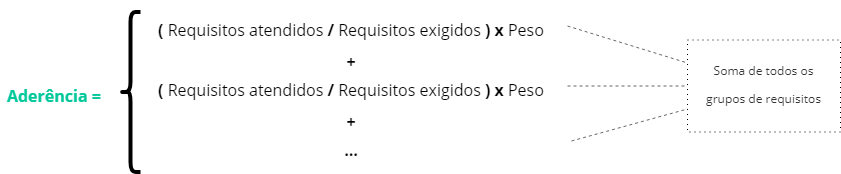
The reached compliance percentage will be calculated separately for each requirement group, considering the weight of each group, and then these values will be summed up to reach the final result of the compliance.
Note
- For job positions that do not have any weight defined in the requirement groups, the normal compliance calculation (without weights) will be considered.
- If the weights were partially defined (that is, in the same job position, some requirement groups have a weight defined and some doesn't), the groups that have no weight will be disregarded in the compliance calculation.
Examples:
Example 1:
| Employee's compliance percentage | |||||
|---|---|---|---|---|---|
| Job position | Group of evaluated requirements | Weight | Requirements needed | Requirements met | Employee's compliance with the requirement group |
| Test technician II | Improvement | 20 | 5 | 4 | ( 4 / 5 ) * 20 = 16% |
| Training | 20 | 5 | 5 | ( 5 / 5 ) * 20 = 20% | |
| Experience | 30 | 1 | 1 | ( 1 / 1 ) * 30 = 30% | |
| Education level | 30 | 1 | 1 | ( 1 / 1 ) * 30 = 30% | |
|
Final results: 96%
|
|||||
Example 2:
| Employee's compliance percentage | |||||
|---|---|---|---|---|---|
| Job position | Group of evaluated requirements | Weight | Requirements needed | Requirements met | Employee's compliance with the requirement group |
| Test technician I | Improvement | 0 | 5 | 4 | ( 4 / 5 ) * 0 = 0% |
| Training | 30 | 5 | 5 | ( 5 / 5 ) * 30 = 30% | |
| Experience | 70 | 1 | 1 | ( 1 / 1 ) * 70 = 70% | |
| Education level | 0 | 1 | 1 | ( 1 / 1 ) * 0 = 0% | |
|
Final results: 100% |
|||||
Group of requirements used to determine compliance by competencies
To check if an employee meets the competency requirements for the desired job position, the dashboard crosses two pieces of information:
- Ocurrent requirements group for the desired job position.
- The assessment what it was most recently created and what is completed.
If the assessment results with the most recent creation date meet the current group of requirements for the position, the employee is considered compliant.
This only applies when checking compliance with the competency requirements, as a position may also have other types of requirements (course, training, education level, for example).
Example:
- Revision 1:
- Creation 01/01/2020 — End: 12/01/2020
- Creation Skills: Communication; Responsibility.
- Revision 2 (current):
- Creation: 01/01/2021 — End date: -
- Skills: Excellence in processes; Strategic thought.
- Rating 1:
- Creation: 01/01/2020
- Conclusion: 12/31/2020
- Competences assessed and achieved: Communication; Responsibility.
- Rating 2:
- Creation: 02/15/2021
- Conclusion: 12/31/2021
- Competences assessed and achieved: Excellence in processes; Strategic thought.
In this case, the job position will have as requirements the competences of the Revision 2 (Excellence in processes; Strategic thinking), which will be analyzed in relation to Rating 2 (since the assessment is completed and with the most recent creation date).
Note
For job positions that have the same competency requirements, the dashboard does not distinguish levels for those job positions when checking if the employee is a match.
For example: for an analyst position and a leadership position that have the same competence as a requirement, if an employee meets this competence, the dashboard will consider them equally compliant to both positions. That is, the fact that the leadership position has a higher level than that of analyst does not interfere in this analysis.
Integration with on-premises modules
The following items have a different nomenclature between the senior X version and the on-premises version of Human Capital Management | HCM:
| Nomenclature differences between the senior X solution and the on-premises modules | |
|---|---|
| Name on senior X Platform | Nome on the on-premises modules |
| Extra Courses | Improvement courses |
| Courses | Training |
| Separated by type (Human, Technical, Functional etc.) | Competences |
 English
 Español