Electronic document signing - Colabbe - Digital Hiring
The electronic signing lets you register document templates and send them to new employees, along with the pre-employment invitation.
Feature characteristics
Fully digital process
- All steps take place within the Colabbe system
Hiring documents management made easy
- Send existing PDF documents or create your own templates for hiring documents that need signature
- Samples become templates that you create only once and use in all hiring processes - just replace with the data of each new employee
Complete control of the signing process
- Collect employee and employer signatures electronically
- Know which documents have already been signed and which are still pending
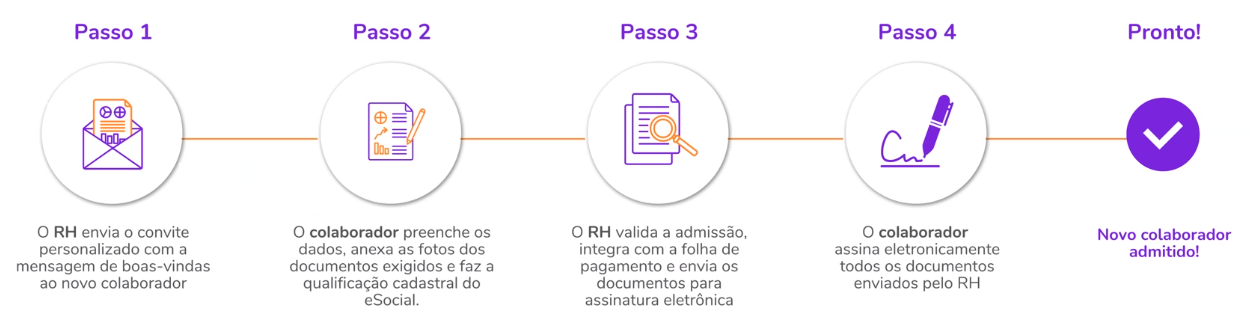
Steps of the digital hiring on Colabbe with electronic signature
Observation
To access the screens and manage the documents with electronic signature, some specific permission features must be enabled for the role.
Register, edit or delete document templates
X Model registration is completely optional. If you already have external PDF documents, you can send them directly for signature.
To learn more about attaching external documents, see the documentation on how to send documents for signature.
Document templates are the document layouts frequently used in hiring processes. These templates are available to the person responsible for hiring, who can send them to new employees and collect the electronic signature.
You only need to create the templates once - then they serve as templates used on each hiring, just replacing with each new employee data.
Templates are managed on the Electronic document signing templates screen:
Menu: Colabbe — Digital Hiring > Electronic Signature
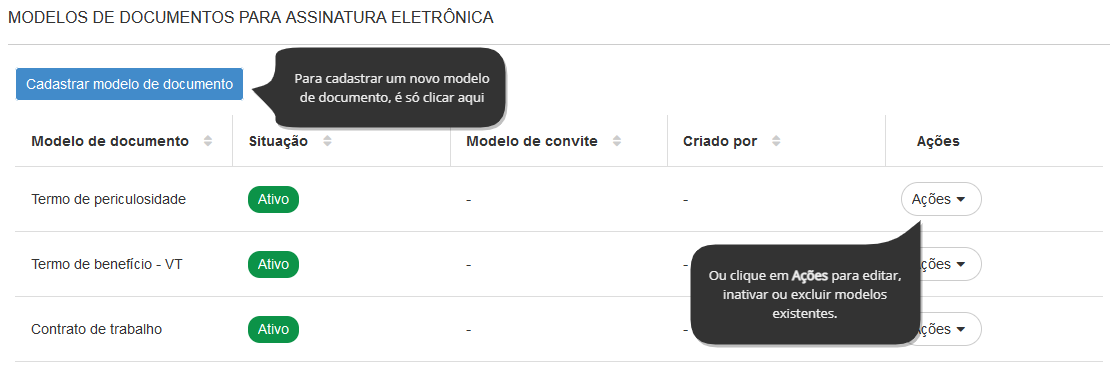
How to fill out a document template
- Name — choose a name that makes it easy to identify the model.
- Prefer names like: Work contract for interns
- Don't use generic names like: New model
- Situation — indicate whether the model is Active or Inactive. Only models marked as active appear in the list of documents that can be selected to be send.
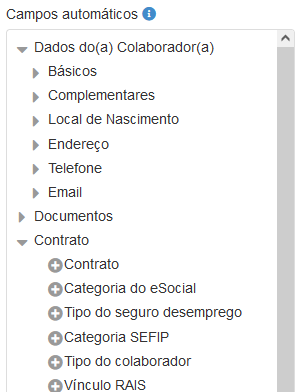
- Content — write the content of the contract. You can use the automatic fields to automatically fill in some employee data.
- Invitation template (Optional) — choose an invitation template to associate with the document.
 What happens when I associate a document with an invitation template?
The document is enabled by default:
When sending the pre-admission to a employee, if this document is associated with the invitation used, it will already be enabled by default:

Don't worry: templates that aren't associated with the invitation can still be enabled manually, on the same screen, before being send for signature.
Non-required fields alert
When associating a document template with an invitation template, the system alerts about fields that have been selected, but are not mandatory for the employee.
This helps HR identify which information needs special attention to ensure it is filled in.
Learn more about autofields
Autofields are objects that you can select and insert into the document:
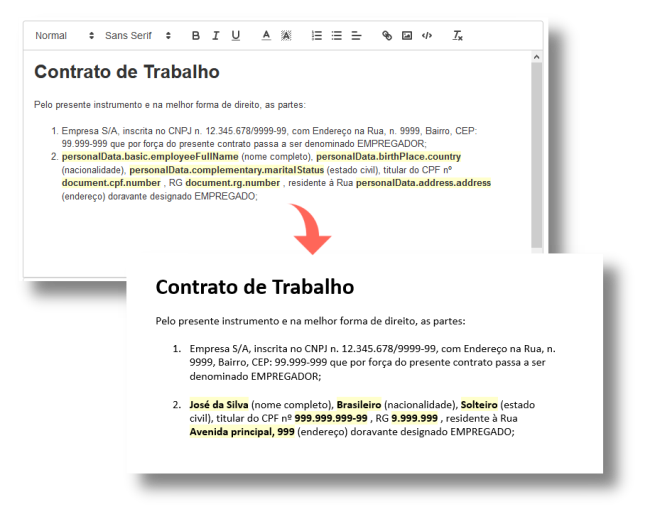
They indicate placeholders in the text. When you send the document for a employee to sign, the fields will be automatically replaced with their data:
Important
So automatic fields work, make sure that all fields entered in the template are filled in when you send the invitation. One way to guarantee this is by configuring the completion of these fields as mandatory on the invitation template.
Custom fields can also be inserted as automatic fields. However, it is not possible to set custom fields as required in the invitation.
Sending documents for a employee to sign
After sending pre-employment invitations, you can submit documents for signature. Sending is made on thePre-hiring screenColabbe — Digital hiring > Pre-admission for employees who have completed the pre-admission stages, that is, who are listed in the AdmittedColabbe — Digital hiring > Admitted tab.
To access the document sending screen, click on Actions and select the option Send documents for signature:
Menu: Colabbe — Digital hiring > Pre-hiring > Hiring tab
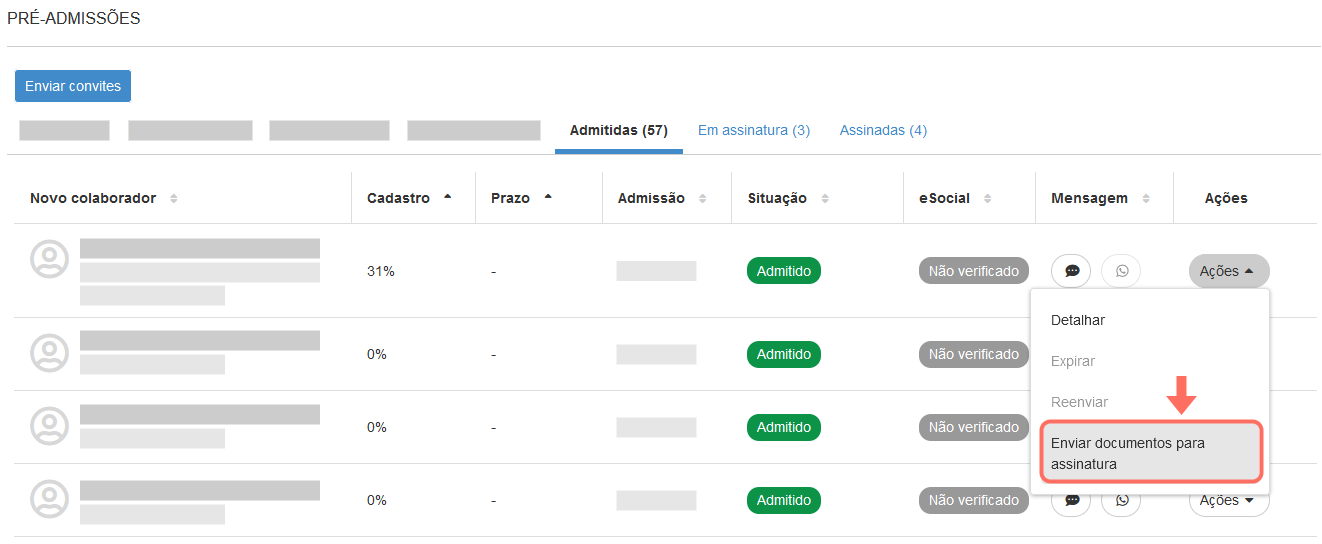
Once the documents are submitted, pre-hiring go through the following tabs - In signature and Signed.
When sending several documents to the same employee, they are grouped into envelopes. Thus, upon receiving the documentation, the employee can sign the envelope instead of each document individually.
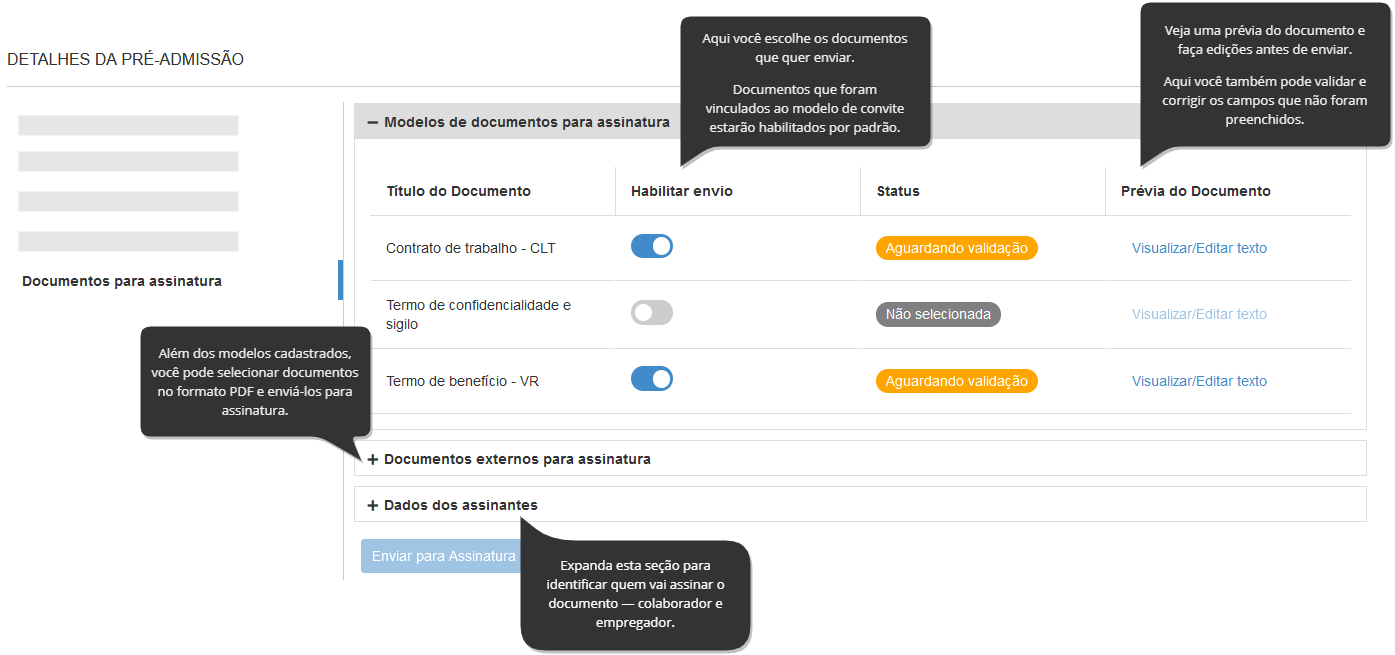
What you can do on the document sending screen
- Enable the documents you want to send for signature
- View a preview of documents and validate their content
- Correct information of the document before sending
- Select external documents to send — only files in .PDF format are accepted
- Add the document's signatories — you can add as many people as you want, and at least two are required (employee and employer)
- Request document's signatories to share their geolocation at the time of signing, ensuring even more security for the process
How the employee sees and signs the received document
When you click on Send for Signature:
- The new employee receives an email containing the link to Senior's electronic signature service website:
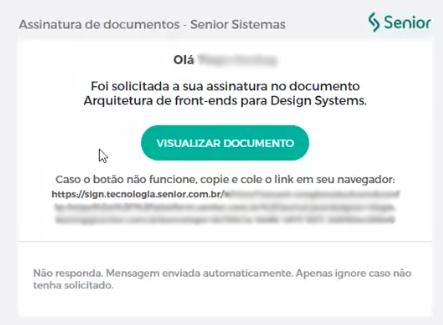
- On this site, the employee must click on Sign the document. With that, a new email will be sent containing a token (security code):
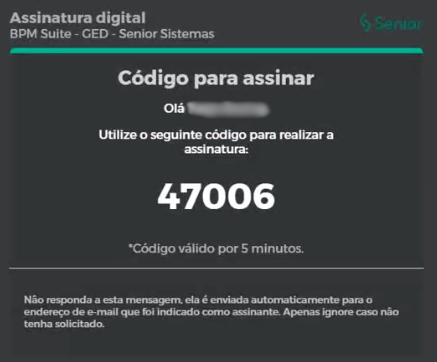
- The employee enters the token in the signature link and clicks on Sign the document again.
Done! The document is already electronically signed.
View the list of signed and pending signature documents
The documents that were sent to the employees can be followed from the screen of pre-hiringColabbe — Digital hiring > Pre-hiring.
To track the status of submitted documents, follow these steps:
- Access the tabs In signature or Signed from the pre-hiringColabbe — Digital hiring > Pre-hiring.
- Click on the register you want to open, or click on Actions and then on Details.
- Access the Documents sent section on the sidebar to see the list of documents that have been uploaded. There you can:
- Check the list of documents that were sent in that pre-admission
- Individually track the signature progress of each document
- Track subscribers and identify which ones are pending subscription
- Resend document to subscribers pending signature
Cancel sending a document
After you send a document for signature, you can still cancel it, as long as it has the Processing or In signature status.
To cancel it, follow the steps below:
- Access the guide In signature or Signed from the pre-hiringColabbe — Digital hiring > Pre-hiring.
- Next to a pre-hiring, click Actions and then on Details.
- choose the Documents sent option in the sidebar. You will see the list of documents that have been uploaded, where you can cancel sending them.
Note
When you cancel a document that has already been sent, it becomes expired.
If you need the employee's signature after cancelling, you will need to send the document again, as the one that was canceled is no longer valid.
Resend the notification to sign the documents
You can resend the documents signature notification, as long as they have the status In signature.
This can be useful when HR wants to remind the new employee to sign a document that is still pending, for example.
To resend the notification:
- Access the In signature or Signed tab from the pre-hiringColabbe — Digital admission > Pre-hiring.
- Next to a pre-hiring, click on Actions and then on Details.
- Choose the Documents sent option in the sidebar. You will see the list of documents that have been uploaded, where you can resend the solicitation.
Senior's GED + SIGN
When you click on Send for Signature in Colabbe, the document is converted to PDF.
Afterwards, the document is forwarded to the new employee for signature using GED service — Senior's solution for electronically managing documents. This system uses Senior SIGN services to enable the electronic document signing.
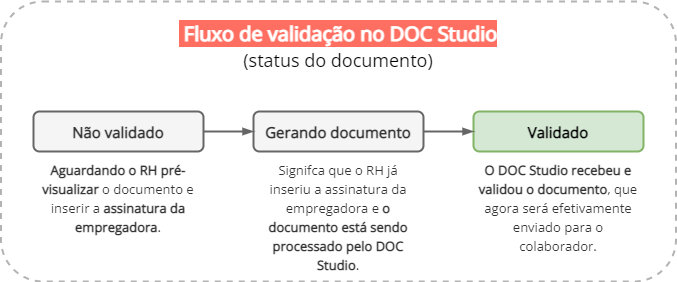
The entire operation is internally controlled by Colabbe — Digital Hiring system. No need to purchase GED, SIGN or any other additional solution to use the electronic signature.
But, if you have access to Senior GED, it can also be used to check on documents at all validation stages. Within GED, these documents will be organized in a folder named Colabbe.
Guaranteed signature security
Colabbe uses Senior SIGN to enable the electronic signature process, following all security guidelines and data validation.
If you have questions about the validity of electronic signatures and what security mechanisms we use, check out SIGN's legal validity documentation.
Frequently asked questions (FAQ)
Are there any additional costs to implement the electronic signing?
No. The electronic signing feature is now available on Colabbe for you, our client. WITHOUT ADDITIONAL COST.
Is it necessary to buy GED or SIGN to have Colabbe's electronic signing?
No. Document storage on the senior X platform's GED is free of charge for up to 2 GB per month, so you don't need to purchase it to use Colabbe's electronic signing feature.
We recommend purchasing GED for companies that need a modern and secure cloud document storage service.
Mainly aimed at using the electronic signature of documents in other internal or external company processes, for example: service contracts with external suppliers, sending contracts to clients, internal legal use, use between areas, etc.
How does Colabbe (in partnership with SIGN) prove the legal validity of the electronic signature?
To guarantee the criteria established by the Provisional Measure No. 2,200-2/2001, that the signatory is himself and that Colabbe has a secure electronic document signing process, our technology registers and proves through names, IP addresses, emails, geolocation, times of signatures and authentication methods of users. This makes our electronic document signing as secure as a paper signature.
Do you have more questions about legal validity? Read full documentation about the SIGN platform and electronic document signing feature.
What is the difference between a digital signature and an electronic signature?
It is considered an electronic signature any sound, symbol or electronic process attached to a contract, which is performed by a person with the intention of signing a record.
Examples: Token, Digital, SMS and Voice, Geolocation, User + Password, security code, scanned paper signature, digital signature, email signatures, digital acceptance, etc.
Digital signature is a type of electronic signature in which cryptography is used to associate the signed document with the user who signed it. You must have a digital certificate approved by an official institution. This signature option, in addition to guaranteeing the authenticity of the signers, also guarantees that the document will not be altered after the agreement between the parties has been signed.
Is registering document models mandatory?
The feature also brings the option of uploading any external PDF document, thus registering document templates is not mandatory.
Have more questions about how document templates work? Watch the full video about electronic document signing at Colabbe.
What types of external documents can I send?
If you choose not to use the internal document templates, but to send external documents via upload, the Colabbe platform allows you to send documents only in PDF format.
How does the electronic signature work on the employee's side?
After receiving an e-mail with the document(s) to be signed, the employee and the witnesses (if any) click on the button sign documents, view the envelope of existing documents and click to sign. After that, the subscriber will receive a token via email, enter the token into the electronic signature platform and complete the signature process.
Is the storage of signed documents in Colabbe or in the GED of the senior X platform?
The document will be stored in the GED, but HR will also be able to view the documents via Colabbe. If you have questions about how to view GED folders and documents within the senior X platform,watch the chapter Permission and Access of this video (at 10:05 minutes).
Is the storage of signed documents for an unlimited time?
Yes, storage of signed documents is for an unlimited time.
After the electronic signature, do the signers receive their copy of the document?
Yes, after the document envelope signers have performed the electronic signature, everyone will receive a copy of the signed documents by email.
After I have already sent documents for signature, can I send new documents?
Yes, even after sending an envelope of documents and all of these have been signed, just access the pre-admission — which will probably already be in the status Signed — and send new documents for electronic signature.
Is it possible to change the text of the document after sending it for electronic signature?
No, after sending a document for electronic signature, it is changed to PDF and it is not possible to change the text of the document. What can be done in these cases is to cancel the sending of the document envelope and send the document again with the desired text.
 English
 Español