Moods - Continuous Mood Survey
The model
The Moods - Continuous Mood Survey solution is primarily aimed at measuring the organizational climate in a short period of time, identifying improvement gaps and helping in the priorities for action plans related to these gaps. It is a Cloud-based solution in the SaaS (Software as a Service) modality which focuses on the anonymity of respondents and the engagement of Workers via simple and friendly questionnaires, submitted weekly, every two weeks, monthly or quarterly.
Methodology
The solution is based in questionnaires with a simple format, are parameterizable and related to the dimensions chosen by the organization.
Dimension
Dimensions are aspects that help measuring the existing organizational climate in a company. In each dimension, questions related to the item are configured and will be used to make up the result of the organizational evaluation.
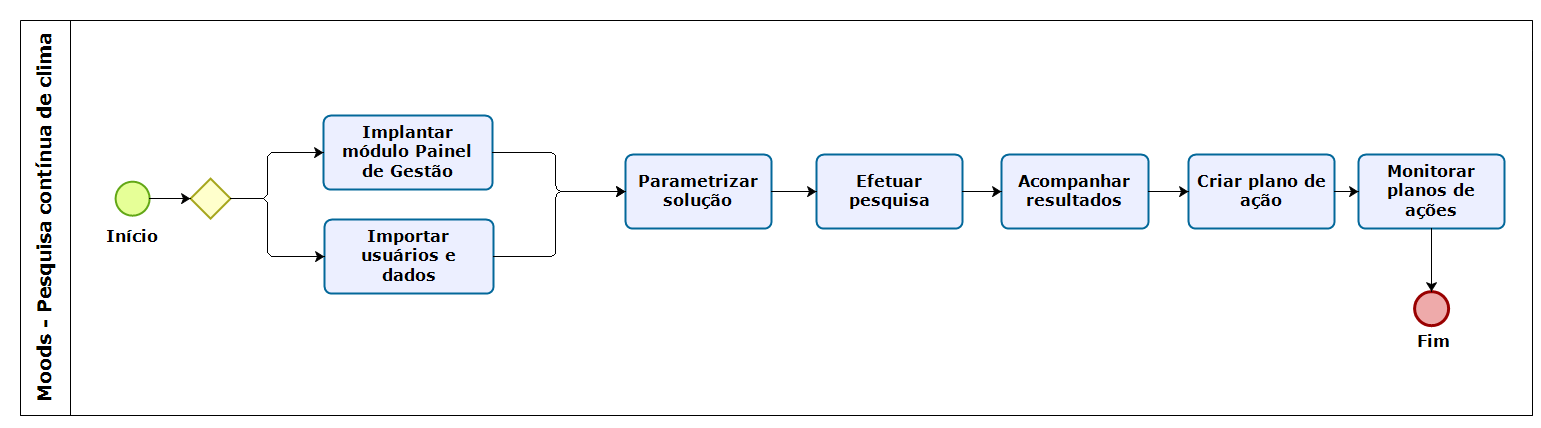
Macro flowchart of the process
Implementation
Integrated with the Management Dashboard module
The Moods - Continuous Mood Survey solution can be implemented with integration to the Management Dashboard module, collecting organization and hierarchy information from this module and considering its implementation as steps.
Not integrated with the Management Dashboard module
This can be done by importing a CSV file with the users (managers and workers) and their respective data.
When importing data from the file, the hierarchy is created, according to the data registered in the file in Excel. Therefore, it is always necessary to mention the manager in the first line of each column, so that the employees below him are identified by the system as his subordinates. This includes all columns in the table. The same should be done considering the other managers, according to the hierarchy, that is, the manager above, the coordinator in the line below and so on, successively. For manager users (according to the hierarchy), the Manager - Moods role must be associated. Here is the data order table:
| contributor name | Collaborator email | manager email | DDI | area code | cell number |
|---|---|---|---|---|---|
| Manager | leonardo.jascone@example.com.br | 55 | 11 | 999999999 | |
| Leader | edson.silva@example.com.br | leonardo.jascone@example.com.br | 55 | 11 | 999999998 |
| collaborator | maria.telles@example.com.br | edson.silva@example.com.br | 55 | 11 | 999999997 |
Important
The import checks whether the register is already in the database; if so, information will be overwritten. Registers that are not in the import file, but are in the database, will not be deleted.
When Moods is not integrated with the Management Dashboard module and a new registration is made:
- Survey analyst: receives an email with the confirmation of the registered role and the user's password.
- Manager: receives an email with the access password only after sending the pulse in which the Manager will be evaluated. The email password may be changed in the profile later, by using the platform features.
Note
In both cases, an email is sent only for new users who do not have access to senior X Platform yet.
Parameterize the solution
- Configure the email server in Technology > Settings > By Tenant (Systems tab).
- Register the Survey Analyst;
- Configure the survey periodicity: weekly, every two weeks, monthly or quarterly;
- Configure the engagement percentage display for Managers;
- Select the managers who will be evaluated
- Customize the questionnaires, inserting up to 99 questions per pulse;
- Perform user management.
Check out the video for more details about the actions that involve parameterizing the solution and how the survey is answered.
What can you do:
- Register survey analysts
- Search configuration
- Select the managers who will be evaluated
- Registration Questionnaire
- Answer tests
- Manage Companies
Attention: The video above is hosted on YouTube - to view it, therefore, access to the aforementioned site must be authorized and released by the company. If in doubt, contact the technology team within your organization.
Important
Question comments for any survey in Moods cannot be disabled.
Execute the survey
The survey is executed through pulses configured by the HR department, which will be sent via email or SMS and will have a number of questions selected by dimension; up to 99 questions may be registered per pulse.
Pulses can be sent via email or cell phone messages weekly, fortnightly, monthly or quarterly.
Monitor results
The solution uses a continuous scale going from 1 to 10 and the grade of a dimension is composed by the average of its factors' grades. The calculation considers only questions which have answers in the scale or multiple choice models. The follow-up can be done through the Research Analytics of theManager It's fromHR.
What can I do with the Moods - Mood Survey features?
Important
The functionalities of this screen will be available according to the user's permission.
 Configure the mood survey
To configure the survey to be sent by email, access Moods - Climate Survey > Survey Settings > Email Respondents. It is also possible to forward the survey via SMS, in Moods - Mood Survey > Survey Settings > SMS to respondents.
Survey settings
Automatic synchronization with the Management Dashboard
This parameter is only visible in the survey settings if Moods is integrated with the Management Dashboard module. If it is set to Active, the workers' full information and hierarchy are synchronized with the Management Dashboard and manually-made customizations are deleted.
Workers who are promoted to Managers, i.e., have led people, are automatically associated with the Manager - Moods role and will participate in the next pulse. This is the default role and if the Worker is no longer a Manager in the hierarchy, the association with the Manager - Moods role will automatically be removed.
If the parameter is set to Inactive, the
Important
Upon enabling or disabling the Automatic workers sync with the Management Dashboard parameter, the change will only be applied after signing out of the solution and signing in again.
Send pulses to third-party workers
This parameter allows the sending of pulses to the third-party workers of the company. The default initial value of the Send pulses to third-party workers parameter is being disabled.
Upon enabling it, internal and third-party workers shall receive the pulses, containing the same Moods surveys.
To make the third-party workers no longer receive the pulses, simply disable the parameter.
Number of questions per pulse
This parameter allows you to define the number of questions that the system will bring in the generated pulse, so when entering a fixed number, the pulse will be limited to the number entered.
For example: When registering a questionnaire with about 30 questions, but in the configuration 5 questions per pulse are defined with the frequency of being sent per week, in this case the choice of questions is random, but the system prioritizes the questions that have not yet been answered. were made, or that were chosen with less quantity,
Survey dashboard
To send a reminder to employees who have not yet responded to the Moods survey, referring to the current pulse, it is necessary to configure the featuresurvey reminder.
It is possible to send only 1 reminder per pulse, on a date that precedes the end of the survey. Collaborators will receive notice that the survey is pending by email and/or SMS, that is, by the same tool(s) they usually receive surveys.
There are two options to choose how often the reminder should be sent, in addition to the option not to send it. They are:
- Per period fraction: the period is divided into fractions, it being possible to send the notice of pending research with 1/4 (25%), 2/4 (50%) or 3/4 (75%) of the period to close the survey.
- By number of days/weeks: it is necessary to choose the number of days or weeks before the end of the survey, in which the reminder will be sent. For example: 5 before the end of the current pulse period or 1 week.
Whenever the weather survey submission interval is changed, the reminder date will be impacted.
When changing the interval for sending the survey or the date of the reminder, you must click on the buttonTo save, located at the bottom of the page, so that the system updates the changes made.
Email to respondents
There is a default text for the email sent to the survey respondents, but it can be customized to suit the company's needs.
The first one refers to the organization that will execute the survey. The respondent is the Worker who will receive the survey, according to the managers selected to participate in it. The pulse end date is considered according to the settings periodicity
The default layout of the email can be edited in HTML language. To do this, just click onchange template, and at the end of To alter, for the system to validate the changes.
In addition to modifying the default email text, it is possible to change the top image and font properties such as style, size and color. However, the buttonTake survey, as well as the naming of the other buttons are unalterable.
Important
When customizing the default text of the template, it is necessary to keep the tags[emailMessage], [buttonLabel] in the same location as the default template, so that the system validates changes to the email layout. The footer image cannot be changed and must remain in the email footer.
To save all changes made to the Pulse Send email settings, click the buttonTo save, located at the bottom of the screen.
SMS to respondents
The cell phone message sent to survey respondents is standard, but can be customized according to the company's needs, accounting for up to 100 characters. The survey access link must appear in the message, exactly as it is informed in the standard message.
The SMS pulse submission periodicity may be weekly, done every two weeks, monthly or quarterly and it must be configured in Moods - Climate Survey > Survey settings > Survey interval.
Standardize the sending of pulses
The default initialization value of this button is disabled. However, it is possible to choose to send viaemail, perSMS orboth. To do so, simply select the desired option in the parameterStandardize pulse sending, on the Search Settings screen.
Once the default option is selected, every time a collaborator is imported by Moods, coupled to the Management Panel, or via CSV file, in Moods uncoupled, the survey will be sent from the parameter configuration.
To change the default pulse sending mode, it is recommended to do so after the current pulse sending date.
Important
The standardization of sending the pulse is only valid for employees added to the system after parameter configurationStandardize pulse sending. Those who are already on the base of the system before configuration will not receive the pulse according to the last standardization.
Change the way pulses are sent to specific collaborators
It is possible to change the sending of the pulse considering some specific collaborators. The change is made on the Manage Employee screen, underPulse shipping way, whose options are also: email, SMS or both.
Survey Answer
There is a need for at least three people to respond to the survey, that is, if the manager has less than 3 subordinates or less than 3 people who respond to the survey, the result will not be presented to them, which is viewed via survey analytics.
Email error notification
The research analyst will be notified if any employee involved in the pulse could not receive the email due to restrictions on the destination server. The same will also receive an email with all the information of employees who have this restriction.
It is interesting that the research analyst reviews the information of the collaborators, who have restrictions validating their e-mails.
For employees to be able to receive the email from their wrist, this information must be corrected and the reminder enabled.
Important
It is mandatory that the adjustments are made before triggering the reminder.
Select the managers who will be evaluated
In the Evaluated Managers screen, accessed in Moods - Climate Survey > Evaluated Managers, the managers are listed according to the hierarchy defined by Moods and sorted alphabetically. The information in this screen is displayed over pages, and up to 20 managers can be viewed in each page.
You can select them in three ways: individually or with the following options: All in this page, which selects all managers listed in the current page; or All in this list, which affects all managers registered from the first to the last page. To facilitate the search for a specific manager, just enter its name or email in the search field.
You can also identify the led people to which the pulse was sent, considering the current manager. To do this, just click in the selection field, at the left of each manager's name. The result of the pulses submission can be consulted in the Situation of the last pulse sent column, where the situation of the last pulse sent will be registered. The situations may be:
- Survey sent;
- Email address not registered;
- Email address invalid;
- Worker absent in the hierarchy;
- Survey not sent;
- Manager not evaluated.
Manage employee data
In Moods - Climate Survey > Companies and workers > Manage workers > Registration, the workers data may be managed.
In the Manage Workers screen you can add new workers, edit personal data and other data regarding the employment contract. A photo can also be added to identify the worker. You can also define the pulse sending method, set whether the worker is a Survey Analyst and block the survey submission.
The registered workers may be verified in a list, as well as their email addresses, respective managers and companies, in addition to identifying which ones are receiving the climate survey.
With the Filters field, you can search for workers by entering their names. The search returns the active workers and also the ones who were laid off from the company, as long as the Show laid-off workers button is enabled. The default initialization value of this button is disabled.
Notes
- Whenever a new Survey Analyst is registered, he or she will receive an email confirming the new role.
- Whenever a Manager becomes evaluated, he/she will be considered in the surveys from the next pulse (and not the current pulse) onwards.
- When Moods is integrated to the Management Dashboard module, only the Block survey sending, Survey analyst and Pulse sending method fields can be changed. If other data needs to be changed, this must be done in the original register.
- Posts that are in the hierarchy must have a person associated with them, even if they are fired. In the case of stations that do not have an occupant, theMoods generates a temporary employee for the same, using the post name as the person's name. When the position is occupied by someone else, this temporary employee is excluded from theMoods failing to appear.
Manage company and branch data
The Manage Companies screen can be accessed in Moods - Climate Survey - Companies and workers > Manage company. There you may add and edit
Note
When Moods is integrated to the Management Dashboard module, the information in the tabs cannot be changed. If the data needs to be changed, this must be done in the original register.
Import data
It is possible to import a table, through the Import data menu, in Moods - Climate survey > Companies and Employees. For the table import process, you must upload files in .CSV format, considering the following structure:
- Each field and information separated by a semicolon ( ; );
- Save it in the UTF-8 encoding model.
Provide survey information through the dynamic views
Provide survey information through the dynamic views
It is possible to consult and extract information from the climate survey, such as the dimensions of each pulse, questions applied, evaluated managers and the score, among other data.
This query is performed using dynamic views, which need to be registered and configured as needed.
Go todynamic view documentation to see what information can be listed and how to use it.
block list
It is possible to perform a verification routine during the sending of each pulse, which checks and returns to the client a list of all emails from employees who will not receive the pulse because they are on the email server's Block List.
To receive the e-mail containing the list of e-mails present in the Blocked List, it is necessary that the collaborator has enabled the Research Analyst permission within the Moods collaborators register.
How does an email get on the Block List?
Some of the most common reasons for an email to be forwarded to the Block List are:
- When the e-mail entered is non-existent;
- When there is a typing error;
- When the inbox of the respective email is full;
- When the e-mail user uses e-mail blocking software; and etc.
The customer may choose to use their own e-mail server to control the e-mail blocking rules.
X

 English
 Español