General and company settings - Compensation Management
The configurations per tenant allow controlling the functionalities that influence the process of some routines of the Compensation Management module.
How to access settings by Tenant of Compensation Management
- Access the senior X Platform with a user that istenant admin or who has thePermissions needed to make settings.
- Access the per-tenant settings screen via the menu:Technology > Configuration > By Tenant.
- in the sectionDomains and Services (at the bottom of the screen), expand the domainhcm.
- Within the domain, look for theservice where is the functionality you want to configure.
- click inTo edit next to the service to access the properties. On the properties screen, the settings will be available within the tabSystem.
Important
Most of the features of the Remuneration module are located within the serviceRemuneration.
Law Suit
Salary Proposals Tab
 Configure salary proposals
In Settings > Salary Proposals, it is possible to configure criteria such as the reasons for proposals, the visualization of salary information of employees in the Manager and HR panels and the consistency of the budget when sending salary or promotion proposals.
Define the destination of the promotion approval notification
After defining the level, you must also define who will receive approved and rejected proposal notifications. This return will be sent to all approvers involved in the sequence (prior to the current one, except for the target worker of the proposal), or only to the approver of the previous step.
Job Position acting type
The default acting type, used to send the job position history to the Jobs and Salaries module, can be defined.
This information is obtained from table R017TAP (Job Position Acting Type) and the types displayed are only the ones with the Main Record field set to Yes (HisPri = S).
Salary table information visualization in proposal submissions
The visualization of the table information that the Manager can select in the proposal must also be defined; this is done in the What is the visualization option of the salary table information when submitting proposals? field. If the All tables, classes and ranges option is selected, any information from the active salary tables can be consulted and selected. But if the Only the table, class and range of the job/position option is selected, information from the table, class and range of the job/position of the proposal's worker can be consulted/selected.
Consist the salary defined in the proposal with the data of the job/position salary table
You can set whether the salary defined in the proposal must be consisted with the salary table by using the Consist the salary entered in the proposal with the data of the job/position salary table? field, making sure the Manager carries out the proposals inside the defined table.
If the option is set to Yes and the Manager carries out the proposal with a salary different from the table, class and range of the job/position, but equal to other salaries of the job table, the information in the table will change according to the defined salary. But if the option is set to No and the Manager carries out the proposal with a salary different from the table, class and range of the job, the proposal can be carried out normally.
Define whether the promotion proposal will go through approval by the occupational medicine department
You can also configure the participation of the occupational medicine professional in the approval sequence for proposals with the Promotion reason. If the Specialized Services in Safety Engineering and Occupational Medicine (SESMT*) professional is part of the approval sequence, he or she will decide which workers are able to receive a promotion proposal. This will be the only action of this Role in the approval sequence. In addition to this, he or she will view the following information: the promotion proposal request date, the Worker's job and position, the location and the current and proposed cost centers.
The decision of the Occupational Medicine professional will be available to the HR department, before the professional makes his final decision. It is possible to search for each contributor, citing the name of the searched in the filter field. All results will be presented in the proposal history for later consultation.
To include the Occupational Medicine role in the approval process, the HR department must set this configuration in: Remuneration management > Settings > Salary Proposals tab > Will the promotion proposal go through approval by the occupational medicine department? field.
Define whether there will be a block during the proposal approval process
It is possible theHR define whether, at the time of execution of the proposal, there will be some type of block during the approval flow. In Compensation Management > Settings > Salary Proposals, in the fieldWhat will be the rule applied for editing the proposal during the approval flow? You will have two options:
- Proposal editing is allowed during the approval process: this will give permission to edit all options on the proposal screen like salary range, salary class etc.
- No editing will be allowed during the approval process: that is, all configurations will be blocked during the approval process, and editing will only be allowed when it is in the last step, which will be effective.
Possibility of salary reduction in the proposal
There is the possibility of HRalert orblock movement, if the employee's total remuneration is lower than the current one. For this in the fieldDoes it allow the remuneration value to be lower than the current one?
If the user chooses to:
- Alert: A yellow alert will be displayed in the proposal with the informationThe employee's new remuneration is lower than the current one and will be allowed to proceed with the proposal.
- Block: A red alert will be displayed in the proposal with the informationThe employee's new remuneration is lower than the current one and the proposal will not be allowed to proceed.
Important
If the value of zero is informed in the fieldNew Base Salary, will automatically fill -100% in the fieldPercentage increase. The same will happen inversely.
Possibility to create a link in the caption of a proposal
It is possible to create a description by informing a text and/or link in a caption field on the proposal screen, for this leave the button enabledAllow caption link on proposal screen?.
Later, on the proposal screen, this caption will be shown with what was informed in the settings, for example, if a link to some documentation is informed, this link will be displayed on this proposal screen. will be on top ofReason for Proposal in a frameblue.
Configure the Worker's annotation history
You can select the types of annotations that must be considered as disciplinary measures, the receipt date and the warning description.
The annotation type registers can be consulted in the Annotations screen. The registration of the types of annotations can be consulted on the screenNotes.
The history shows annotations from the last 12 months.
Consist of the budget available for sending proposals for salary increases and promotions
Information regarding the budget is integrated from the Budget Items screen in the Headcount and Budget module. The information referring to the budget is integrated on the screenBudget Items of the Vacancies and Budget Table module.
To make the salary budget consistency occur during proposal submissions, the following steps are necessary:
- Calculate the current base-year budget, in the Headcount and Budget module.
- The calculated version/revision must be with situation 2 - Official; verify it in the Headcount and Budget module;
- Execute the sequences in the integrator: Budget items and Budget review.
After executing these prerequisites, other configurations must be done. They are:
- The definition of how the rule will be applied in the consistency of the salary budget of the proposals, through the optionsAlert orBlock.
- Job usage in the budget control: if the option is No, only the Cost Center or the Location will be considered. If the option is Yes, either the Job and the Cost Center or the Job and the Location will be considered, according to the policy definition.
- The items are the ones registered in the Budget Items screen, These items are registered on the screenBudget Items, from the Vacancies and Budget Table module.
- The possibility of considering proposals in progress when summing salaries estimated for the budget consistency.
- The way to define the version revision that shall be considered to calculate the budget: this configuration may be manual or the system default, which considers the last revision of the current year's last version.
Consider staff balance when submitting promotion proposals
It is possible to inform on the screen, when the position limit for the job was exceeded, and if the company allows the proposal to be issued.
Define the revision of the current version of the budget calculations to approve a proposal
The version revision of the budget calculations that shall be considered when approving a proposal can be defined in the What is the option to consist the budget during proposal submissions? field.
The option defined as the system default is the one the considers the last revision of the current year's last version. The budget consistency may also be configured manually. Below are the explanations for the two ways to configure this setting:
- Consider the last revision of the current year's last version: this option considers the revision valid in the consistency date, as defined in the Headcount and Budget module. If more than one revision is valid, the greater revision of the greater version will be considered.
- Enter the base year, version and revision manually: this options allows the manual insertion of the base year and the version revision that shall be considered when approving a proposal.
Definition of the visualization of positions in the submission of proposals
It is possible to define which positions will be displayed when sending the proposal, through the optionHierarchy positions only, in the parameter What is the option for viewing positions when submitting proposals.
Important
- The HR role can request, approve/disapprove and execute a proposal for any position or position according to the current proposal approval flow;
- The manager role is able to request and approve/reject proposals only from existing employees in their hierarchical structure;
- If the manager identifies that there is no post of destination to carry out the change of position/promotion in his hierarchy, he must contact the internal area responsible for creating the job.
How the Vacancy Board validation works when registering a vacancy
Vacancy Board validation occurs whenever a vacancy is created, viewed or edited. A message on the screen will inform you of the following situations:
A balance composing the data of the current staff is also presented. This data comes from the moduletable of vacancies of People Management | HCM (version 6), as well as the options to alert or block the action of registering a salary request, with authorization from the company. For more information about integration,Click here.
Important
- Validation of the job board will occur whenever the fieldsCompany It isWorkstation, from the Employment contract tab and the fieldsReason for opening vacancies It isnumber of vacancies, from the Info tab, are populated for the first time or subsequently changed.
- The date considered for the validation of the job board is the job creation date.
- In order for the balance on the Vacancy Board to be updated, information on vacancies created in the Compensation Management module will always be sent to the People Management | HCM (version 6). when the fieldDepartment is not filled in, the system will determine a default value for this field, which will be the first location code created for the company's organizational chart table, selected in the Personnel Requisition or in the Vacancy.
Dashboard tab
Configure the view of employee salary information
In the Manager (Average Salary and Salary Evolution graphs) and HR (Average Salary and Salary Evolution graph) panels, it is possible to define the way of viewing employees who have a workload of less than 220 hours per month, according to the following parameter optionsWhat option is used to display employee salaries on the manager and HR panels?.
Hourly paid workers
- Consider the hourly nominal wage: in this case, it considers the salary value that is in the employee's salary history.
- Consider the monthly salary and use the workload registered in the scale: in this case, it calculates the salary value, multiplied by the number of hours on the employee's schedule.
- Consider monthly salary and use 220h: in this case, it calculates the value of the employee's salary multiplied by 220h (fixed).
Monthly paid workers
- Consider nominal salary: in this case, it considers the salary value that is in the employee's salary history.
- Consider 220h: in this case, it calculates the value of the employee's salary divided by the number of hours on the employee's schedule, multiplied by 220 hours (fixed).
Note
If the worker does not have a schedule registered in the system, the default value of 220 hours per month will be considered in the calculations.
Configure the score criteria of the people indicated for a salary raise
The indicators that can be configured are:
- Assessment by competences: the value of the result obtained in the completed competency assessment. The Performance Management module is required to use the Evaluation per Competences indicator.
- Results assessment: The value obtained in the completed results evaluation. The Performance Management module is required to use the Results Evaluation indicator.
- salary position: is the distance to the market reference range. For this, a comparison is made between the Employee's salary and the market reference, which is registered in the salary table. This distance is measured in percentage and more details can be seen in the graph ofsalary framework.
- Time of last spontaneous salary increase: the number of months since the Employee's last salary increase.
- time in office: the number of months the Employee has been in the same position.
The sum of the weights defined must be exactly 100%, as shown in the example below:
| Indicators | Weight | Reach | Points |
|---|---|---|---|
| Evaluation per Competencies | 35% | 100% | 35.0000 |
| Results Evaluation | 35% | 100% | 35.0000 |
| Performance Points | 70% | 70.0000 | |
| Salary Position | 20% | 10% | 18.0000 |
| Time since last raise | 5% | 24 | 1.2000 |
| Time on the job | 5% | 24 | 1.2000 |
| Salary Points | 30% | 20.4000 | |
| Total Points | 100% | 90.4000 | |
The time limit to provide a new salary raise to the same Worker may also be configured. To do this, enable the Consist time limit? and the Consist time limit below the initial limit? buttons at Remuneration management > Salary policy > Manage salary policy > Salary policy list.
The calculation always considers the minimum time shown in the mentioned criteria, regardless of the proposal reason, which may be merit, framework or promotion. The same rule is applied for workers who are receiving a salary compatible with or below the market average.
Important
The system will take into account the settings of the company's panel corresponding to the logged-in user.
Proposal approval flow tab
Configure the approval sequence of salary or promotion proposals
É possível configurar o fluxo de aprovação para as propostas salariais e promoções, acessando:
- Gestão de remuneração > Configurações
The configuration of the proposal approval criteria is done for each company, per date revision. Whenever there is a change in the approval sequence configuration, a new revision date will be generated.
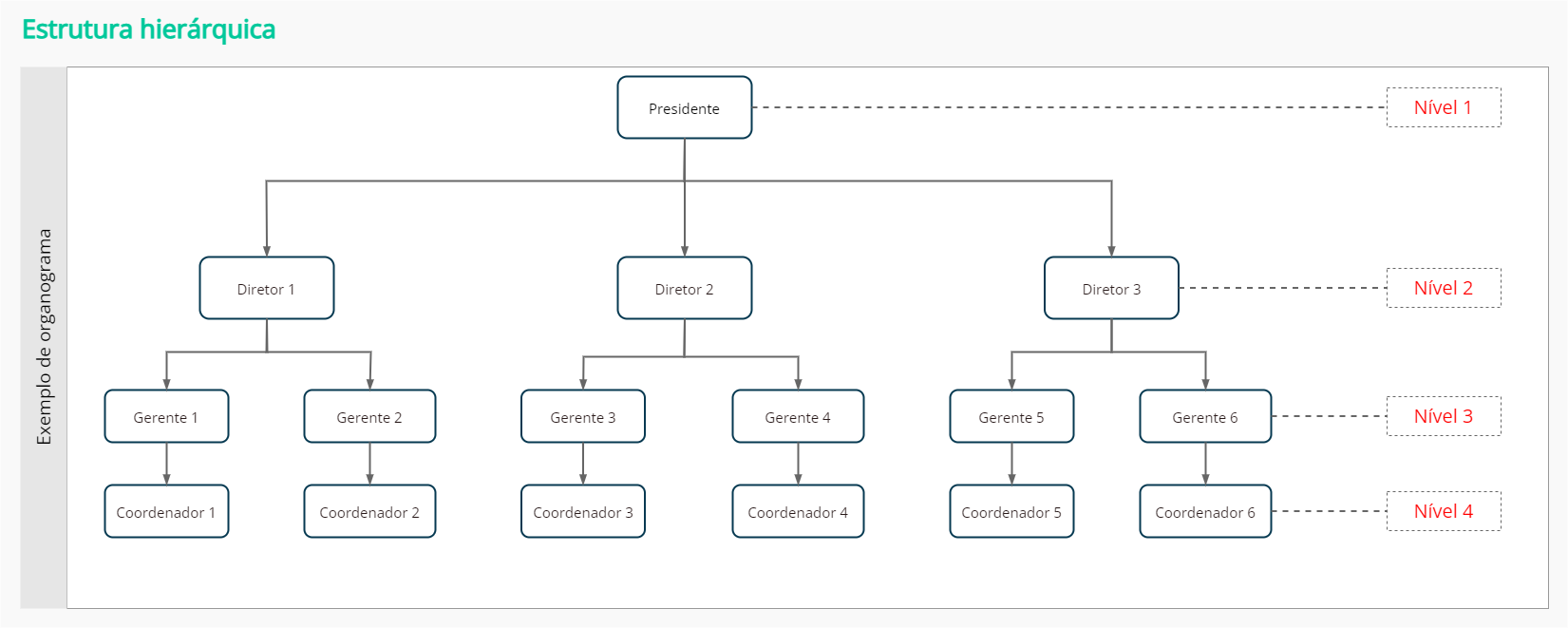
O nível de aprovação para a solicitação de uma proposta deve ser informado em ordem crescente, considerando o nível 1 como o nível hierárquico mais alto.
A imagem abaixo apresenta, como exemplo, uma organização que possui na sua estrutura hierárquica 4 níveis de gestão:
Note
- Caso um Gestor que esteja acima do nível máximo de aprovação configurado faça a solicitação de um aumento salarial ou promoção, o sistema continua o fluxo da mesma forma (aprovação pelo Gestor imediato) e, só após a aprovação, a proposta é enviada para efetivação do RH;
- No caso do nível 1 (Presidente), quando ele não faz parte do processo de aprovação de propostas, ainda que ele mesmo seja o solicitante, a solicitação vai direto para a efetivação do RH;
- Se não houver um ocupante no posto de trabalho que faz parte da hierarquia de aprovação de propostas, a pendência de aprovação é enviada para o Gestor que está acima do posto sem ocupante, ou seja, para o próximo posto de trabalho ocupado na hierarquia;
- A pendência de aprovação da proposta será enviada para o Gestor, ainda que ele esteja em um posto de trabalho no qual o nível de aprovação, configurado no processo, esteja acima do máximo (último nível);
- No parâmetro de notificação das propostas aprovadas/reprovadas, somente o gestor recebe a notificação de acordo com o parâmetro selecionado.
Define the default hierarchy level for the proposal approval
Em Configurações > Critérios do fluxo de aprovação das propostas > Padrão, é necessário informar o último nível hierárquico que será responsável pela aprovação das propostas. Regardless of the number of levels involved in the approval of a proposal, the hierarchical level responsible for the decision is the one that must be configured.
The proposal destination, when the requester is the last approver of the process, must also be defined. In this case, he/she may submit the proposal to a hierarchy level above or straight to the HR department for them to continue the request.
Also, the actions that the HR department will carry out in the proposal approval sequence must be defined. If the HR - Proposal Approver role is configured, the Approve proposal at the beginning of the sequence and execute it at the end option must be selected. Otherwise, the HR will be responsible for Executing the proposal at the end of the sequence.
Define the hierarchy level of the last approver when there are salary policy exceptions
In the Salary policy exceptions tab, you can configure the hierarchy level that will approve all proposals that are not in compliance with the salary policy.
The configuration done in this tab will only be considered for the salary policy criteria defined with the Alert rule.
Define the hierarchy level of the last approver according to the job position hierarchy
In the Job position hierarchy tab, each hierarchy level of the worker's job position may be associated with the hierarchy level that will be the last approver of the promotion or salary raise proposals.
Define the hierarchy level of the last approver according to the job hierarchy
Each hierarchical level of the worker's job must also be associated with the hierarchy level that will be the last approver of promotion or salary raise proposals, to configure the Job hierarchy tab criteria.
The hierarchy levels of the worker's job, displayed in the If the hierarchy level of the worker's job is: field come from the Jobs and Salaries module.
Define the hierarchy level of the last approver for each proposal raise percentage
In the Raise percentage tab, you can the hierarchy level responsible for the approval of the proposal considering each raise percentage.
The configuration of the If the proposal raise percentage is greater than or equal to and What will be the hierarchy level of the last approver? fields may be done according to the percentage limited in the salary policy of in cases of exceptions, for example, when a salary raise above the percentage allowed by the company policy must be approved.
Define the hierarchy level of the last approver according to the proposal reasons
In the Proposal reasons tab, you may configure the approval of promotion or salary raise approvals per distinct hierarchy levels, according to the proposal reason.
Therefore, you may define a hierarchy level responsible for the approval of all proposal reasons or for defining the approver hierarchy levels for each proposal reason.
Edit the configuration of the approval sequence criteria of salary or promotion proposals
In Settings > Proposal Approval Sequence tab > View Details button, you can edit the configuration of the approval sequence criteria of the promotion or salary proposals.
This editing may be done whenever it is necessary to update the content configured in the fields. The data of all tabs may be edited. Upon saving the changes, the start date of the new revision must be defined, which may not be earlier than the start date of the existing revisions.
Note
- If the worker or the proposal are not in compliance with any of the criteria configured for the approval sequence, the hierarchy level configured in the Default tab will be considered. Whenever the hierarchy level of the Default tab is the highest one, it will be considered, overlapping other criteria.
- If there is any conflict between the criteria, that is, when the worker or the proposal fits in more than one criterion, the highest hierarchy level of the involved criteria will be considered.
Salary Tables Tab
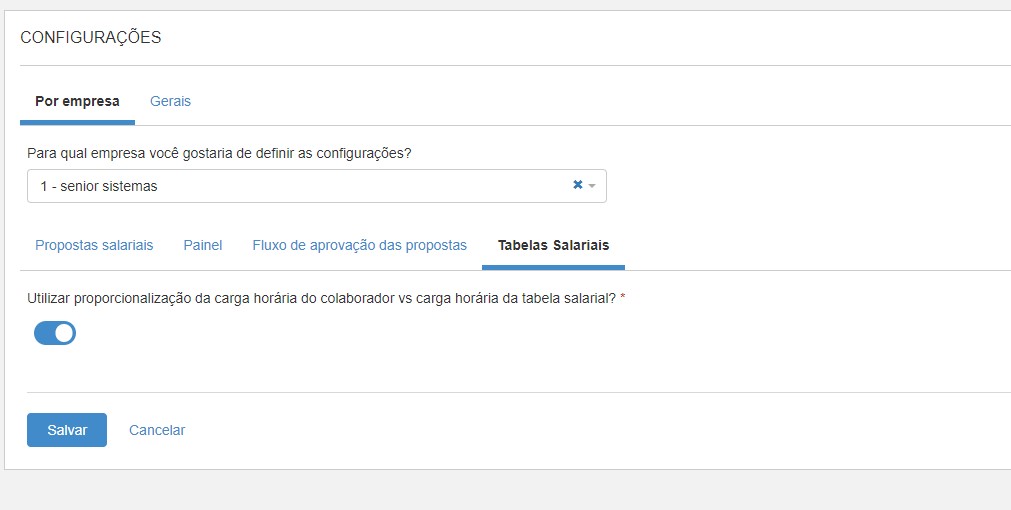
Proportionalization of the employee's workload vs. the workload of the salary table
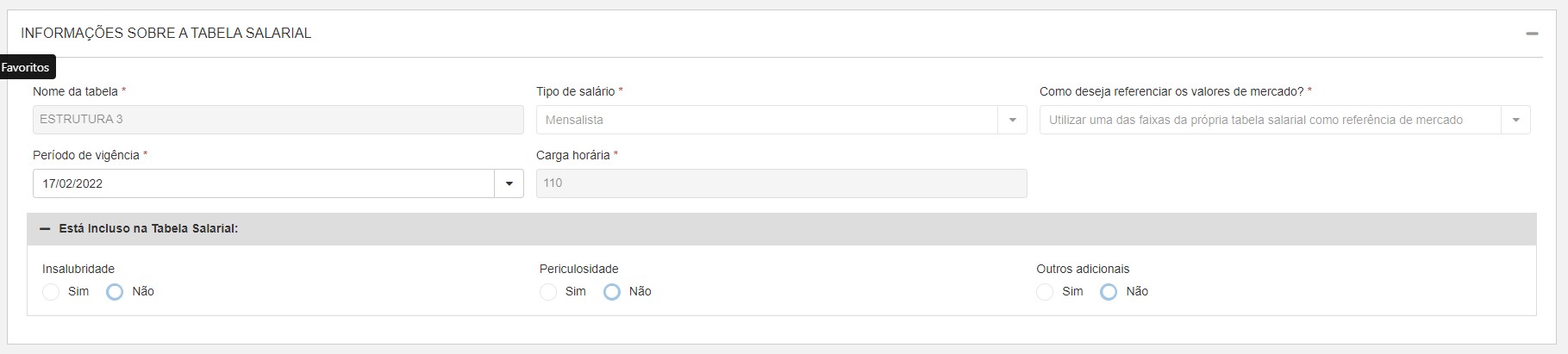
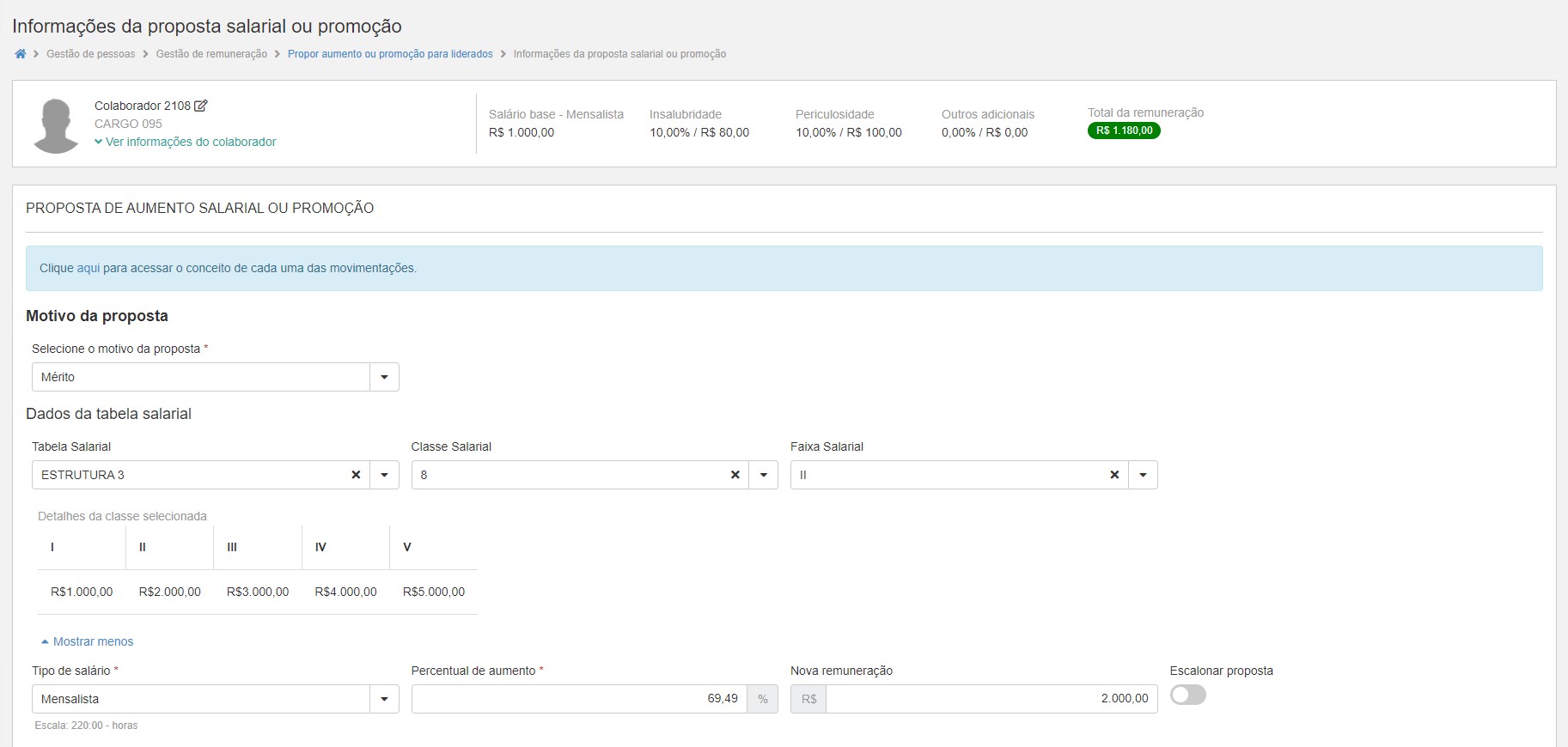
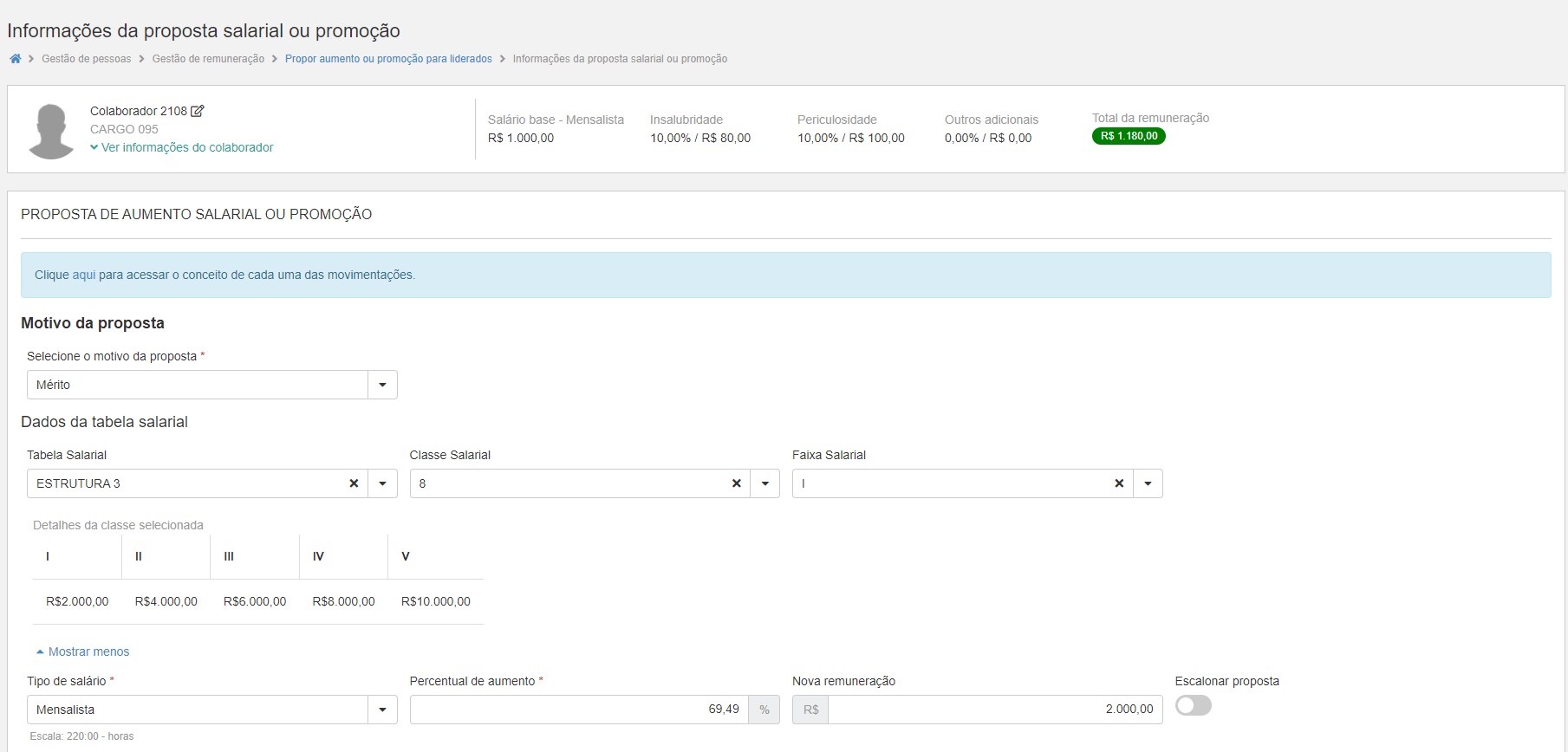
We can enable the proportionalization of the salary table values by comparing the workload of the same vs the effective workload of the employee by company. The default is to have this setting turned off. We can visualize a field calledWorkload, which defines the number of hours of the workload in the salary table. So if we place a proposal for an employee who has a workload different from the workload of the salary table, by default, with the setting turned off, the proposal page will not proportionalize the salary table and will frame the employee according to it.
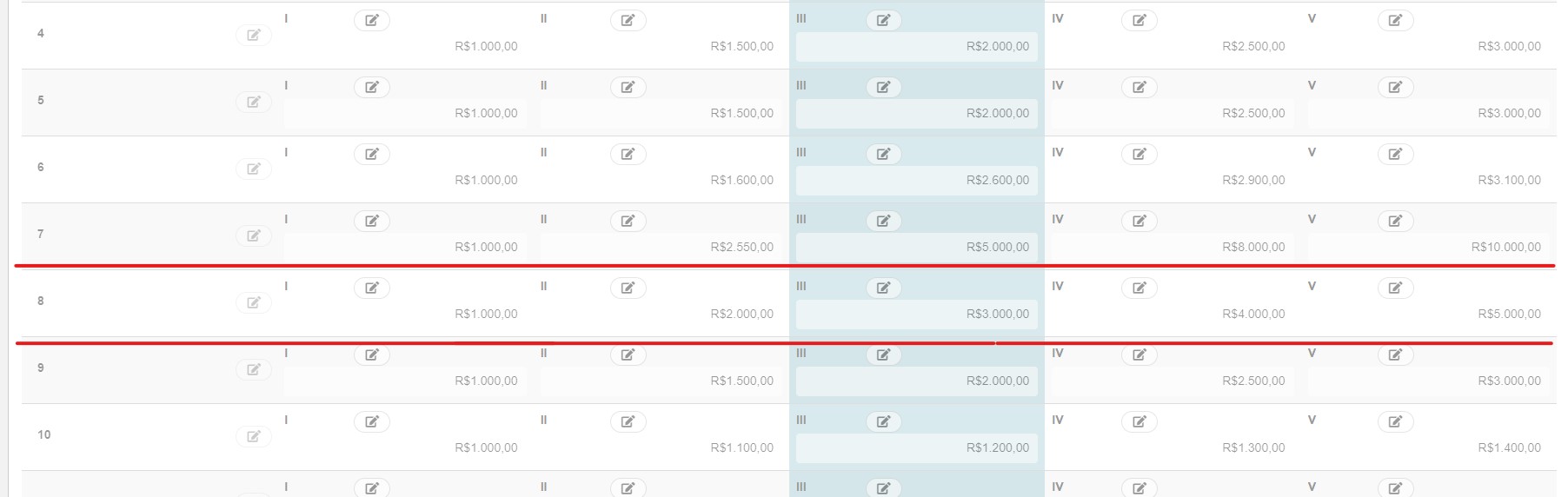
For example: If the employee's current salary is R$ 1,000.00 and the workload he works is 220 hours, without proportionalization, the proposal screen shows the table with the same amounts registered in it and suggests the Level II in the amount of BRL 2,000.00 for the employee's proposal. Now if we activate the configuration, and return to the same proposal, we can see that the employee's current salary is R$ 1,000.00 and the workload he works is 220 h, however, now with the proportionalization configuration activated, the proposal screen shows the table with the proportional values between the value of the employee's workload X the workload of the salary table. In the example, the workload in the table is 110 hours, which is half the value of the hours worked by the employee, so the table here is proportional to double the amount, so the proposal page now suggests Level I in the amount of R $2,000.00 for the contributor.
Salary Table Additional
This configuration allows whether or not the user wants to use the Supplements in the Salary Table. If the user wants to choose to use it, the classification will be made by the base salary.
Scenario not using the Additionals:
| Example |
|---|
| Salary Table: No additional qualified |
| Table |
| LEVEL 1: 1000.00 / LEVEL 2: 1250 / LEVEL 3: 1500.00 |
| collaborator |
| Salary: 800.00 |
| Unhealthy: 0.00 |
| Dangerousness: 200.00 |
| Other Extras: 550.00 |
| Total Remuneration: 1550.00 |
| Current situation |
| Salary = 800.00 |
| Suggestion: Below the Range |
| Track Suggestion |
| Salary = 1000.00 |
| Suggestion: LEVEL 1 |
Scenario using the Additional:
| Example |
|---|
| Salary Table: Enabled "Other Additional" |
| Table |
| LEVEL 1: 1000.00 / LEVEL 2: 1250 / LEVEL 3: 1500.00 |
| collaborator |
| Salary: 800.00 |
| Unhealthy: 0.00 |
| Dangerousness: 200.00 |
| Other Extras: 550.00 |
| Total Remuneration: 1550.00 |
| Current situation |
| Salary + Additional Others = 1350.00 |
| Suggestion: LEVEL 2 |
| Track Suggestion |
| Salary + Additional Others = 1500.00 |
| Suggestion: LEVEL 3 |
Important
So, as we can see in the examples above, if the setting is on, the employee will be classified according to the base salary, if the setting is off, the employee will be classified according to the total remuneration, that is, the base salary + additional salaries.
Salary information for jobs with linked positions
View the additional salary of customizable functions, registered in on-premise modules
It is possible to view, in the Remuneration Management module, the value and review dates of additional salary functions, customized in the on-premise modules Positions and Salaries or Personnel Administration.
The total value of these additional payments can be checked at Remuneration Management > Salary information for positions with positions > buttonActions > Details of additional wages.
The values of additional salary functions, customized in on-premise modules, are calculated in proportion to the base salary of each employee.
Note
In order for integration to occur between the additional salary functions customized with Remuneration Management, it is necessary to carry out theintegration process between modules.
General Settings
Import benchmark results from other modules
It is possible to import results of employee performance evaluations that have been carried out in other systems, except Senior. This action allows you to integrate data generated in systems external to the Remuneration Management module.
For this, it is necessary to configure the parameterDo you use Senior's Performance Management module? and click on the optionNo to integrate data generated in systems external to the Remuneration Management module.
It is important to remember that, by system default, the parameter is selected in the optionYes, preventing actions from the Benchmarks screen. It is necessary to select the opposite option, that is,No, to then access the screen.
The import containing the result of the applied evaluations is carried out in Remuneration management > Data pre-processing >Performance evaluations.
Consider salary bonuses in Compensation Analytics charts
To include the value of additional wages in the data of the graphics/cards of the Compensation Management, it is necessary to check the optionYes of the parameterWould you like to consider salary additions in graphics/cards in the Compensation Management module?.
If the parameter is configured to include additional wages, in addition to being able to view them on the Proposal Information screen, they will be considered in graphs/cards data from the Employee Compensation AnalyticsHR
Important
There are two ways to integrate the additional wages for functions, add them to the on-premise version in the Jobs and Salaries Module > Jobs tab, in the property% Additional Function or through theadditional customized.
The screens that will be impacted by the parameter are:
- HR Analytics:
- Av
- erage salary of the compan
- y;
- Salary framework;
- Manager Analytics:
- Increases granted in the ye
- ar;
- Increases granted in t
- he year;
- Staff salary sum mary;Salary framework;
Hide the percentage difference in salary of employees in the Salary framework card, compared to the market range
The parameterWould you like to hide the employee pay gap percentage, compared to the market range, in the pay scale details? allows you to configure the display of the percentage of salary difference of employees, compared to the market range. This data is reported in the columnDifference, in the details of the salary framework card, which can be viewed in the HR Analytics and Team Analytics - Manager.
By system default, the percentage is displayed. By configuring the parameter in the optionYes, the percentage data will remain hidden on the card, making it possible to view only the salary difference in reais (current currency), of employees who are above or below the range.
When should the salary range, corresponding to the new salary, be indicated on the Proposals screen?
This parameter allows HR to choose one of the situations so that the salary range, corresponding to the new salary entered, is displayed whenever the Manager (or the user who has permission) changes the salary in the proposal. The options are:
- Option:Only when the new salary entered is identical to that registered in one of the salary ranges that is, it will display the salary range only if the added value is identical to the range value informed in the table. If the value is different, even for one cent, the range will not be displayed.
- Option:Whenever a value is entered, so that the system shows the salary range that corresponds to the new approximate salary, considering the salary range equal to or less than the proposed salary that is, the range will be displayed whenever a new salary typed is within a range. Regardless of the value being exact.
Regardless of the option chosen, the value registered for the new salary will be incorporated into the proposal, since the function of the parameter's resources is informative and for consultation, that is, the system does not prevent the insertion of values different from those registered in the salary table.
View the salary difference of employees compared to the salary range assigned to the position
The parameterHow do you prefer to view the employee pay gap compared to the pay range assigned to the job? Allows you to configure how the percentage of the employees' salary difference will be displayed, compared to the salary range assigned to the position.
By clicking on the bars of the salary structure chart, it is possible to check the percentage of the employees' salary difference, in the columnDifference(salary), just below the salary value. This data can be viewed in the HR Analytics and Team Analytics - Manager.
When configuring the parameter, it is possible to choose how to display the percentage of the employees' salary difference. The options are:
Consider the percentage exceeded or missing to reach the range- - 40% below: the salary is 40% below the salary range assigned to the position.
- 90% Above: Salary is 90% above the salary range assigned to the position.
Example:
Consider the percentage achieved by each employee, since the higher the value, the better the employee's position in the salary framework.
- 40% reached: the salary reached only 40% of the salary range assigned to the position, that is, it is below the range.
- 100% reached: the salary reached 100% of the salary range assigned to the position, that is, it is within the range.
- 190% reached: the salary reached 190% of the salary range assigned to the position, that is, it is 90% above the range.
Example:
 English
 Español