Results evaluations generation
Estes são os parâmetros que podem ser configurados para cada ciclo no processo de avaliação de resultados, em: Gestão de desempenho > Cadastros > Ciclo de avaliação.
Informações do ciclo
Preencha as informações básicas sobre o ciclo:
- Forneça um nome que identifique o ciclo de forma clara.
- Informe se é um ciclo aberto (vigente) ou fechado (encerrado).
- Informe a data inicial e final para indicar o período de vigência do ciclo. Ciclos com data final expiradas serão encerrados automaticamente por um serviço agendado.
- Opcionalmente, preencha:
- uma data limite de admissão de colaboradores a serem considerados no ciclo.
- observações gerais sobre o ciclo, que ficarão disponíveis para consulta para outros usuários que tenham acesso ao cadastro do ciclo.
Configuração de desempenho
Ative a opção desta seção para que o sistema mostre o resultado geral do desempenho dos liderados no card Evolução do nível de desempenho do Analytics. Este gráfico é exibido no Analytics do liderado, acessado através do Analytics da Equipe > aba Equipe > botão Ações no colaborador a ser analisado.
Caso opte por ativar este recurso, você precisará selecionar qual escala de proficiência será usada para classificar o resultado apresentado no gráfico. Esta escala já deverá estar cadastrada no sistema.
Se quiser, você pode também atribuir pesos aos tipos de avaliação. Assim, os resultados atingidos no ciclo podem ter um valor maior do que as competências, ou vice-versa.
Configuração da árvore de avaliadores
Apresentar gestor na tela de manutenção dos avaliadores
Ative esta opção se quiser permitir que o gestor faça a manutenção dos seus próprios avaliadores. Se este parâmetro for habilitado, ao acessar a tela de manutenção de avaliadores com um papel de Gestor, o próprio gestor aparecerá na lista de avaliados.
Isso permite que ele defina quem serão seus próprios avaliadores em cada foco, facilitando a gestão quando é feita uma Avaliação 360°, por exemplo.
Configuração por tipo de avaliação — Avaliação de resultados
 General
Automatic generation of results evaluations
Generate results evaluations automatically for recently-admitted workers
Upon enabling this setting, the results evaluations are automatically generated every day, considering the Admitted until field as the maximum date for the admitted workers. Whenever an evaluation is generated, the HR department receives a notification.
To make only the people responsible for these responsibilities receive the information, the Person responsible for coordinating the evaluation process parameter must me enabled in the role registration.
Definition, proposal, monitoring and review extension dates
Define the number of extension days from the limit date onwards, for the automatic generation of evaluations for recently-admitted workers.
For these fields to be enabled, the end dates of the periods must be defined and the Generate results evaluations automatically for recently-admitted workers parameter must be enabled.
If a Worker is admitted when the period is ending, the process automatically generates the evaluation stages, considering the defined number of days after the end date.
Important
If there is more than one cycle in effect, the results evaluations will not be generated by the automatic process. It will only work when there is only one cycle in effect.
Cancelar automaticamente a avaliação de resultado de colaboradores demitidos
Ao assinalar esse campo, o sistema terá permissão constante para identificar e cancelar automaticamente a avaliação de resultado pendente de colaboradores demitidos. Essa identificação se dá através da data de demissão - que, sendo inferior a data atual, demonstra não ser mais necessário realizar a avaliação de resultado.
As avaliações de resultado canceladas não ficarão disponíveis na tela de Avaliações pendentes, mas podem ser consultadas na tela Manutenção das avaliações de resultado.
Atenção
O cancelamento das avaliações de resultado não fará, em momento algum, qualquer tipo de notificação para o RH.
Goals definition
Start and end of the managers' goal definition period
These fields configure the period of the goal definition stage. The date is viewed in the evaluation form and a stage confirmation message is displayed for the workers.
Para configurar o bloqueio das avaliações de resultado, no término do período de definição, a opção Bloquear as ações fora dos períodos previstos deve estar habilitada.
Question to confirm the execution of the definition stage
The question registered in this field will be displayed for the workers to confirm whether the definition stage was carried out.
This question will be displayed as soon as the user signs in to the system, automatically every five days after the start date of the definition period configured in the cycle, until the Worker confirms the execution of the stage by clicking on the Yes button.
If the worker clicks No or does not answer the question, it will continue being displayed until "Yes" is selected.
Goal monitoring
Start and end of the goal monitoring period
These fields configure the period of the goal monitoring stage. The date is viewed in the evaluation form and a stage confirmation message is displayed for the workers.
To configure the blocking of results evaluations, at the end of the monitoring period, the Block actions out of expected periods option must be enabled.
Question to confirm the execution of the goal monitoring stage
The question registered in this field will be displayed for the workers to confirm whether the monitoring stage was carried out.
This question will be displayed as soon as the user signs in to the system, automatically every five days after the start date of the monitoring period configured in the cycle, until the Worker confirms the execution of the stage by clicking in the Yes button.
If the worker clicks No or does not answer the question, it will continue being displayed until "Yes" is selected.
Goal review
Start and end of the goal review period
Estes campos definem o período em que o Gestor e o Colaborador poderão revisar as metas durante o ciclo, porém, somente para o Gestor o botão Revisão avaliação ficará disponível e, consequentemente, somente o Gestor pode iniciar o processo de revisão da avaliação. Ao iniciar o processo, a situação da avaliação é alterada de Em avaliação para Em revisão, e o Colaborador avaliado poderá criar ou editar as metas que foram cadastradas pelo Gestor, de acordo com a parametrização para este ciclo.
Após a conclusão da etapa de revisão, as metas são encaminhadas para o Gestor/Colaborador avaliar as alterações e aprová-las ou rejeitá-las, de acordo com a parametrização para este ciclo.
Nota
Para mais informações sobre configurações e parametrizações, acesse a documentação de Configuração das metas.
Caso o tempo final de revisão seja expirado e a revisão não tenha sido realizada, a avaliação é bloqueada e apenas o RH poderá alterar a data do período de revisão ou alterar a situação da avaliação pela tela de manutenção das avaliações de resultado.
Note
- Goals with the Finished situation in the cycle are disregarded in the review period.
Questions to confirm the execution of review stage
The question registered in this field will be displayed for the workers to confirm whether the Review stage was carried out.
This question will be displayed as soon as the user signs in to the system, automatically every five days after the start date of the review period configured in the cycle, until the Worker confirms the execution of the stage by clicking on the Yes button.
If the worker clicks No or does not answer the question, it will continue being displayed until "Yes" is selected.
Goals configuration
"Máximo de metas": "Maximum goals",
Define o número mínimo e máximo de metas que uma avaliação pode ter.
Tempo mínimo de experiência
Para que o colaborador seja avaliado é necessário definir um tempo mínimo de experiência na atuação do cargo.
Se o tempo mínimo, registrado pelo RH, não for atendido, a avaliação de resultados do colaborador avaliado não será gerada pelo sistema.
Do goals need approval by the evaluated person?
Quando esta configuração estiver como Sim, o botão Encaminhar para aprovação do Colaborador, na situação Em definição (da tela de Acompanhamento de resultados da equipe para o Gestor), é habilitado. Assim, a avaliação de resultados só será iniciada após a aprovação das metas pelo Colaborador avaliado. Por padrão, esse assinalamento é iniciado como Sim em todas as metas ativas, independente de quem as criou.
Atenção
Para que o Avaliado possa criar metas, torna-se necessário que o parâmetro Permite que o avaliado proponha metas para o gestor esteja habilitado.
Quando o Avaliado cria uma ou mais metas e a avaliação está com o status de Em definição, todas essas metas criadas pelo Avaliado devem passar pela aprovação do Gestor, com isso, o botão Encaminhar metas para aprovação sempre será apresentado, para que as metas do Avaliado sejam enviadas para o Gestor aprovar.
A configuração do parâmetro As metas necessitam da aprovação do avaliado?, por sua vez, não altera nada nesse cenário do Avaliado criar as metas.
The results require approval
After defining an approver (Evaluated Person or Manager), the Submit for the Manager's approval and Submit for the Worker's approval buttons are enabled, in the Under definition situation of the Team Results Monitoring screen (for the Manager) and in the My Goals screen (for the Worker).
O campo Os resultados necessitam da aprovação, por sua vez, possui as seguintes opções:
- Gestor: não precisa passar por revisão do Colaborador avaliado. O Gestor tem autonomia para concluir a avaliação;
- Avaliado: precisa passar por revisão do Colaborador avaliado. O Colaborador avaliado quem decide se aprova ou rejeita;
- Não necessita aprovação: não precisa passar por revisão do Colaborador avaliado. O Gestor tem autonomia para concluir a avaliação.
Absence situation
Permite definir se devem ser considerados os avaliados que contém ou não determinadas situações de afastamento neste ciclo.
Com esse recurso é possível, por exemplo, impedir que sejam avaliados colaboradores que estão afastados por conta de um acidente de trabalho na data de referência.
Estas são as opções disponíveis:
- Contém: somente serão geradas as avaliações para os colaboradores que se encontram nas situações de afastamento escolhidas.
- Não contém: somente serão geradas as avaliações para os colaboradores que não se encontram nas situações de afastamento escolhidas.
Maximum achievement value of the results evaluation
Defines the maximum result limit that the workers can achieve. O resultado é apresentado em locais diferentes para cada papel:
- Manager - Menu - Goals and Results - Team goals/results
- Worker - Menu - Goals and Results - My goals/results
If the calculated achievement value is greater than the value defined in this parameter, the value defined in this parameter will be considered.
Clique aqui para entender como os valores definidos serão usados no cálculo dos resultados das avaliações.
Arredondar percentual de atingimento conforme escala
Se habilitado, fará com que a apuração do resultado seja arredondada de acordo com o valor informado como Percentual considerado na importação de cada conceito da escala de proficiência.
Ao utilizar esta configuração, será obrigatório informar qual a Escala usada para classificar o resultado da avaliação, e não será possível utilizar o assinalamento Escala classificação do Formulário de metas.
O arredondamento também interfere em cálculos que consideram a interpolação, tanto nas metas quanto na avaliação de resultados.
Exemplo: No cadastro do conceito Atingiu, foi definido que para atingimento desta faixa da escala o percentual inicial é de 30.1% e o final é de 100%. Neste conceito, também foi definido que o percentual considerado para esta faixa é de 80%. Ou seja, se o colaborador atingir qualquer percentual entre 30.1% e 100%, o percentual que será levado em consideração na avaliação de resultados será de 80%.
Atenção
Ao habilitar Arredondar percentual de atingimento conforme escala, o sistema irá considerar os resultados deste campo, ainda que superem o valor informado em Valor máximo de atingimento da avaliação de resultado.
Scale used to rate the result of the evaluation
If you wish, select a scale that will be used to display evaluation ratings in the achievement charts.
If a scale is selected, the rating will be displayed in all charts that display the results achievement percentage (for example: the team achievement chart and the worker achievement chart).
As escalas disponíveis neste campo podem ter origem de dois lugares:
- Registration password screen
- File import
If the field is left blank, the rating will not be displayed in the achievement charts.
Allow evaluated person to propose goals to the Manager
Upon enabling this indication, the New goal button of the My Goals screen (for the Worker) is enabled, allowing the Worker to propose one or more result goals to the Manager when the situation is Under Definition. The default value of this setting is disabled.
Allow evaluated person to edit goals created by the manager
Upon enabling this indication, the Worker will be able to edit goals defined by the Manager when they are in the Under definition situation.
This option must be activated with the Allow evaluated person to propose goals to the Manager parameter so that goals under definition are visible for the Worker.
Allow evaluated person to register goal results
Upon enabling this indication, fields that display the Determined Result of the goal in the Monitoring of My Results screen (for the Worker) are provided, allowing the Worker to register the result achieved in each monitoring and also the final result of the goal. The default value of this setting is disabled.
The sum of the goals' weights must be 100%
Ao habilitar essa configuração, não é possível encaminhar as metas para aprovação se o somatório dos pesos for diferente de 100%.
Ou seja, as metas definidas pelo gestor ou colaborador para uma mesma avaliação devem somar 100%, caso contrário, os usuários não vão conseguir enviar as metas para aprovação.
Show achievement percentage
Upon disabling this setting, the following information will be hidden: the Team Achievement chart information, the Progress column of the Evaluations section in the Team Results Monitoring screen (Manager), and the results information if the My Goals screen (Worker).
In the evaluation form, the evaluation achievement/achieved percentage and the value defined as the Maximum achievement value of the results evaluation are hidden. The default value of this setting is enabled.
Show obtained concept
Upon disabling this setting, the Rating scale information becomes hidden in the evaluation form. The default value of this setting is enabled.
Block actions out of expected periods
Ao habilitar essa opção, o sistema irá bloquear as avaliações que:
- Estão fora do período de definição (campos Término do período de definição de metas pelos gestores e Término do período para proposição de metas pelos colaboradores)
- Possuem o acompanhamento das metas finalizado (campo Término do período para acompanhamento das metas)
- Não possuem metas aprovadas (ou estão aguardando aprovação do resultado)
Avaliações bloqueadas possuem apenas o botão Cancelar avaliação disponível.
The default value of this setting is disabled.
Você pode configurar instruções que serão exibidas ao Gestor e Colaborador sobre como proceder no caso de uma avaliação bloqueada. Para fazer isso use a guia Orientações.
Require evaluator comment when finishing evaluation
Upon enabling this setting, the Require evaluator comment when finishing evaluation button forces workers to register a comment about the results evaluations before sending it to the worker or for approval, as well as before finishing it.
The default value of this setting is disabled.
Allow evaluators to delegate evaluations
Upon enabling this setting, the Delegate evaluations button becomes available for evaluators so that they may transfer the competence evaluation to another person.
The default value of this setting is disabled.
Allows default calculation
Ao habilitar esta configuração, os resultados das avaliações serão calculados usando a forma de cálculo padrão do sistema. The default value of this setting is enabled.
Já o campo Valor máximo de atingimento da meta é opcional, e serve para estabelecer um percentual de limite para o resultado de atingimento das metas.
Goals interpolation
Note
A interpolação está disponível apenas para o cálculo das metas individuais. Não é possível usá-la no cálculo de metas compartilhadas.
Allow goal interpolation
Ao habilitar essa configuração, os campos para definir o uso do cálculo de interpolação ficam disponíveis.
Também será informado para gestor e colaborador o uso do cálculo na definição das metas de resultado nos locais abaixo:
Manager
- Team Performance > Results > Team results monitoring > Worker goals form: contains the indication of whether the goal uses the interpolation calculation.
- When creating a New goal, the calculation method using interpolation will already be selected.
- Team Performance > Results > Worker goals form > Monitor button: contains the indication of whether the goal uses the interpolation calculation.
Worker
- My performance > Results > My goals: contains the indication of whether the goal uses the interpolatio
- n in the Finished, Evaluation awaiting approval of goals and Under evaluation situations.
- My Performance > Results > My goals > Monitor button: contains the indication of whethe
- r the goal uses the interpolation calculation. When creating a New goal, the calculation method using interpolation will already be selected.
The default value of this setting is disabled.
Ponto de partida, Alvo e Teto
Definem os limites para o cálculo com interpolação:
- Starting point (Minimum) - default value = 0%;
- Target - default value = 100%;
- Ceiling (Maximum) - no default value.
Clique aqui para entender como este tipo de cálculo influencia nos resultados das avaliações.
In the Interpolation utilization guidelines field, the text that will be displayed in the goal definition (Create goal) screen, as an explanation about the interpolation calculation, must be registered.
Permite cadastrar o texto que será apresentado como explicação do cálculo de interpolação na tela de definição das metas (Criar meta).
Guidelines
In this guide, a free text can be entered to guide the Manager and the Worker about the results evaluation process.
For the Manager, the Read guidelines button is enabled next to the requisites and for the Worker, the Evaluation guidelines information is displayed upon opening the form.
Formulário de metas
The fields that will be available for the definition of goals can be configured in the following screens:
- By the Manager in: Team performance > Results > New goal button;
- By the Manager/Evaluator in the consensus evaluation in: Pending evaluations > View evaluation > Consensus tab > Development and Goal Plan frame > Define Goal link.
- By the Worker (when the company allows proposing goals) in: My performance > Results > My goals > New goal button.
Laid-Off Monitoring
Periodic monitoring: upon disabling this option, the periodic monitoring section and the date fields will not be visible.
Se este parâmetro estiver desabilitado, também não será possível que o RH defina datas de acompanhamento obrigatórias na guia Acompanhamento de metas.
The default value of this setting is enabled.
Associated indicator
Ao desabilitar essa opção, o campo Possui algum indicador? Only for viewing.
The default value of this setting is enabled.
Associated BSC Perspective
Ao desabilitar essa opção, o campo Possui perspectiva BSC? Only for viewing.
The default value of this setting is enabled.
Associated strategic objective
Ao desabilitar essa opção, o campo Possui um ou mais objetivos estratégicos? Only for viewing.
The default value of this setting is enabled.
Classification Table
Esse campo permite informar um valor padrão para escala de proficiência, independente se ele será exibido ou não na tela de Definição da meta.
The default value of this setting is enabled.
Default results accumulation method
Result accumulation method: upon hiding this field, the default value of the result accumulation method must be defined.
The default value of this setting is enabled.
Periodicity of correction
Rating scale: this field is used to define a default value, regardless of whether it will be displayed in the Goal Definition screen.
The default value of this setting is enabled.
Priority Ao desabilitar essa opção, o campo Possui prioridade? Only for viewing.
The default value of this setting is enabled.
Goal weight
Weight of the goal: upon disabling this option, the Weight of the goal field will not be visible.
The default value of this setting is enabled.
Minimum and maximum achievement values
Minimum and maximum goal achievement values: upon disabling this option, the Minimum goal achievement value and Maximum goal achievement value fields will not be visible.
The default value of this setting is enabled.
Follow calculation formula
: Define calculation formula: enables the Describe the calculation formula field for the Manager or Worker to define the formula used to find the reached results. This field is merely informative (manually) and is not used for the automatic results calculation.
The default value of this setting is disabled.
Note
To display the scale, before enabling the Obtained concept option, the Scale used to rate the result of the evaluation field must be configured. If the scale is not configured, the result will not be displayed, even if the option is enabled.
Measurement units
In this field, you can configure which measurement units will be available for the Worker and Manager to choose during the goal definition in the Create Goal screen.
Note
If the goal uses an associated indicator, the measurement unit considered by the goal will be the indicator's, regardless of it being available for the user to select.
Example
In the cycle registration, the Value and Percentage measurement units were considered, but the indicator has the Monetary measurement unit; upon selecting this indicator during the goal creation, the monetary measurement unit will be considered.
Goals monitoring
Permitir que gestor e colaborador criem acompanhamentos adicionais
Ao habilitar esta configuração, os gestores e colaboradores poderão adicionar datas de acompanhamentos complementares das metas, além das datas obrigatórias definidas pelo RH.
Períodos e Primeiro acompanhamento
Permitem configurar datas de acompanhamentos obrigatórios das metas. Com isso, o RH pode definir as datas em que gestores deverão, obrigatoriamente, fazer o acompanhamento das metas com os avaliados.
Para que possa definir essas datas, é preciso que o parâmetro Acompanhamento periódico esteja habilitado na guia Formulário de metas.
Notes
- As datas de término das metas definidas pelo gestor e colaborador não podem ser anteriores à data que o RH definiu para o último acompanhamento obrigatório.
- Se o RH alterar uma data obrigatória, ela não será alterada nas metas que já estiverem criadas com essas datas. Neste caso, os próprios gestores precisam adicionar os novos acompanhamentos obrigatórios, se desejarem.
Metas compartilhadas
A tela de parametrização do ciclo tem uma divisão específica para disponibilizar o Usa em metas compartilhadas, conforme imagem abaixo. Se esse parâmetro for habilitado, a opção Formulário de metas compartilhadas ficará disponível:
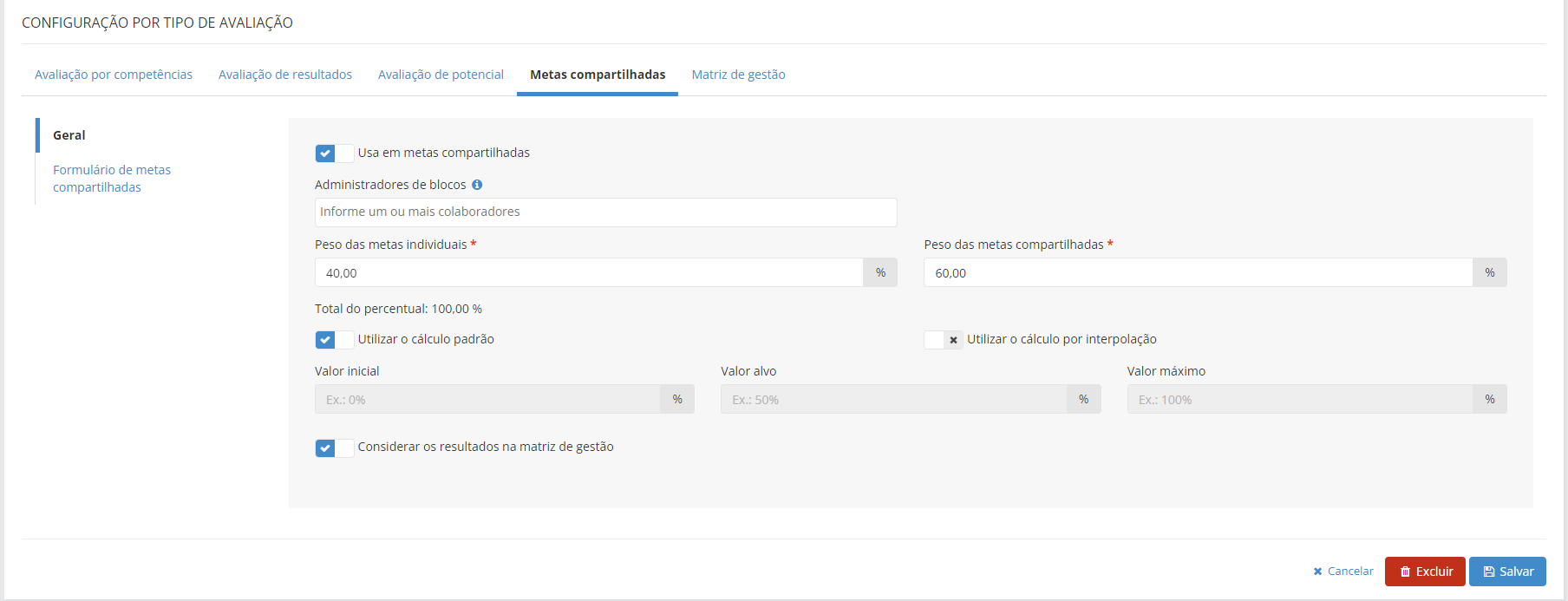
Nessa mesma guia, já é possível inserir os Administradores de blocos, que são os responsáveis pela gestão de metas compartilhadas da empresa de forma geral. Os Administradores podem fazer:
- o cadastro de blocos;
- o cadastro de metas;
- lançar resultado ou acompanhamento das metas.
O vínculo com um ciclo é obrigatório no cadastro dos blocos. Logo, é preciso existir pelo menos um ciclo com essa opção habilitada no sistema, permitindo sua seleção durante a definição dos blocos - e, consequentemente, das metas compartilhadas.
Ao habilitar as metas compartilhadas, é disponibilizado o formulário onde é possível configurar os campos que ficarão visíveis no cadastro das metas.
Fazer as configurações de metas compartilhadas
Se você pretende lançar metas compartilhadas nas avaliações dos colaboradores, você precisa configurar quais opções estarão disponíveis para esse tipo de meta.
O sistema permite fazer algumas definições ao atuar com metas compartilhadas, como:
- Incluir acompanhamentos periódicos nas metas;
- Informar método de acúmulo dos resultados, seja através de Soma, Médio ou Último resultado;
- Informar frequência de apuração dos resultados, como Diário, Semanal etc.;
- Se os resultados das metas compartilhadas serão considerados para compor a Matriz de Gestão (Nine Box);
 English
 Español