 English
 Español

For Students
This page is under construction!
To learn more about the features of your learning environment, access our old help center.
Search - finding content
If you want to find specific content within your learning platform, you can use the search field in the top menu. When searching for a term, the platform will search for the term in titles, descriptions, tags, and categories, and will bring results segmented by areas. The results presented are related to the items that the student has access to. This means that if an item is not available to the student, even if published and active, it will not appear in the student’s search.
Attention!
This search format is only available for environments that use the standard search. Environments that have the search by learning object enabled in the General Configurator > General Tools use another search model, and are not covered in this documentation.
The general query will indicate the number of results found for the searched term, and you can filter within each category that contains the term to further refine your search. Each category has its own filters. Just click on each of them to display the related results and use the respective filters. Depending on the modules enabled in the learning environment, some areas may not be displayed. Clicking on the image below, you can view an example of a search.
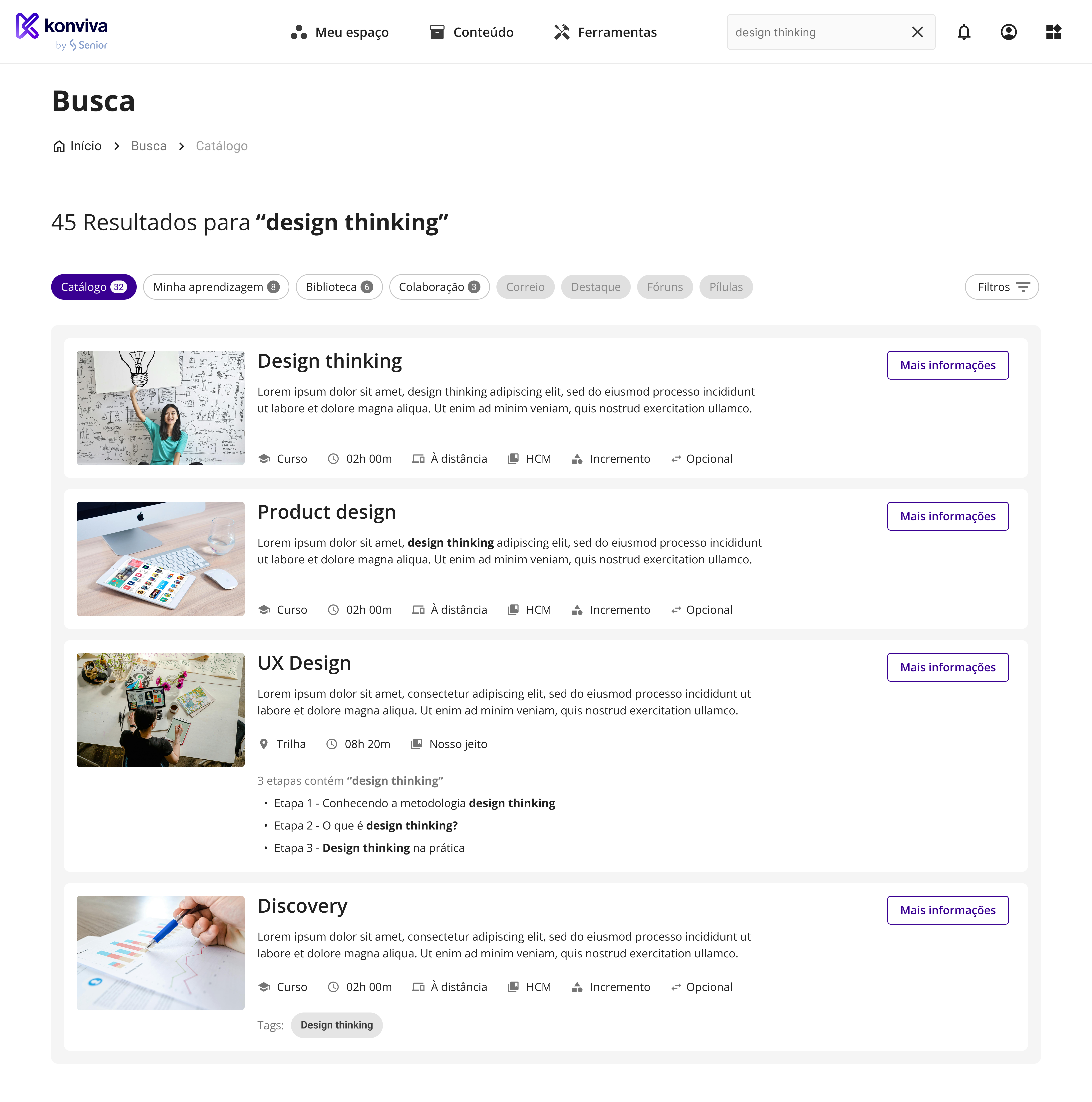
The search areas work as follows:
When the search item is in the library, the card will display the name of the item, the description, if any, the resource type, and the category in which the item is registered in the library. Tags will also be displayed if the search terms are present in them.
Clicking on the image below, you can view an example of how the trail card is displayed:

By clicking on Filters, you can filter by publication type (presentation, DOC, excel, image, PDF, podcast, link, and video) and by the categories available in the library.
The items displayed in the catalog can be trails or courses.
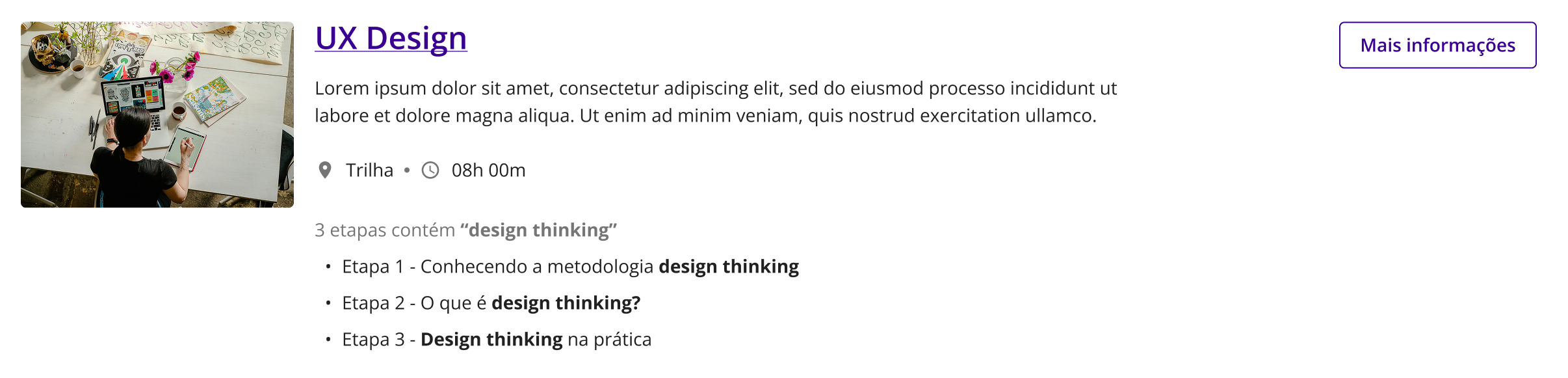
The trail card will display the name of the trail, the description, if any, the duration of the trail, the catalog in which the trail is listed, and if the term is found in a learning object present in the trail, the content name and the stage where it is found will be displayed. Tags will also be displayed if the search terms are present in them.
Clicking on the image below, you can view an example of how the trail card is displayed:
The course card will also present the name, the description, if any, the duration, the course modality, the catalog in which the course is listed, the course category(ies), the course requirement, if any, and the tags, if the search terms are present in them. When the course modality is external, the indicator on the card will be Distance Learning. The same course may appear more than once during the search if it is registered in more than one category.
Clicking on the images below, you can view examples of how the course card is displayed:



By clicking on Filters, you can filter by item type (course or trail), by course modality (in-person, distance learning, synchronous, exam, blended, modular, and external), by course/trail duration, and by requirement (mandatory, desirable, or optional). You can also search by course category and catalog name.
The collaboration area displays communities that contain the search term, both communities you are already enrolled in and communities that are open for your enrollment. The community card shows the name and description, if any. There are no filters for this area.
The mail displays messages that contain the searched term, either in the name or in the message text. This area has no filters.
The highlight area displays the name and image of the highlight. By clicking on Filters, you can sort the display, starting with the oldest or most recent highlight.
The forum displays the title and description of forum topics. This area has no filters.
The items displayed in the “my learning” area can be trails or courses in which you are enrolled or have already completed, regardless of whether they are published in a catalog. The display of cards and filters is the same as used in the catalog area, that is:
The trail card will display the name of the trail, the description, if any, the duration of the trail, the catalog in which the trail is listed, and if the term is found in a learning object present in the trail, the content name and the stage where it is found will be displayed. Tags will also be displayed if the search terms are present in them.
The course card will also present the name, the description, if any, the duration, the course modality, the catalog in which the course is listed, the course category(ies), the course requirement, if any, and the tags, if the search terms are present in them. When the course modality is external, the indicator on the card will be Distance Learning.
By clicking on Filters, you can filter by item type (course or trail), by course modality (in-person, distance learning, synchronous, exam, blended, modular, and external), by course/trail duration, and by requirement (mandatory, desirable, or optional). You can also search by course category.
The pill cards display the name of the pill and the description. Only active pills are displayed, that is, those that have not been viewed. This area has no filters.
 English
 Español

