 English
 Español

Engagement
Engagement is a module that, when active, displays to the student an indicator that shows, as a percentage, the number of courses and learning paths in which they have been approved, in relation to the content available in the catalog.
This indicator is visible to the student at the top of the page and is represented by a flame icon  , along with the value of the student’s engagement percentage. When clicking on the icon, a modal opens explaining that the engagement index represents the percentage of approved courses in relation to the number of courses in the catalog. Click on the image below to view an example:
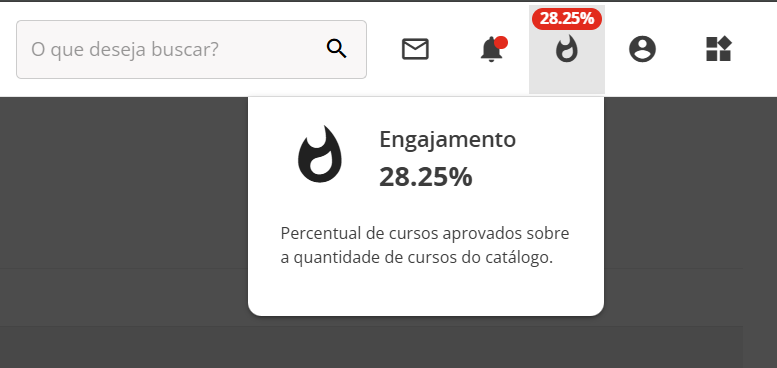
The engagement indicator aims to show the student how much they have already completed (been approved), in comparison with the total planned for completion (courses and learning paths available in the catalog). Therefore, this data is not available in reports.
Calculation
The engagement calculation takes into account the number of courses and learning paths available in the student’s catalog, ignoring courses and learning paths that the student does not have access to. From the number of available courses and learning paths, the platform verifies how many of these items the student has already been approved in. Finally, a division is made between the number of student approvals and the total number of courses and learning paths made available in the catalog. By multiplying the result by 100, the engagement percentage is obtained.
Example 1
A student has four courses and two learning paths available in their catalog, totaling six items. Of these, the student has already completed and been approved in two courses and one learning path, totaling three items. By dividing the three items approved by the student by the six items available in the catalog, we obtain the value of 0.5. Multiplying by 100, the student has an engagement percentage of 50%.
Example 2
A catalog has 12 registered courses. Of these, five are available to the student. The student has already been approved in four courses. Dividing the number of approvals (4) by the total number of courses available to the student (5), we have the value of 0.8 which, when multiplied by 100, indicates that João’s engagement is 80%.
Attention!
If there is a change in the number of items in the student’s catalog, the engagement indicator is automatically recalculated and updated.
Configuration
To use the feature, simply access, with the Administrator profile, the menu Settings > Modules > Engagement and activate it. In layout 2.0, it is automatically displayed to the student. In layout 3.0, to display it, access Settings > Layout > Web interface and, in the Interface settings tab, click on the Header box. When expanding the box, you will find the quick access icons configurator.
Engagement will be in the list of Available items, on the left. Click on the item and drag it to the Selected items column on the right. The order in which the icons are displayed in the list will reflect the order in which they will be displayed in the student’s header. That is, if engagement is the first item on the list, it will be the first icon in the list. After adjusting the list, just click save. The change is applied immediately. The student, upon refreshing the page, will be able to see the icon.
 English
 Español

