 English
 Español

ADM0043- Process Tree
The Process Tree is the organization of activities to be performed in creating a product. The operation or task are the activities that occur in the elaboration of a product (Ex.: sugarcane), being organized into the four levels of groupings that constitute the Process Tree. This structure is used to ensure data quality and organization, naming it through the acronym “PSGO”, which means:
P → PROCESS;
S → SUBPROCESS;
G → GROUP;
O → OPERATION.
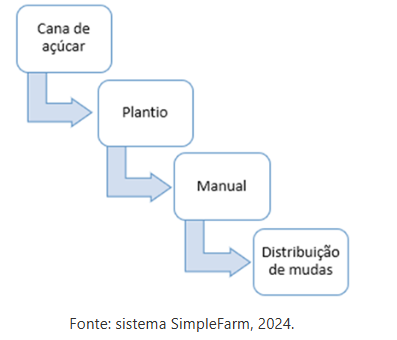
The information registered on this screen depends on registration on screens ADM0041 - Operação and ADM0049 - Sistema de Aplicação. The information regarding the process tree will be available for use on screens AGR0090 - Painel Grafico da Ordem de Serviço, BAL0126 - Operações de Colheita,PAG0199 - Contratos, AGR0228 - Parâmetros de Operação,CST0257 - Combinações, PAG0261 - Grupo de Operação, AGR0087 - Apontamento de Produção and ADM0042 - Observação por Operações.
What can you do?
Initial Registration
To register the process tree it is necessary to access : SimpleFarm > Administration Menu > Process Tree (ADM0043).
The Process is the macro level of agricultural activity information (ex.: identification and structuring of all activities performed in crop development).
- Click on + Add;
- To add a process it is necessary to fill in the following fields:
- Code;
- Abbreviation;
- Active ;
- Save.
After adding the process, the Crops tab will be enabled.
- Next to the informações básicas tab the Crops tab will be enabled.
- Click on + on the process tree ;
- A window called Add Crop Process will be displayed, and it will be necessary to fill in the following fields:
- Crop:
- Periodicity:
- Start with ;
- days of ;
- Repeat after ;
- days, limited to times;
- Save.
The Subprocess aims to detail the activities carried out within a Process.
- Access: SimpleFarm > Administration Menu > Process Tree > Process:
- Click on + Add;
- To add the subprocess it is necessary to fill in the following fields:
- Code;
- Abbreviation: fill in as subprocess.
- Description;
- Subprocess ;
- Active marker;
- Save.
- After adding the subprocess, the Crops tab will be enabled so that the Adicionar Processo de Cultura process can be executed.
The Group registration includes the detailing of activities to be carried out within the subprocess.
- Access: SimpleFarm > Administration Menu > Process Tree > Process > Subprocess
- Click on + Add;
- To add the group it is necessary to fill in the following fields:
- Code;
- Abbreviation;
- Description;
- Group ;
- Active marker;
- Save.
- After adding the group, the Crops tab will be enabled so that the Adicionar Processo de Cultura process can be executed.
The Operation corresponds to the activities carried out within a group, in it an Operation (ADM0041) and the Application System (ADM0049) are selected.
- Access: SimpleFarm > Administration Menu > Process Tree > Process > Subprocess > Group
- Click on + Add;
- To add the operation it is necessary to fill in the following fields:
- Operation;
- Application System;
- Allow work log of multiple locations and production allocation - MOR marker: this marker is disabled by default, being necessary to activate according to the scenario, to allow the use of the feature in Apontamento de Produção (AGR0087).
- Operation does not verify areas in Harvest Quarantine marker;
- Active marker;
- Do not validate area balance marker;
On the Parâmetros de Validação de Área screen, when configuring the Validate area in WO by Balance option, if the Activate area routine for closed work logs parameter is enabled. This marker will allow the user to select the operations that will be exempt from area validation, and, consequently, will not be blocked from opening or changing due to duplicate KEY.
- Main Operation marker: it is used to identify which operations should be considered when accounting for areas at higher levels of the process tree (group, subprocess and process). It does not affect balance validation when opening the WO, only the display of information on the AGR0780 - Validação de Área screen;
- Save .
- After adding the operation, the Crops tab will be enabled so that the Adicionar Processo de Cultura process can be executed.
ADM0088 > Mão de Obra > FacilitatorAllowAppointmentMultipleLocations (Ativar facilitador, permitir apontamento de vários locais): when active, the system displays the Allow work log of multiple locations and production allocation - MOR marker at the PSGO Operation level. This is disabled by default, being necessary for the user to activate according to the scenario, to allow the use of the feature in Apontamento de Produção (AGR0087).
 English
 Español

