 English
 Español

AGR0023 - Org. Unit
The Org. Unit Structures, specifically the Org. Unit registration, performed through the AGR0023 screen, is used in system records that document the execution of processes in a company’s production chain, with the most common way to perform this documentation being through Ordens de Serviço (AGR0090).
Based on Dimensões GAtec , the Org. Unit registration refers to “Where” of the documents generated in the system for planning and executing processes within a company. Therefore, the Org. Unit registration will be used in several SimpleFarm modules, in order to record the processes carried out at each production stage within a given Org. Unit.
Important
To perform registrations through the AGR0023 screen, it is necessary to first parameterize the structure of each type of org. unit through the Gerais (ADM0001) screen.
It is necessary to have completed the registrations of the Estrutura de tempo and Culturas menus and the previous screens of the Estrutura de locais menu.
The Org. Units registered through this screen will be used in work logs of several modules within the system, normally previously linked to Ordens de Serviço.
What can you do?
-
Access the menu Agricultural > Org. Unit Structure > Org. Unit (AGR0023);
-
All levels, prior to the last one, of the respective type of Org. Unit, require that the following information be provided in their registration:
- Code;
- Description;
- Abbreviation;
-
The registration of the last level varies according to Org. Unit Type, following the specifications described here: Agrícolas and Outros;
-
The Org. Unit registration is performed through the AGR0023 screen, and can be done manually or through Excel spreadsheet import, a feature existing in some SimpleFarm screens:
- Manual: commonly used on a specific basis for recording or maintaining some items. It is necessary for the user to inform level by level the necessary information. Each record will be validated according to the system’s standard rules at the time of entering and saving the information.
- Via Excel Spreadsheet Import: normally used at the time of system implementation or when large movements are needed within registrations, being a facilitating resource.
-
When clicking the Import Org. Unit button present in the upper right corner of the screen, the system displays a modal containing three tabs:
- Org. Unit (default);
- Attribute (default);
- Other Org. Units (when this is parameterized in the ADM0001 screen );
For each of the tabs, the description of each column needed in creating the Excel for import is displayed, in addition to the data to be filled in each of these columns with their respective rules and formats. Furthermore, when the Org. Unit Type has more than one tab, these are divided into groupings in this modal.
- The Org. Unit tab, present in this modal, refers to the Agricultural Org. Unit structure, therefore, the information presented in this modal refers to specifications described aqui.
- The Attributes tab works as a facilitator for linking Groups and Attributes to Agricultural Org. Units.
- The Other Org. Units tab refers to the facilitator for registering Org. Units of the Other Type.
-
At the bottom of the modal, when clicking the Sample file button, the Excel file will be downloaded, containing the respective columns referring to each tab (Org. Unit, Attribute and Other Org. Units). This file must be filled in with the appropriate field rules presented in the modal and, after this process, can be imported through the feature present in the same modal.
-
The validations of the filled fields are performed during the Excel file import process. If inconsistencies are identified, the system will display, at the end of the process, a history with the description of the discrepancies found. These discrepancies must be corrected directly in the Excel file so that a new import attempt can be made. Records will only be saved in the system if no inconsistency is detected during import.
Org. Unit Structures vary according to the client’s scenario, while the information needed in the registration of each org. unit varies only according to the type of org. unit, as shown on the Gerais (ADM0001) screen, therefore, here the particularities of Org. Unit registrations will be presented, through their respective types:
The Agricultural Org. Units themselves, are the records made through the AGR0023 - Local screen, for the default Type of Org. Units Agricultural. These registrations must refer to the Org. Units where in fact the production of Crops occurs within the structure of a Plant, Company and/or Farm.
The levels in the registrations of this Type of Org. Unit follow the number of levels informed in the ADM0001 screen. Therefore, to register the org. unit where in fact the work logs will be performed within the system, that is, the last level of the Agricultural Org. Units structure, it is necessary to have at least one registration for each previous level.
Below we exemplify the tree structure, presented on the AGR0023 screen, for an agricultural org. units registration, in the scenario where the org. units structure was defined for four levels:
1 - Production Unit
2 - Org. Unit Type
3 - First level of the Org. Unit Structure (DIV1)
4 - Second level of the Org. Unit Structure (DIV2)
5 - Third level of the Org. Unit Structure (DIV3)
6 - Fourth level and, in this example, last level of the Org. Unit structure (DIV4)
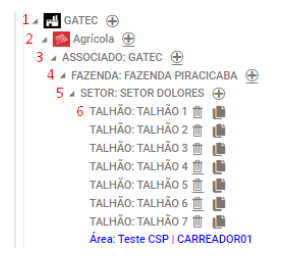
- In the Agricultural Org. Unit structure, the records of the levels prior to the last one bring the following information (considering the example of a structure with 4 divisions):
- First level of the Org. Unit Structure (DIV1):
- Code : mandatory field. Must be unique and can contain letters and numbers;
- Abbreviation : mandatory field. Must be unique and can contain letters and numbers;
- Description : mandatory field. Must be unique and can contain letters and numbers;
- Production Unit : informational field and comes filled with the description of the production unit that houses this structure;
- Type : informational field and comes filled with the Agricultural org. unit type;
- Attribute Facilitator : acts as a facilitator for including or excluding Atributos records for all org. units (last level of the structure) linked to the respective level in question. Allows the movement of Attributes and Attributes by Project;
- Area Summary: informational grid and the objective is to exemplify the Productive Area, Unproductive Area and the Total Area of the respective org. unit structure in question;
- Second level of the Org. Unit Structure (DIV2):
- Code : mandatory field. Must be unique and can contain letters and numbers;
- Abbreviation : mandatory field. Must be unique and can contain letters and numbers;
- Description : mandatory field. Must be unique and can contain letters and numbers;
- Associated Level 1 : retrieves the information from the previous level to which this level is associated;
- Type : informational field and comes filled with Agricultural org. unit type;
- Responsible : allows selection of a responsible funcionário. Acts as an additional field, and can be used in the internal process of companies for management controls and planning;
- Attribute Facilitator: acts as a facilitator for including or excluding Atributos records for all org. units (last level of the structure) linked to the respective level in question. Allows the movement of Attributes and Attributes by Project;
- Area Summary: informational grid and the objective is to exemplify the Productive Area, Unproductive Area and the Total Area of the respective org. unit structure in question;
- Third Level of the Org. Unit Structure (DIV3):
- Code : mandatory field.Must be unique and can contain letters and numbers;
- Abbreviation : mandatory field. Must be unique and can contain letters and numbers;
- Description : mandatory field. Must be unique and can contain letters and numbers;
- Associated Level 2 : retrieves the information from the previous level to which this level is associated;
- Type : informational field and comes filled with the Agricultural org. unit type;
- Attribute Facilitator: acts as a facilitator for including or excluding Atributos records for all org. units (last level of the structure) linked to the respective level in question. Allows the movement of Attributes and Attributes by Project;
- Area Summary: informational grid and the objective is to exemplify the Productive Area, Unproductive Area and the Total Area of the respective org. unit structure in question;
- First level of the Org. Unit Structure (DIV1):
- From the structure record of the level prior to the last one of the Agricultural org. unit tree, it is possible to perform the registration of the Org. Unit where agricultural movements are actually carried out in the most diverse modules and processes within the system. This last structure is commonly called Plot, but it can have other nomenclatures.
The following will specify the basic fields of this registration as well as their relevance within the system:
- Fourth level and, in this example, last level of the Org. Unit structure (DIV4):
- Importance: in summary, the last org. unit level is the starting and ending point for most of the agricultural data and processes in SimpleFarm and in the integrated modules of GAtec, providing the necessary granularity for highly detailed and efficient agronomic, operational and cost management.
- Code : mandatory field. Must be unique and can contain letters and numbers;
- Abbreviation : mandatory field. Must be unique and can contain letters and numbers;
- Description : mandatory field. Must be unique and can contain letters and numbers;
- Contract : informational field, displayed when the parameter Display Contract Code in Org. Unit Registration is active on the ADM0088 screen. Brings the code of the active and current contract with the link of the respective org. unit, when it exists, according to the records in the Pagamentos module, screen PAG0199.
- Type : informational field and filled with the Agricultural org. unit type;
- Marker field Do not link in contracts : applied as a block in the automatic allocation process of org. units at the time of contract creation through screen PAG0199. When active, when linking the respective rural property to the contract, the system does not automatically retrieve this plot, thus not automatically linking the org. unit and contract;
- Responsible : allows the selection of a responsible funcionário. Acts as an additional field, and can be used in the internal process of companies for management controls and planning;
- Branch : informs the allocation branch of the respective Org. Unit for resource allocation and movement control purposes;
- Rural Property :informs the Rural Property of which the respective plot (physical area) is part. The information is relevant for movement control, allocations, in addition to serving as a basis for generating reports and control and monitoring panels within the system;
- Marker Field Active :this marker defines whether the registration is available to perform movements within the system. Note: in the manual creation of the org. unit record, by default, this marker is disabled, so it is necessary to activate it manually to continue using the record;
- Country : defines the Country to which the physical location of the Org. Unit belongs. This field is automatically filled in when informing the Rural Property, and can be changed, if necessary;
- State : defines the State to which the physical location of the Org. Unit belongs. This field is automatically filled in when informing the Rural Property, and can be changed, if necessary;
- City : defines the City to which the physical location of the Org. Unit belongs. This field is automatically filled in when informing the ‘Rural Property’, and can be changed, if necessary;
- Slope : field used to inform the average slope of the Plot.
- Opening Year : informs the initial year of the plot opening, and can be used in the planning module and for generating controls within the system;
- Closing Year :informs the year in which the structure ceased to be used, not necessarily in the physical structure, however, it can be for a new allocation of areas within the Farm for new org. units (DIV’s).
- Cultivation Status :optional field, can be used in the Planning module and system queries and reports. It has the following information options: In Cultivation and Fallow;
- Management Type :optional field, can be used in the Planning module and system queries and reports. It has the following information options: Conventional, Organic and Transition;
- Management Start Date : optional field, can be used in the Planning module and system queries and reports. Informs a date for the beginning of the Management informed in the Management Type field;
- MAPFY Key :informational field, used when the client has the MAPFY module active. The record is generated automatically, following environment settings. The information is considered by MAPFY for retrieving information in Map layers;
- Fourth level and, in this example, last level of the Org. Unit structure (DIV4):
- Save ;
- When the parameter ADM0088 > Agrícola > Vincular contrato no momento da criação de local (Depends on the parameter Display contract code in Org. Unit) is active, after filling in the basic information in the org. unit registration and clicking save, the system will display a modal requesting that the user select the contract to which the org. unit will be linked.In addition to selecting the contract, the modal will also require filling in the following fields, necessary for creating a contract addendum, as already occurs on screen PAG0199:
- Contract;
- Addendum Date ;
- Change Type ;
- Formalization Type ;
- Reason for Change ;
- When the parameter ADM0088 > Agrícola > Vincular contrato no momento da criação de local (Depends on the parameter Display contract code in Org. Unit) is active, after filling in the basic information in the org. unit registration and clicking save, the system will display a modal requesting that the user select the contract to which the org. unit will be linked.In addition to selecting the contract, the modal will also require filling in the following fields, necessary for creating a contract addendum, as already occurs on screen PAG0199:
The Areas tab aims to record the history of the physical area of an Org. Unit throughout the different Projects. The registration performed on this screen covers the physical space comprehensively, including both farmable and non-farmable areas (such as roads), as long as they are relevant for controlling the changes that occur between Projects.This information is essential for the management of Org. Units, contributing to agricultural planning and the generation of strategic data in system panels and reports.
Furthermore, in this registration the Soil and Production Environment information is inserted, which are extremely relevant for the agricultural planning process, since this type of information directly impacts the use of products in applications, the operations performed at the Org. Unit and the harvest planning.
The Areas registration can be automatically replicated between Projects, according to the use of the Transição de Cultura (Crop Tombstone) functionality. In this case, together with the new Crop record within the Org. Unit, the area registration of the previous Project selected in the processing of the functionality in question will also be replicated.
-
To perform the Area registration, it will be necessary to Add and fill in the following fields:
- Project: mandatory field. Retrieves the Projetos available for the Production Unit of the Org. Unit registration;
- Net : mandatory field. Field for informing the effectively farmable area of the Org. Unit;
- Road : mandatory field. Field for informing the area referring to Roads and Lanes of the Org. Unit;
- Useless : mandatory field. Field for informing the area said to be non-farmable and distinct from roads, in this case, it can cover for example areas with rock incidence, preservation area, tree cemetery, among others;
- Spacing : mandatory field. Refers to the spacing of the Crop that will be used at the Org. Unit. More relevant and effective information for org. units that contain perennial and semi-perennial crops;
- % Mechanizable : mandatory field. Informs the percentage of the net area of the Plot that is considered mechanizable. Relevant information for planning operations at the org. unit;
- Mechanizable : field automatically filled with the calculation Net Area x % Mechanizable;
- When editing the project , if integration with MAPFY is active, the Longitude and Latitude fields will be filled in for each last level of the org. unit tree. If the integration is not active with MAPFY these fields can have manual data entry. This information will be retrieved in the agronomic prescription.
- Soils : grid that brings the possibility of informing the most diverse soils that can compose the physical area of an Org. Unit. It is mandatory to inform at least one Soil to compose the Area registration;
- Soil : mandatory field, retrieves the active records from the AGR0021 screen;
- Production Environment : mandatory field, retrieves the active records from the AGR0019 screen;
- Area : informs the area of the Org. Unit referring to the Soil and Production Environment informed;
- Marker Predominant : this marker must be marked on at least one of the Soils that can be informed in the Org. Unit registration. Refers to the predominant Soil/Environment within the Org. Unit;
-
Save .
The Distances register of the plot, particularly for the Agricultural Location type, is used in routines of the Pagamentos modules to perform the valuation of Services provided in these Locations, where the distance between the Origin (productive location) and the Reception or delivery Unit of the Product, affects the Unit value of payment for this Service.
The Distance information is not mandatory in the Location register, but it is essential for executing some Payments routines. Therefore, these routines validate the information at the time of their processing, for the respective locations considered in the process.
- To register distances, you will need to Add and fill in the following fields:
- Production Unit : mandatory field, retrieves information from the register on the ADM0012 screen. It has the function of informing the reference of the respective record between the respective Location (Origin) and the Production Unit (Destination);
- Distance : mandatory field, retrieves information from the register on the AGR0018 screen. Informs the distance that will be considered in the respective record;
- Selection field Main : when active, indicates that the informed distance is the most relevant, for example, the distance between Agricultural Location and the Production Unit where the production entry from this Location usually occurs. This information is important, because the Production Unit responsible for managing the Location is not always the same one that receives and processes the production. The information will be considered in the routines of the Pagamentos module;
- Selection field Payment : when active, this marker icon will be used to identify differentiated distances according to negotiations between the plant and suppliers;
The linkage of Attributes to the Location can be used to add relevant information and characteristics to the register, which can be used later, for example, in dashboard views and reports for comparing results and analyzing Location productivity results.
This register can also be used as a filter in the execution of system processes, as is the case with Crop Transition, performed through the AGR0189 screen.
This linkage is optional for Location registers, the record information comes from the AGR0022 - Grupo de Atributo screen.
- To register attributes, you will need to Add and fill in the following fields:
- Attribute Group : retrieves registers from the AGR0022 screen, for records available for “Agricultural”;
- Attribute : retrieves the Attributes registered in the respective Group previously selected;
- Save .
Just like standard Attributes, Attributes by Project are also additional and relevant information and characteristics for the Location register. The information can also be used as a filter on system screens and processes, in addition to being considered in dashboards and reports.
This record has a difference, in relation to the standard Attribute, and is directly related to the Projeto, that is, this can be a specific record for a certain period in the plot.
Commonly, Attributes by Project are used to inform the plots that need to undergo reform instead of going through the Crop stage transition, in the production scenario of Sugarcane Crop.
- To register attribute by Project, you will need to Add and fill in the following fields:
- Project : retrieves registers from the AGR0013 screen, informs the respective Project that the Attribute will reference;
- Attribute Group : retrieves registers from the AGR0022 screen, for records available for Agricultural;
- Attribute : retrieves the Attributes registered in the respective Group previously selected;
- Save .
The Plot Origins tab was developed with the objective of enabling traceability of area movement between Location structures within SimpleFarm.
With this feature, it is possible to identify that a certain portion, or even the entirety of a Location, corresponds to an area that was previously linked to another Location structure in the system.
This process allows you to view the history of movements before and after a restructuring that has defined this new area destination.
Currently, this feature is in the structuring phase in the system. For now, it is possible to record this history only manually, directly in the destination Location.
- To create an origin record for the plot, you will need to Add and fill in the following fields:
- Project : mandatory field, retrieves information from the Projeto register. Defines the Project of the area destination movement from a Source Location;
- Plot Origin : mandatory field, retrieves the entire Location tree structure, according to the selected Project, to inform the Source Location of the area being allocated;
- Area : mandatory field, the user must inform the area allocated from the Source Location;
- Save .
The Crops tab in SimpleFarm is used for the registration and detailed management of agricultural crops in specific plots, linked to specific Projects and Periods (seasons). Essentially, it works as the central point to define and track the life cycle of a crop in a specific area of the farm.
Being one of the main structures within the Locations register and, in general, within the system, this record serves as the basis for several processes and validations in SimpleFarm. An example is the creation of Work Orders, which relies on the information of the registered Crop for the Location, Project and Period in question.
This control directly impacts other important processes, such as the generation of the Crop Production Cost, which uses the data registered in the Locations, as well as the allocation of activities and operations performed for this record within the system.
This registration is mandatory to start the process of controlling agricultural movements of a Plot within the system, through Work Orders. Some information is filled in automatically according to the execution of the OS de Plantio of the respective crop. Others are completed at the end of the Colheita process, allowing the complete record of the crop cycle. This way, the system maintains the complete history of the crop, enabling traceability and efficient management of the entire production process.
- To register a crop in the location, you will need to Add and fill in the following fields:
- Project : mandatory field, retrieves Projects with available area from a record in the Areas tab;
- Season : mandatory field, retrieves Seasons according to the previously selected Project;
- Active marker: field that defines the use of the record within the system. The deactivation of this marker depends on features within the system, as is the case of Manutenção de Culturas, manual editing not being possible;
- Crop Phase : this field defines the phase of the Crop record within the system, unlike the Crop Stage field, this field is updated based on the Manutenção de Culturas movements that can be performed for the record in question, while the Crop Stage is updated based on movements of various processes within the system (Work Orders, Estimation and Weighings). This field can receive the values In use, Inactive, New Planting and New Harvest;
- Crop : mandatory field. According to the selected Cultura and its settings, some rules are defined for the requirement and filling of information in this tab;
- Area : mandatory field. This field has specific validations: the informed area cannot exceed the available area for the Location in the Project (tab Areas), also considering the areas already allocated for other Crops in the same Project and Period (Season);
- When the parameter Consider Project area as Crop area is active in the register of the respective Crop, this field will be blocked for editing. In this case, the system will automatically fill in the value with the area informed in the Areas tab of the respective Project. The validation of the total area remains active, considering other Crops already registered in the same Period (Season).
- Planting (Yes or No) : this marker defines the rule for filling in the origin and Planting information of the Crop in the location. In addition, the information is used in the system routine of Alteração automática dos Status da Cultura.
- When checking Planting Yes, it is expected that for the respective Project and Period the Planting process of the Crop within the Location will be completed. This completion happens through the Planting date fields and Variety areas described in this tab.
- When checking Planting No, the completion of Planting for the Crop in the respective Project and Period of the register is not expected. This scenario is common in registrations of Perennial and Semi-perennial crops, in which the Crop is transferred between Projects and Seasons. In this case, the Planting Dates data is retrieved based on the Project and Previous Period fields presented in this tab when Planting is No and the Planting Without History marker is unchecked.
- Planting Without History marker: this marker, together with the Planting indication (Yes or No), defines the rules and filling model of the fields related to the planting date and the Variety reports in this tab. It indicates whether the planting information has a history in the system or will be entered manually:
- When disabled: the system expects the planting data to come from a Plantio ou Replantio Work Order (WO) (if the Planting field is set to Yes), or from a previous Project and Season, as informed in the Project and Previous Period fields.
- When enabled: the planting data must be filled in manually by the user, as there is no history available in the system. This manual entry allows the planting to be recorded in the system and proceed normally to the next stages of the production process.
- Crop Stage : mandatory field when the characteristic of the informed crop is Perennial or Semi Perennial and not mandatory when the Crop is Annual. This field retrieves from the Cultura register, Crop Stage tab, the active records linked to the respective informed Crop. This information is relevant for the Transição de Cultura process and for movements in the system, as is the case of Lançamento de Estimativas. In addition, it is used in the generation of Report and Dashboard queries in the system, example: report that compiles production and productivity data by Crop Cutting Stage;
- Additional Info:
- Plants (or Seeds): calculated field (blocked for editing) based on the Planting data informed in the respective WO. The information takes into account the spacing of the Crop in the Plot and the number of Plants or Seeds per linear meter. When the Characteristic of the informed Crop is Perennial or Semi Perennial, the field name will be Plants, when the Crop is Annual, the field name will be Seeds.
- Crop Status : automatically filled field and unavailable for editing. It is a dynamic indicator of the progress and current state of the crop within a plot, guiding processes and validations in the system. The status reflects the stage in which the crop is, covering from the initial planning to the end of the cycle. The details and flow of this information are described aqui. Possible statuses include:
- Reserved for Crop.
- In Planting.
- In Growth.
- Scheduled for harvest.
- Released for harvest.
- In harvest process.
- Partially harvested.
- Closed.
- Planting:
- Expected Planting Date : manual filling field when Planting is checked as Yes. Represents a planning date for the start date of the Crop Planting in the location. This information can be used later for reports and dashboards bringing Expected vs. Actual information;
- Planting Start Date : field used by the system to consider the completion of the Planting process within the location, and used in the Alteração automática dos Status da Cultura routine. The information will be filled in manually only when Planting Yes and Planting Without History are checked in the register. In other scenarios, the information will be filled in automatically by the completion of data through the Work Order or by retrieving information from previous Seasons (Planting No). In manual filling, the data in this field may be inherited from the Crop Variety reports and, in this case, must be validated, it not being possible to have a Planting Start Date later than the Planting Start Date of a Variety;
- Planting End Date : field used by the system to consider the completion of the Planting process within the location, and used in the Alteração automática dos Status da Cultura routine. The information will be filled in manually only when Planting Yes and Planting Without History are checked in the register. In other scenarios, the information will be filled in automatically either by the completion of data through the Work Order or by retrieving information from previous Seasons (Planting No). In manual filling, the data in this field may be inherited from the Crop Variety reports and, in this case, must be validated, it not being possible to have a Planting End Date earlier than the Planting End Date of a Variety;
- Harvest:
- Last Harvest Date : informative field, used in scenarios where the Crop was transferred between Project and Season (perennial and semi-perennial crops). The field can be used to display the Harvest Date of the previous Season. The information can be used in Report and Dashboard queries;
- Expected Harvest Date : informative field, filled in through the SimpleFarm Planning module or manually by the user. The information can be used in report and dashboard queries;
- Harvest Start Date : informative field, filled in based on the movements of the harvest process within the system (WO and Weighings). The information is retrieved based on the rule defined in the field Harvest Start Date (Crop AGR0023) in the AGR0035 screen for the respective Crop in question in the register.
- Harvest End Date : informative field, filled in based on the movements of the harvest process within the system (WO and Weighings). The information is retrieved based on the rule defined in the field Harvest End Date (Crop AGR0023) in the AGR0035 screen for the respective Crop in question in the register;
- Previous Project: field enabled on the screen in the scenario of retrieving information from another Project and Season (Planting No, with history). When made available, the information becomes mandatory and will be used in the query process and return of data to be filled in on the screen;
- Previous Period : field enabled on the screen in the scenario of retrieving information from another Project and Season (Planting No, with history). When made available, the information becomes mandatory and will be used in the query process and return of data to be filled in on the screen;
- When manually creating a record, after filling in the Project and Previous Period fields, the system displays a warning to the user, allowing them to confirm the data recovery process from the previous history.
- When confirming the process, the system performs the procedure bringing the Dates and Areas data filled in, according to the record of the previous period.
- The same procedure is performed when creating the record from the Transição de Cultura process, however, in this case, it is performed implicitly to the user, bringing the Project and Previous Period fields properly filled in, as well as the records of the previous history of the Crop in the transferred location.
- Crop Varieties Grid: The Variety is a fundamental field in the Crop registration in plots, as it allows detailed control of the different varieties (or cultivars) of the same crop planted in the area. Associated with information from various modules and processes in the system, this definition contributes to more accurate planning, greater assertiveness in the execution of activities and better data traceability. Within the same location, it is possible to record several varieties of the same crop. For this, the information is organized in a grid in this register, allowing individual management of each variety. In the specific registration of each variety, it is possible to include detailed data, such as planting dates, which directly impact the harvest forecast according to the cycle of each variety. The Variety information may be filled in based on the OS de Plantio e Replantio or manually, according to the definition of Planting (Yes or No) and the Planting Without History marker.
- Variety : mandatory field, retrieves active Varieties linked to the respective Crop informed in the respective register;
- Area : mandatory field, referring to the planted area of the respective Crop-Variety within the location. In manual filling, when creating the record, the system suggests the available area for Crop in the Project and Period or the Balance of the available area, considering other Varieties that may already be registered. This field has a validation, and the sum of the areas of the Varieties cannot exceed the available area for Crop;
- Auxiliary Metric : this field is made available on the screen when the parameter WorkOrderUseAuxiliaryMetric | Use Auxiliary Metric (rows) to calculate the partial area of plots in Work Order is active on the ADM0088 screen and for the respective Crop the auxiliary metric process is enabled in its register (AGR0035). The information is considered in the calculation and recalculation process of Variety areas according to the area made available by crop;
- Spacing : complementary field to the auxiliary metric process, also enabled only when the process is active in the system. It brings the concept and the possibility of having one more Planting spacing for the same Crop within the Location;
- Planting Start Date : defines the effective start date of the planting process for the respective Variety. The Start dates by Variety will be considered for validation of the same date field, but at the Crop level. According to the planting scenario, the information may be filled in based on the WO data, according to the execution date of the first planting work log of the Crop-Variety in the Location;
- Planting End Date : defines the effective end date of the planting process for the respective Variety, the information will be considered for filling in the field Expected Harvest Date. The End Dates by Variety will be considered for validation of the same date field, but at the Crop level. According to the planting scenario, the information may be filled in based on the WO data, according to the execution date of the last planting work log of the Crop-Variety in the Location;
- Expected Harvest Date : field automatically filled in considering the Planting End Date of the Variety and the Maturation Cycle in days of the same Variety defined in its register (AGR0039). This information is only valid for Crops with the Annual characteristic. Thus, the system adds to the Planting End Date the days of the maturation cycle, arriving at an Expected date for Harvest. This information is informative within the system, not being considered in any process or validations of the movements performed for the location;
- Estimated Harvest Date : informative field, filled in based on the entry of this date made at the time of the Estimation Entry made for the Location-Crop-Variety. This information is only made available if the parameter Includes Harvest Scheduling is active in the register of the respective Cultura;
- Laboratory marker: informative field, made available on the screen when in the register of the respective Crop the parameter Allow source origin is active. Manually informs whether the respective Variety had a Laboratory origin;
- Origin : informative field, made available on the screen when in the register of the respective Cultura the parameter Allow source origin is active. Manually informs the type of Origin of this variety (Field, Commercial or Laboratories);
- Planting Seed Category : mandatory field when enabled. The field is made available only when the parameter Uses seed category is active for the Cultura and Unidade Produtora of the Location. The information can be filled in based on the Planting/Replanting WO or manually on this screen, according to the scenario defined in the register. The information is considered later in the process of Harvest WOs and in Scale Weighings, allowing specific control for customers with crop productions that aim for the commercialization of products such as Seed. This process requires rigorous traceability of movements and Categories by location and crop;
- Harvest Seed Category : informative field and enabled only when the parameter Uses seed category is active for the Cultura and Unidade Produtora of the Location. The information is filled in based on the Harvest WO of the respective register;
- Save .
In this tab, when there is integration with the MAPFY system and the necessary settings are properly applied, the system retrieves and displays the map of the respective location, according to the current map layer configured between the systems.
- DisplayContractCodeInLayer | Display contract code in Location: When active, in the Basic Information tab of agricultural locations the Contract field is displayed, from which the system will retrieve the information of the link of the respective Location to a Contrato (PAG0199). In this case, when there is a link, the code of the respective Contract to which this plot is linked will be displayed.
A facility of type Other is an area of land that is not used for agriculture-related activities. Instead, these facilities can be used for a variety of other purposes, such as roads, lake, tree cemetery, APP’s, among others, according to the characteristics of the rural property. Therefore, these facilities do not have a period or a linked crop, for example.
Below is an example of a facilities tree with the other type registered, presented on screen AGR0023, in the scenario where the facilities structure was defined for two levels:
1 - Production Unit
2 - Agricultural Facility Type
3 - Other Facility Type
4 - First level of Other Facilities Structure (DIV1)
5 - Second level of Other Facilities Structure (DIV2)
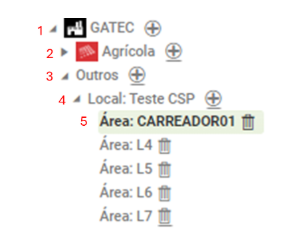
The registration of this type of facility has information that needs to be entered previously in the system on the screens:
The registration has three tabs and the detailed information for each of them is described here: Informações Básicas , Áreas and Atributos.
- To register the first level of the other type facility, the screen has the following fields:
- Code : mandatory field. Must be unique and can have letters and numbers;
- Abbreviation : mandatory field. Must be unique and can have letters and numbers;
- Description : mandatory field. Must be unique and can have letters and numbers;
- Production Unit : informational field and comes filled with the description of the production unit that houses this structure;
- Type :informational field and comes filled with the facility type “Other”;
- Save ;
- To register the second level , the following fields must be filled:
- Code : mandatory field. Must be unique and can have letters and numbers;
- Abbreviation : mandatory field. Must be unique and can have letters and numbers;
- Description : mandatory field. Must be unique and can have letters and numbers;
- Facility :informational field and comes filled with the description of the previous level;
- Type :informational field and comes filled with the facility type “Other”;
- Branch : mandatory field. Retrieves values from the branch registration, which is done on screen ADM0010 - Empresa, so the user can select which branch this facility belongs to;
- Active : represents a marker icon to indicate if this facility is active and thus available to be used throughout the system;
- Country : mandatory field. Retrieves values from the country registration, which is done on screen ADM0002 - País, so the user can select which branch this facility belongs to;
- State : mandatory field. Retrieves values from the state registration, which is done on screen ADM0003 - Estado, so the user can select which branch this facility belongs to;
- City : mandatory field. Retrieves values from the city registration, which is done on screen ADM0004 - Cidade, so the user can select which branch this facility belongs to;
- In addition to the fields described previously, the last level has a particular parameterization if there is a need to link this facility with the agricultural facility tree and allow it to be entered in an agricultural type work order. This parameterization has the following fields:
- Unproductive Facility : represents a selection field to indicate that this facility is unproductive. This selection field is used when there is a need to indicate that even though it is not an agricultural facility, it can be entered in work orders. Therefore, once active, the Rural Property field and the Allow link in agricultural WO selection field become available. Along with these two enabled fields, filling out the Areas tab will also become mandatory (unproductive facility area).
- Rural Property : this field becomes available when the unproductive facility marker is active and is mandatory. This field retrieves values from the registration on screen AGR0017 - Propriedade Rural;
- Allow Link in Agricultural WO : represents a selection field that indicates it will be allowed to enter these facilities in agricultural work orders. When active, it enables the Link with agricultural facility field;
- Link with Agricultural Facility : this is mandatory and retrieves values from the penultimate level of the agricultural facilities tree and when linked, a shortcut to this facility is created in the agricultural facilities tree.
- When the Link with Agricultural Facility field is filled, the unproductive facility (Other Facilities) will be related and linked to a node in the Agricultural Facilities tree. The Link with Agricultural Facility field should retrieve the Agricultural Facilities tree so that the tree Levels that have at least 1 Plot with the same Rural Property entered in the Unproductive Facility registration are presented;
- Save ;
- When this parameterization is performed, it will be possible to enter these facilities in agricultural WOs of type Pre-Planting Preparation and Cultural Treatments through the “Facilities” tab. It will not be allowed through the opening screen and it will always be necessary to have an agricultural facility also linked, so it is not possible to open a WO of these types with only unproductive facilities.
This tab aims to link an amount of area in a given project indicating the amount in hectares that that area represents in the property.
- This tab has a grid and two buttons:
- Grid:
- Project: indicates the project that has this area.
- Area : indicates the amount of area this facility has in this project;
- Buttons:
- Export : this button aims to export this grid to an Excel file;
- Add : when clicking this button, the system displays a modal to link the project and the period. The project field retrieves values registered on screen AGR0013 - Projeto;
- Grid:
- Save .
This tab aims to link this facility to some specific attribute.
- This tab has a grid and two buttons:
- Grid:
- Attribute Group: after added, the description of the attribute group is in this column;
- Attribute: after added, the description of the attribute is in this column;
- Buttons:
- Export : this button aims to export this grid to an Excel file;
- Add : when clicking this button, the system displays a modal to link the attribute group and the attribute, information retrieved on screen AGR0022 - Grupo de Atributo;
- Grid:
- Save .
 English
 Español

