 English
 Español

AGR0191 - Crop Maintenance
In some situations, significant crop loss occurs due to factors such as plant mortality, emergence failure, excessive rainfall, or pest attacks. In these circumstances, it is necessary to replace the crop.
Crop maintenance is a resource that enables plant replacement through replanting.
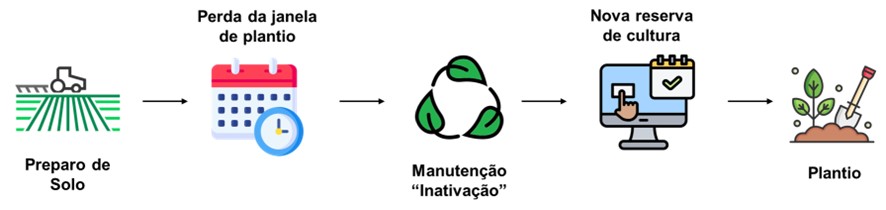
Additionally, when there is plant loss in advanced crop stages and the planting window for that crop has already passed, for example, maintenance allows reallocating this area for planting another crop or deactivating it.
Important
Crop maintenance does not require parameterization. However, it is essential to observe the status of each crop, as each has specific rules.
After executing crop maintenance of the New Planting type, it is necessary to perform a service order of the Replanting type to plant in this area again.
What can you do?
- Access the menu Agricultural > Location Structure > Crop Maintenance (AGR0191);
- Click on Add ;
- To register on the crop maintenance screen, the system will redirect to a registration screen to fill in the following fields:
- Code: automatic and mandatory fill field;
- Reference Date: field to insert the date when the maintenance was performed, can be retroactive and is mandatory;
- Production Unit: insert the production unit of the location that will receive maintenance, it is a mandatory field that retrieves the units registered on the Unidade Produtora (ADM0012) screen;
- Project: insert the project in which the crop that will receive maintenance is planted, it is a mandatory field and presents as options the projects registered on the Projeto (AGR0013) screen;
- Period: insert the period in which the crop that will receive maintenance is planted, it is a mandatory field and presents as options the periods registered on the Safra (AGR0014) screen that are linked to the project selected in the previous field;
- Employee: insert the employee responsible for creating the maintenance, its filling is mandatory and the field presents as options the employees registered on the Funcionário (ADM0025) screen;
- Reason: insert the reason why the maintenance will be performed, this field is optional and presents as options the registration of reasons on the Cadastro de Motivos AGR0168 screen;
- Note: free and optional field for the user to insert any type of note;
- Next Phase: it is a mandatory field where the user will define the type of maintenance and presents the two options for the user, described below:
- Inactive: when this type is chosen, the location assignment will be deactivated. This behavior is more detailed aqui;
- New Planting: when this type is chosen, the screen will release two more sections. This behavior is more detailed aqui;
- New Assignment:this behavior is more detailed aqui;
- Execution type: mandatory section and it is possible to select only one option, total or partial.
- Total: when this option is chosen it means that 100% of the area will receive a new planting and needs to indicate, still on this screen, whether this new planting will be for the same crop or for a different crop, so the system releases one more section.
- New planting: mandatory section and intended to inform which crop will be replanted.
- Crop: fill with the crop that will be replanted, this field is mandatory and presents the crops registered on the Cultura (AGR0035) screen;
- Crop stage: this field is only available when the crop selected in the previous field, Crop , is of perennial or semi-perennial characteristic, when the characteristic is annual this field is unavailable, according to registration on the Cultura (AGR0035) screen;
- Total: when this option is chosen it means that 100% of the area will receive a new planting and needs to indicate, still on this screen, whether this new planting will be for the same crop or for a different crop, so the system releases one more section.
- Partial: when the new planting is partial, it means that only a portion of the area will receive a new planting, the definition of the area quantity will happen at a second moment, when selecting the location where maintenance will occur, after saving this first registration.
- Execution type: mandatory section and it is possible to select only one option, total or partial.
- After inserting all the necessary information for the registration, it is necessary to click the Save button.
- Once done, the information from this initial screen will be available in the Basic information tab and the system will provide one more tab with the title Locations.
- After saving the screen for the first time, all information regarding the crop maintenance registration can be found in this tab.
- At this moment only the fields Reference date , Reason, Note and Employee will be available for editing, the rest will be blocked.
- Click on Save ;
This tab aims to insert the locations that will undergo crop maintenance execution and has the information described below:
- Status legend: when clicking the Validate button, a modal will be displayed with the crop maintenance statuses:
- Not validated: the area gets this status right after being added to maintenance and indicates it has not been validated yet;
- Maintenance performed: represents that maintenance has already been performed, validations have already occurred;
- Pending execution: the area gets this status after validations have already been performed, no impediment was found for execution and it is pending to actually perform the maintenance;
- Pending work order validation: the area gets this status after validation has been performed and there are open work orders with or without entries, it is necessary to close them or delete them to proceed with the process;
- Pending estimate entry validation: the area gets this status after validation has been performed and there are estimate entries, it is necessary to delete them to perform the maintenance it was not possible to reproduce this scenario, so the rule for this validation is not described for now;
- Invalid area: represents that the area is not valid to perform the maintenance;
- View documents associated with this record;
- Share : this button has the function of sharing the crop maintenance with a user, publishing it on the data panel of the user’s home screen. To do this, it is necessary to fill in the following fields in the modal displayed by the system when clicking this button. After the fields are filled in, the user will receive a notification with the maintenance link.
- Destination : mandatory field that retrieves the records from the Usuário (ADM0052) screen. It must be filled in with the user who will receive the sharing;
- Priority : mandatory field that indicates the priority of the sharing;
- Title : mandatory field with the title that will be shared;
- Also send by email : it is a marker whose functionality is optional. When active, it will send an email with the sharing to the user;
- Sharing : automatically filled field, it brings the maintenance code to be located later;
- Text : optional field to insert any text, image, observations that the user who is sharing wants to insert.
- Record information : button that displays a modal with the date and user of creation and the last change of the record aiming to maintain traceability of the maintenance.
- Favorite : this button aims to favorite the screen, when the screen is favorited a shortcut is created for it on the home menu screen.
- Area summary :
- DIVI1: when inserting the locations, it will bring the sum of the area of divi 1;
- DIVI2: when inserting the locations, it will bring the sum of the area of divi 2;
- DIVI3: when inserting the locations, it will bring the sum of the area of divi 3;
- DIVI4: when inserting the locations, it will bring the sum of the area of divi 4;
- Crop area: when inserting the locations, it will bring the sum of the crop area that will undergo the maintenance;
- Production unit: will bring the description of the production unit inserted in the maintenance registration;
- Project: will bring the description of the project inserted in the maintenance registration;
- Period: will bring the description of the period inserted in the maintenance registration;
- Export : button intended to generate an excel file with the locations that were inserted in the grid and their respective data.
- Remove locations : when clicking this button the location will be removed from the grid;
- Add Locations : when clicking this button a modal is opened with filters for selecting locations:
- Crop: mandatory field, it is a pre-filter to select the locations, it must be filled in with the crop that will undergo the maintenance;
- Variety: optional field and also a pre-filter to select the locations, it must be filled in with the variety that will undergo the maintenance;
- Location: corresponds to the location levels that will go through the maintenance process;
- Attribute : optional field and also a pre-filter to select the locations;
- Close : this button will close the location selection modal;
- Filter : after searching the locations, when clicking this button the system will bring the locations with their respective areas and varieties;
- Add :becomes available to click after the location has been filtered and displayed in the modal grid ;
- Validate : when clicking this button, the system will perform a series of validations on the areas inserted in the grid. After validation is done, the status is changed;
- Execute : this button executes the maintenance, inactivating the desired allocation and creating another, depending on the type of execution that are described in their respective tabs: inativação or novo plantio .
Location Grid:
- Basic data:
- DIVI 1: will bring the description of divi 1, registered on the location screen, AGR0023;
- DIVI 2: will bring the description of divi 2, registered on the location screen, AGR0023
- DIVI 3: will bring the description of divi 3, registered on the location screen,AGR0023
- DIVI 4 code: will bring the code of divi 4, registered on the location screen, AGR0023
- DIVI 4 description: will bring the description of divi 4, registered on the location screen, AGR0023
- Crop area: will bring the planted area of that crop, according to the variety grid on the AGR0023 screen Crop tab.
- Current data:
- Crop: will bring the description of the crop that is planted in this location;
- Crop stage: will bring the crop stage code when the crop was registered with perennial or semi-perennial characteristic, on the AGR0035 - Cultura screen, Crop Stage tab.
- Updated data: the behavior of this area varies according to the type of maintenance execution, therefore when the type is total;
- Status: represents the maintenance status;
- Project: column filled with the project in which the location undergoes maintenance;
- Maintained area: when the maintenance is partial it represents the amount of area that will be maintained with the previous crop, when the maintenance is total, it represents the amount of area that the new allocation has;
- Available area:
- Keep current crop: will be filled with the check icon when the crop is maintained;
- Period: will be filled with the period in which the maintenance is occurring;
- Crop: will be filled with the crop that will be planted, it can be the same or a different one;
- Crop stage: when the new crop is perennial, it will be filled with the stage of that crop;
- The location grid also has 3 buttons that become available after adding the locations.
- Status: represents the maintenance status;
- Basic data:
- Edit crop area : this button is only active when the type of maintenance execution is partial and displays a crop editing modal. In this modal, the area by variety that will be maintained will be informed and if in the released area the crop will be the same or a different one and in case it is different, inform the crop and the stage, if any.
- Pending validation : this button is only available when the type of execution is partial. The objective is to display the work orders with Open status, with or without entries. Estimates are not validated in the inactivation process.
- Work order without entries: this section brings the WO code, the opening date, the crop, the completeness and the type of WO that is open;
- Work order with entries: this section brings the WO code, the work log code, the opening date, the crop, the completeness and the type of WO that is open;
- Estimate: this section brings the production unit, the project, the period, the crop, the variety and the area entered in the estimate;
- Delete Record : this button deletes the location from the grid;
When the type of crop maintenance execution is inactivation, the screen performs validations according to the crop status, according to the AGR0023 - Local screen, and if it has an open work order, according to the AGR0090 - Painel Gráfico de Ordem de Serviço.
Crop maintenance, depending on the status, performs specific validations and adopts distinct behaviors.When executing this type of crop maintenance, the Local (AGR0023) screen undergoes changes. The allocation is inactivated, therefore the crop tab had an allocation of a certain amount of areas, in a project/period for a crop becomes inactive, making it possible to perform another allocation for this project/period/crop.
For more details about the mechanism of crop status changes, consult aqui .
Following is the description of these validations and behaviors of each crop status:
- Reserved for crop status:this status indicates that the location has not started planting. It may be in the process of soil preparation.
When the crop status is equal to Reserved for crop, when clicking on Add location, the system filters and adds the location.
When clicking on Validate the system performs the validation of open work orders for that location.
- If there is any open WO the system displays the status Pending work order validation with or without entries.
- If there is no open WO the status is changed to Pending execution.
- Planting status: this status indicates that the location has an open planting WO or has not had its planting finalized.
When the crop status is equal to Planting, when clicking on Add location, the system filters and adds the location.
When clicking on Validate the system performs the work order validation.
- If the planting WO is open the system displays the status Pending work order validation with or without entries.
- If the planting WO is closed (without active planting finalized marker), when clicking on Validate the status is changed to Invalid area. Therefore, it is not possible to perform inactivation maintenance when the plot is in this status.
- Crop growing status: this status indicates that planting has been finalized.
When the crop status is equal to Crop growing, when clicking on Add location, the system filters and adds the location.
When clicking on Validate the system performs the work order validation.
- If there is any open WO the status is changed to Pending work order validation with or without entries.
- If there is no open WO the status is changed to Pending execution.
- Expected for harvest status: this status indicates that the location has an estimate entered.
When the crop status is equal to Expected for harvest, when clicking on Add location, the system filters and adds the location.
When clicking on Validate the system performs the validation of open work orders for that location.
- If there is any open WO the system displays the status Pending work order validation with or without entries.
- If there is no open WO, the status is changed to Pending execution. If the location has less than 100% of the area with estimate entry, when clicking on Validate the status is changed to Pending execution.
- Released for harvest status: this status indicates that the location has an open harvest WO.
When the crop status is equal to Released for harvest, when clicking on Add location, the system filters and adds the location.
When clicking on Validate the system performs the validation of open work orders for that location, if there is any open WO the system displays the status Pending work order validation with or without entries.
- If the WO has work log and is closed, the crop status is changed to Partial harvest, behavior explained in item 7, or Closed, behavior explained in item 8.
- If the WO is deleted, the status is changed to Expected for harvest, behavior explained in item 4. Therefore, it is not possible to perform inactivation maintenance when the plot is in this status.
- Harvest in progress status:this status indicates that the location has an open work order and linked weighing.
When the crop status is equal to “Harvest in progress”, when clicking on Add location, the system filters and adds the location and when clicking on Validate the system performs the validation for that location and the status is changed to Pending work order validation.
- If the weighing is deleted, the status is changed to Released for harvest.
- If the work order is closed the status is changed to Closed or Partial harvest.
- If the work order is deleted, the status is changed to Expected for harvest. Therefore, it is not possible to perform inactivation maintenance when the plot is in this status.
- Partial harvest status: this status indicates that a portion of the crop has already been harvested. When the crop status is equal to Harvest, when clicking on Add location, the system filters and adds the location. When clicking on Validate the system performs the validation for that location and the status is changed to Pending execution.
- Closed status: this status indicates that the crop was 100% harvested in this location. When the crop status is equal to Harvest, when clicking on Add location, the system filters and adds the location and when clicking on Validate the system performs the validation for that location and the status is changed to Pending execution.
When the type of crop maintenance execution is new planting, the screen performs validations according to the crop status, according to the Local (AGR0023) screen , and if it has an open work order, according to the Painel Gráfico de Ordem de Serviço (AGR0090).
Depending on this status, the culture maintenance performs a different validation and has a certain behavior. When executing this type of culture maintenance, the Local (AGR0023) screen will undergo some changes according to what was configured at the time of creating the culture maintenance, which can be total or partial.
When the maintenance is total:
- For the same culture, the old assignment will be inactivated and a new one will be created. The new assignment will be identical to the previous one, with the same area, project, period and culture.
- For a different culture, the old assignment will be inactivated and a new one will be created. In this case, the new assignment is very similar to the previous one, with the same area, project, period and only the culture different.
When the maintenance is partial:
-
For a different culture, the old assignment will be inactivated and two new assignments will be created.
- The first assignment will have the amount of area that was maintained, for the same culture, project and period;
- The second assignment will have the amount of area that became available, that is, the area that will undergo maintenance, for a different culture, in the same project and period.
-
For the same culture, the old assignment will be inactivated and a new assignment will be created.
- The new assignment will be identical to the previous one, with the same area, project, period and culture, however, it will have an area balance to perform replanting in the rest of the area that was made available again.
- Reserved for culture Status: when the culture status is equal to Reserved for culture, two behaviors can occur. If there is no open work order for the location, when clicking Add location, the system does not filter the location and it is not possible to add it. If there is an open work order, with or without work log, or closed for the location, when clicking Add location, the system filters, however, it does not add the location to the grid. Therefore, it is not possible to perform the location validation nor execute the maintenance.
- In Planting Status: when the culture status is equal to In Planting, when clicking Add location, the system filters and adds the location. when the culture status is equal to In Planting, when clicking Add location, the system filters and adds the location. When clicking Validate the system performs the work order validation. Regardless of whether the planting work order is open or closed, when clicking Validate the status is changed to Invalid area. Therefore, it is not possible to perform inactivation maintenance when the plot is in this status.
- Culture in Growth Status:
when the culture status is equal to Culture in Growth, when clicking Add location, the system filters and adds the location.
When clicking Validate the system performs the work order validation:
- If there is any open work order, the system displays the status Pending work order validation with or without work logs.
- If there is no open work order, then the status is changed to Pending execution. Note: If the location does not have 100% of its area planted, when clicking Validate the status is changed to Invalid area.
- Expected for Harvest Status:
when the culture status is equal to Expected for Harvest, when clicking Add location, the system filters and adds it.
When clicking Validate the system performs the validation of open work orders for that location:
- If there is any open work order, the system displays the status Pending work order validation with or without work logs.
- If there is no open work order, then the status is changed to Pending execution. If the location did not have 100% of its area planted, when clicking Validate the status is changed to Invalid area.
- Released for Harvest Status:
when the culture status is equal to Released for Harvest when clicking Add location, the system filters and adds.
When clicking Validate the system performs the validation of open work orders for that location, if there is any open work order the system displays the status as Pending work order validation with or without work logs.
- If the work order has work log and is closed, the status is changed to Partial Harvest, behavior explained in item 7, or Closed, behavior explained in item 8.
- If the work order is deleted, the status is changed to Expected for harvest behavior explained in item 4. Therefore, it is not possible to perform inactivation maintenance when the plot is in this status.
- In Harvest Process Status:
this status indicates that the location has an open harvest work order and linked weighing.
When the culture status is equal to In Harvest Process, when clicking Add location, the system filters and adds the location.
When clicking Validate the system performs the validation for that location and the status is changed to Pending work order validation.
- If the weighing is deleted, the status is changed to Released for harvest, behavior explained in item 5.
- If the work order is closed, the status is changed to Closed, behavior explained in item 8, or Partial Harvest, behavior explained in item 7.
- If the work order is deleted, the status is changed to Expected for harvest. Therefore, it is not possible to perform inactivation maintenance when the plot is in this status.
- Partial Harvest Status: when the culture status is equal to Partial Harvest, when clicking Add location, the system filters and adds the location. When clicking Validate the system performs the validation for that location and the status is changed to Pending execution.
- Closed Status: when the culture status is equal to Harvest, when clicking Add location, the system filters and adds the location. When clicking Validate the system performs the validation for that location and the status is changed to Pending execution.
When the type of culture maintenance execution is the new assignment is selected, after saving the screen, the Locations tab will be made available, allowing the search for the locations that will undergo maintenance. In this tab, when clicking Add, the system will display a modal to filter the locations that will undergo maintenance. This modal should filter only the locations that have the culture status Reserved for culture, as only these will be made available for addition.
Once selected, the following validations must be followed:
- It will not be possible to perform maintenance for locations that are in any status other than reserved for culture. Therefore, when filtering the location, the system does not display locations with other statuses.
- If there is any open work order for this location, when clicking Execute, the system changes the maintenance status to Pending work order validation.
- If there is no open work order for this location, when clicking Execute, the system should change the maintenance status to Pending execution.
- It will be possible to perform partial or total maintenance. When the maintenance is total, it means that 100% of the area will receive a new assignment and it is necessary to indicate, still on this screen, to which different culture the new assignment will be.

 English
 Español

